If you are facing Edge keeps putting shortcuts on the desktop issue, you are not alone. Many Windows users have reported this issue. It becomes frustrating, especially for those users who want a clean desktop.
In this article, we explain 4 fixes that you can try to resolve Edge keeps putting shortcuts on the desktop issue.
Modify Edge’s Registry entry
Here are the steps to modify Edge’s Registry entry:
Step 1: Open Registry Editor from the search bar and then paste the following path in the address bar —HKEY_LOCAL_MACHINE\SOFTWARE\Policies\Microsoft and press Enter.

Step 2: Right-click on the Microsoft folder and then click on New > Key.

Step 3: A new folder will be created at the bottom. Rename this folder as EdgeUpdate.

Step 4: Now right-click on the empty space on the right and then go to New > DWORD (32-bit) value.

Step 5: Name this new file as CreateDesktopShortcutDefault.

Step 6: Now, create another file using the same method and name it as RemoveDesktopShortcutDefault.

Step 7: Double-click on the file and set the value as 1 and press OK.

After that restart, your computer and the Edge keeps putting shortcuts on the desktop will be fixed.
Also read: Chrome vs Edge vs Firefox: Which browser should you pick?
Tweak Edge settings
You can try to change Edge settings to stop Edge from creating shortcuts. Here are the steps to do the same:
Step 1: Launch Edge and then click on the three dots at the top right corner of the screen and then select Settings from the drop-down menu.

Step 2: Select Appearance and then toggle off the switch that says Show favourite bar.

Clear cache and cookies
Sometimes, clearing cache and cookies can help to fix the Edge keeps putting shortcuts on the desktop issue. Here are the steps to clear cache and cookies on Edge:
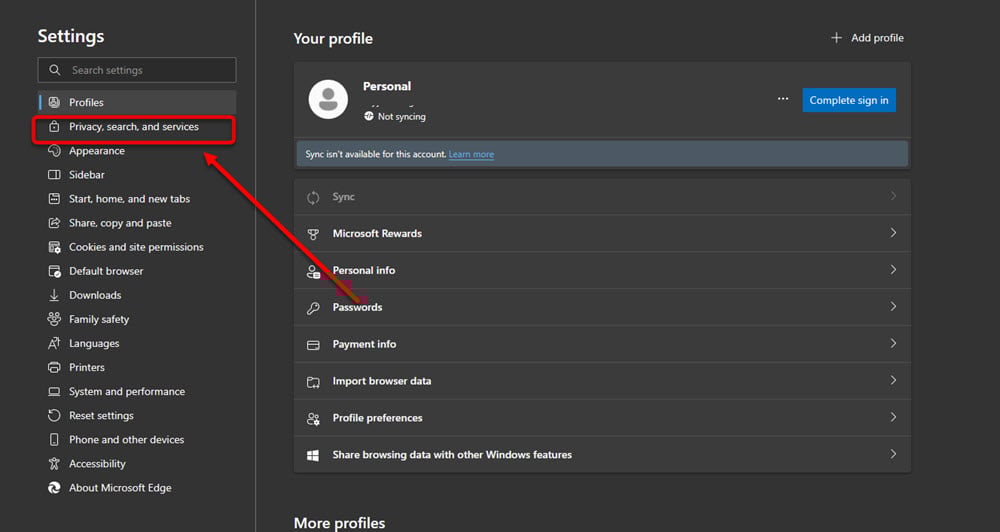
Step 1: In the Settings option, go to Privacy, search and services.
Step 2: Next, click on Choose what to clear.
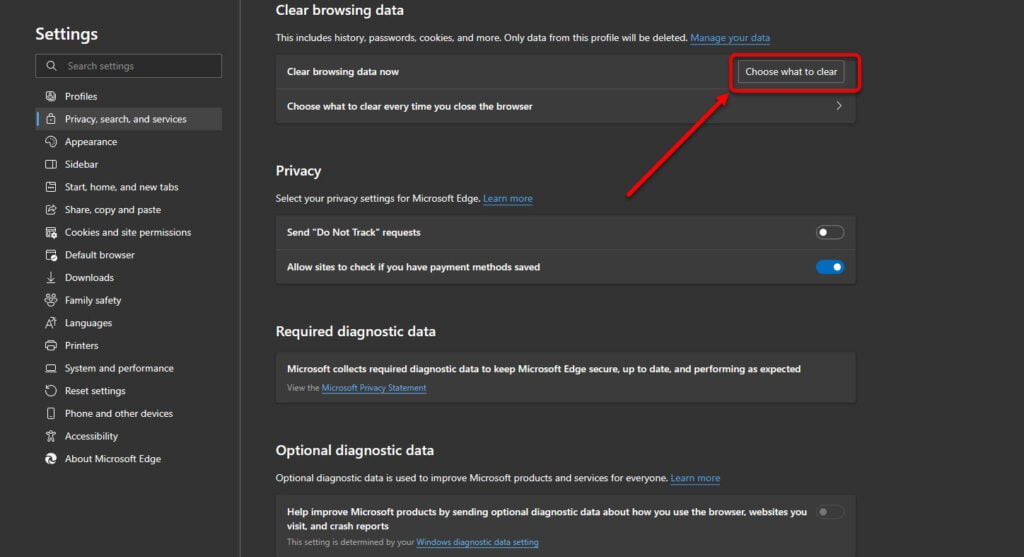
Step 3: Tick all the options and then click on Clear Now.

Use Group Policy Editor to disable Edge from the startup
You can use the Group Policy Editor to disable Edge from putting shortcuts on the desktop. However, this method may not be effective for all users as it requires Group Policy Editor which isn’t available on all Windows editions.
Here are the steps to use Group Policy Editor:
Step 1: Type Edit Group Editor in the search box and then open the application.

Step 2: Next, expand the Administrative templates folder.

Step 3: Expand the Windows component sub-folder.

Step 4: Go to the Microsoft Edge folder and then select the option labelled ‘Allow Microsoft Edge to pre-launch at Windows startup‘ and click on policy settings at the top.

Step 5: In the policy settings, select Disable and finally close the process by clicking on OK.

Also read: How to configure sleeping tabs on Edge?