Encountering an HTTP/1.1 internal server error with the code 43531 can be frustrating, especially when you are trying to access or manage a website or application. However, understanding what this error means and how to resolve it can help you get back on track swiftly.
This article discusses what causes HTTP/1.1 internal server error 43531 and four ways to help you fix the issue.
Below we have discussed:
Also read: Fix: Something happened and your PIN is not available
What is this error?
This error originates from Citrix NetScaler Gateway, a virtual appliance for secure remote access. It indicates an internal issue on the server side that is hindering your connection to the resources. The specific code 43531 often indicates a session policy incompatibility, particularly after a NetScaler Gateway upgrade.
What causes this error?
Here are the main reasons behind this error:
- Session policy misconfiguration.
- Connectivity issues.
- Name resolution problems.
- Incompatible protocols or certificates.
How to fix the issue?
Here are a few methods that might help you fix the issue:
Change or edit the policy
Upgrading NetScaler Gateway to version 13.0 might cause compatibility issues with session profile settings. The culprit is a check for the ‘Referer’ header within the session profile. There are two approaches. You can either switch to advanced expressions in your session policy (refer to Citrix documentation for details on creating these expressions) or modify the classic policy expressions:
- For browser access: Use
REQ.HTTP.HEADER User-Agent NOTCONTAINS Citrix-Receiver - For workspace access: Use
REQ.HTTP.HEADER User-Agent CONTAINS Citrix-Receiver
Check firewall permissions
A firewall might be blocking the communication between Citrix Gateway and StoreFront. Review your firewall rules and ensure they allow traffic flow between these components. Here are the steps to do that:
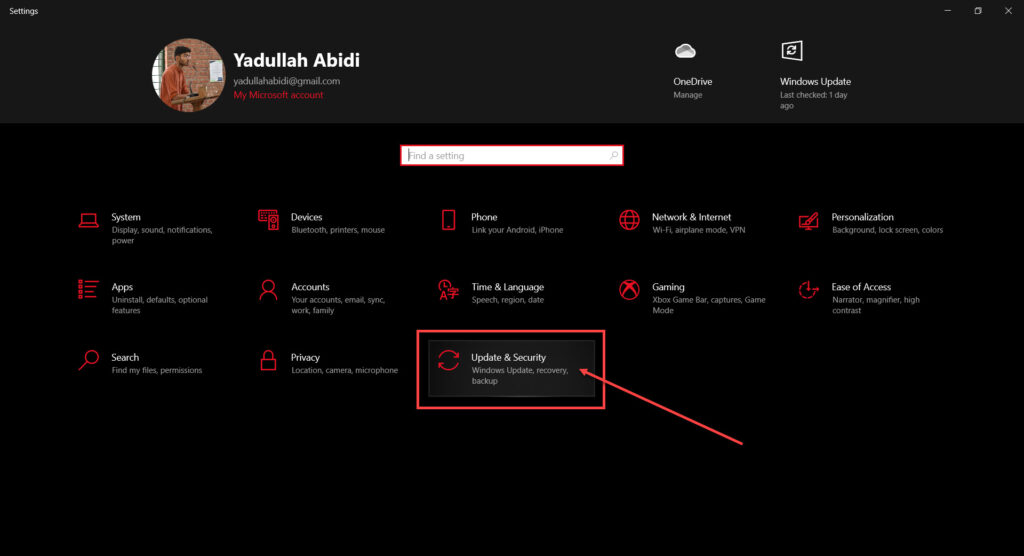
Step 1: Press the Windows + I key to open Windows settings and click the Update & Security option.
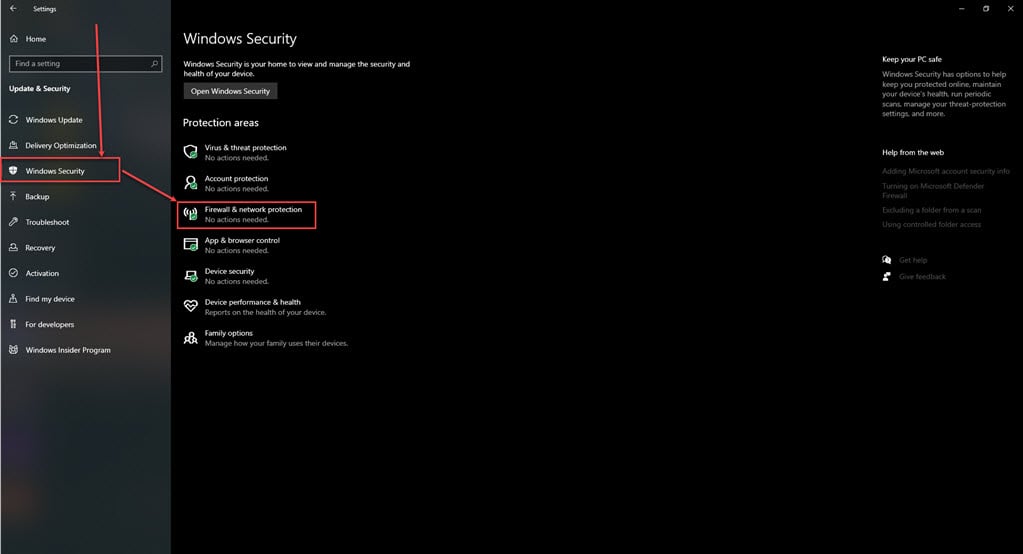
Step 2: Click on Windows Security in the sidebar and then click on Firewall & network protection on the right side.
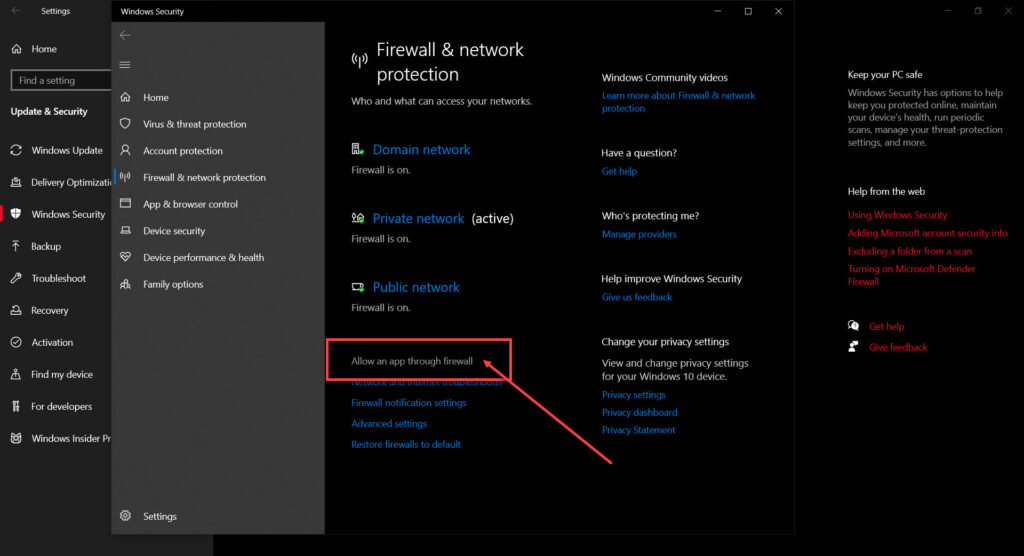
Step 3: A new window will open; click on the Allow an app through Firewall option at the bottom.
Step 4: In the allowed app’s window, click on the Change Settings button, this will allow you to edit the settings.
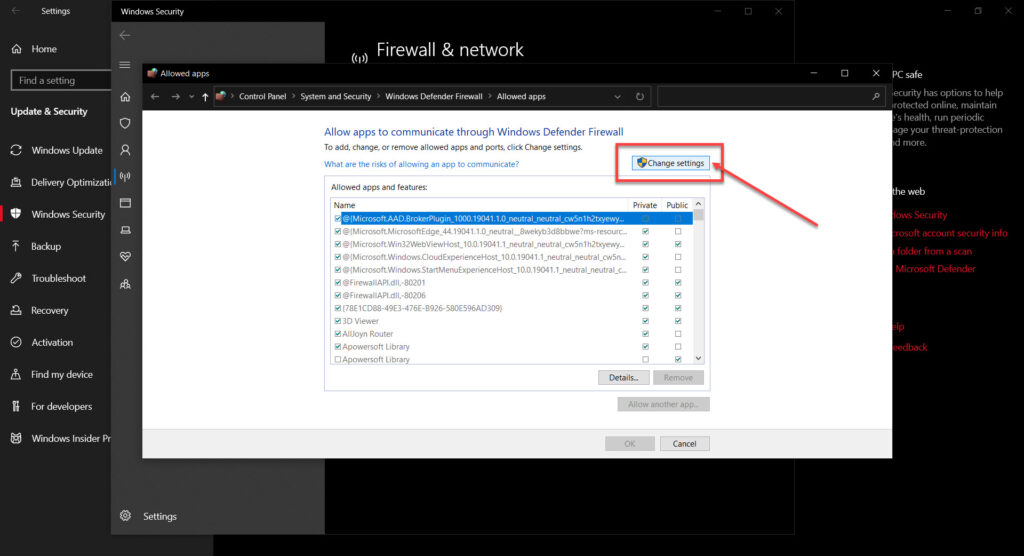
Step 5: Scroll down and find both the services and checkmark boxes for both private and public beside the Sea of Thieves, then click the OK button.
Run diagnostics from the Citric gateway
The connection will fail if the server names used in the session policy are not resolving correctly. Use the Diagnostics section within your Citrix Gateway to ping the server names and verify their reachability.
Check protocols and certificates
Mismatched protocols (e.g., using SSL without a certificate) or certificate hostname mismatches can cause connection failures. Double-check your configuration to ensure compatible protocols and valid certificates with matching hostnames.
Also read: Fix: Error code: wsl/service/createinstance/createvm/e_invalidarg