
If you use the copy-and-paste feature on your iPhone, you might wonder where the copied text or images are stored and how you can access them later.
A clipboard is a feature that remembers the recent texts, images, links, or files that you copied or cut. When you paste this content elsewhere, the same content is then transferred to your preferred location. One important point to remember is that a clipboard only stores one item at a time. For example, if you have already copied a paragraph, you can paste it or copy another item. You cannot copy multiple items simultaneously.
Another important point to note is that in almost all operating systems, you won’t get a dedicated app to see the clipboard.
However, there are a few ways to bypass these restrictions on your iPhone. In this article, we’ll explain how to view clipboard history on your iPhone with ease. Here are the three topics that we’ll cover:
Also read: How to check the clipboard history on Mac?
Use the Notes app
The Notes app is an in-built app on iOS and is developed by Apple. The app is a minimalist and effective way to see the clipboard history on your iPhone.
First, copy the content that you want to paste and then open the Notes app. After that follow the steps given below:

- Tap on the pencil icon located at the bottom right of the screen.
- Now, long-press the screen to see the list of options. Select Paste.
You will see that the content is now copied on the Notes app and you can easily make the edits here.
Also read: How to dial an extension on your iPhone?
View clipboard history on iPhone by using the Shortcuts app
Shortcuts app provides pre-built configurations for your favourite apps like Contacts, Calendar, Maps, and Health, among others.
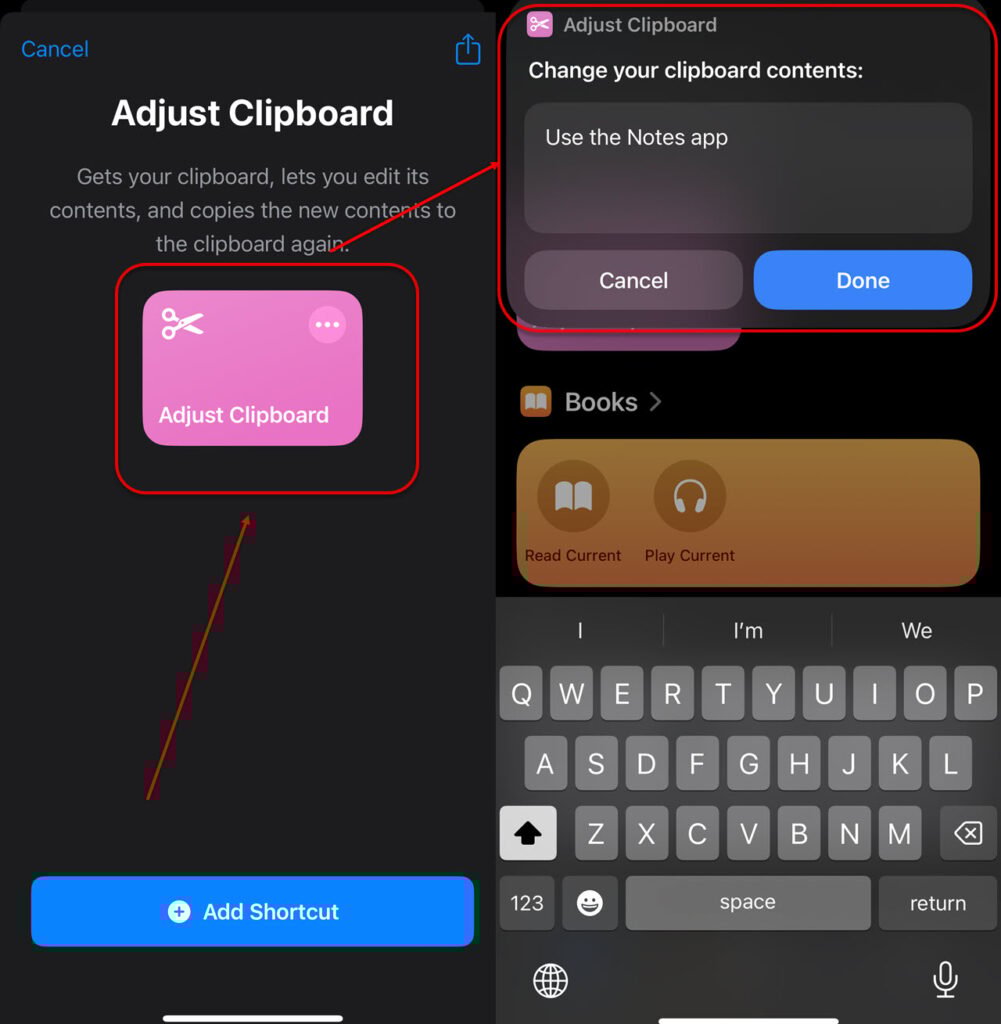
You can also use this app to view the clipboard history on your iPhone. Here’s how:

- Open Shortcuts and tap on the Gallery icon at the bottom right of the screen.
- Now, type Adjust clipboard in the search space at the top and then tap on the plus icon to add this shortcut.
- Tap on Adjust clipboard to see the contents of the clipboard.
Use third-party apps
Although the Notes and Shortcuts app is more than enough to view the clipboard history on your iPhone, you can always go for several third-party apps such as Paste, Clipboards, or CLIP+. Remember to download these apps from the official Apple App Store.
In conclusion, viewing the clipboard history on an iPhone is easy. You can either use the Notes app or the Shortcuts app for the purpose. You can also go for tons of third-party apps designed specifically for clipboard management.
Also read: Why did Apple skip the iPhone 9?


