If you want to improve your Mac’s desktop and keep things organised, widgets are a fantastic option. On macOS, you can effortlessly put widgets on your desktop, giving you fast access to important info and tools. These widgets allow you to check the weather, keep tabs on your tasks, see how your computer is running, or manage your music without opening different apps.
In this article, we have discussed where widgets are located and how to add widgets to Mac in simple and easy steps.
Where to find Widgets on Mac?
In macOS Big Sur and newer versions, widgets are found within the Notification Centre, which isn’t a separate icon in the menu bar. To open the Notification Centre and access widgets, click on the Date and time in the top-right corner of your screen.
The Notification Centre has two sections. The upper section displays all your notifications and allows you to expand the Notification Centre if you have additional notifications. The lower section is where your widgets are located.
There are a few widgets like Calendar and Weather, and more that macOS adds to your Notification Centre by default. However, you can include additional widgets from both Apple and third-party apps for your Mac.
Also read: How to check the clipboard history on Mac?
How to add Widgets on Mac?
Remember that you can’t add all widgets to the Notification Centre; some might need extra permissions to work properly. How much you can customise each widget can also differ depending on the developer. If you want to add more widgets to your Mac, follow the steps below.
Step 1: Click on the Date and time at the top right corner of the screen. In the Notification Centre, scroll down to the bottom and click the Edit Widgets button.
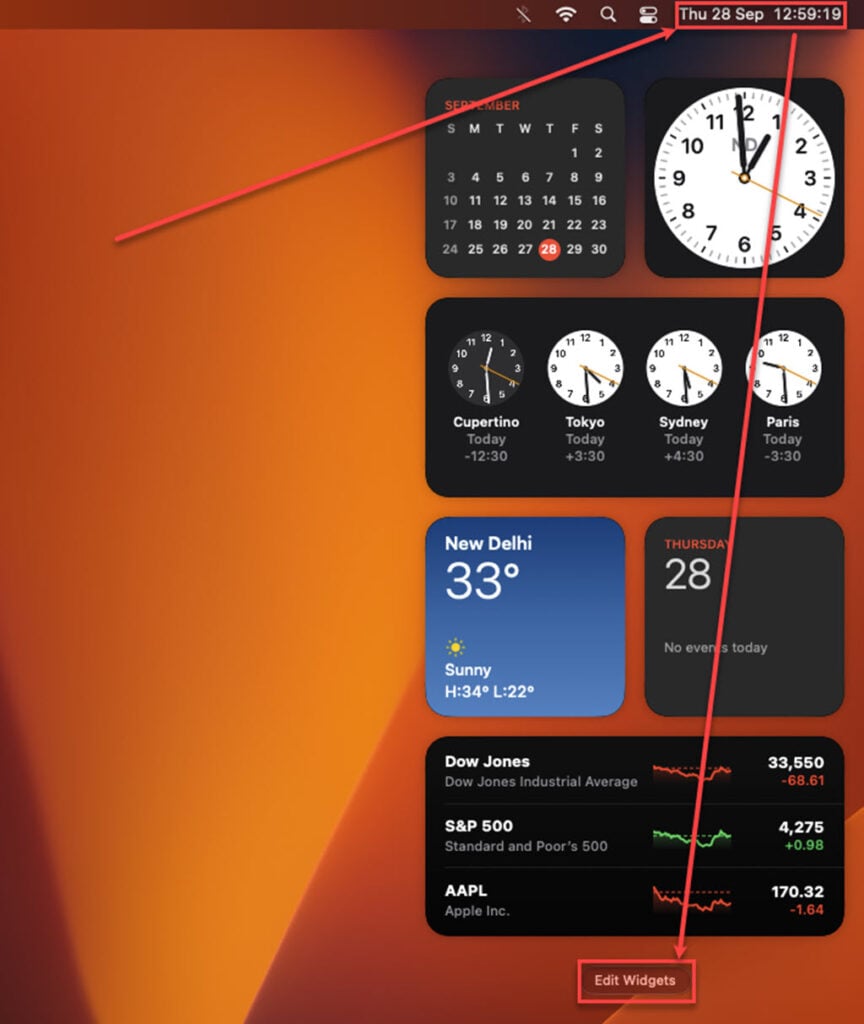
Step 3: A list of currently available widgets will appear; click on the + (Plus sign) on the widget to add it. Some widgets are available in multiple sizes; click on the size to preview and select it.

Step 4: If you want to change the information a widget shows. Hover your mouse cursor over a widget. If you see the Edit Widget below its name (this means you can make changes), click on the widget to turn it around. After that, you can change settings or click on the highlighted parts to make adjustments. When you’re done, click on Done within the widget.
Use a third-party app
If you don’t find the widget you are looking for, you can consider using third-party apps. Many third-party apps offer a wide range of widgets to add to the Notification Centre. Unlike the built-in widgets with macOS, third-party widgets are often highly customisable and can provide specialised functions and information.
Also read: How to restart a Mac with the keyboard?