
If you have recently changed your phone, you might want to transfer text messages from your old Android phone to the new one.
Text messages may contain some important conversations that you may want to conserve for future reference. It can also contain confirmation codes, remainders, photos, videos, and other file types.
One thing that makes text messages different from other file types is that text messages are not automatically backed up or synced by Google. You will have to back up the text messages manually and then use the same account to sign in to your new Android phone or use third-party software to transfer texts from Android to Android.
In this article, we’ll explain how to do that easily.
Method 1: Back up the data and then sign in with the same account on your new Android phone
The first and easiest way to transfer text messages from Android to Android is via the backup option. You can back up your apps, photos and videos, SMS and MMS messages, call history, device settings and Google Account data and then sign in with the same account on your new Android phone.
When prompted, tap on Restore and all your previous data will be restored to your new phone.
Here’s how to back up your old Android phone’s data including SMS and MMS messages:

- Head to Settings > Google > Backup.
- Now, tap on Back up Now. Make sure that you have listed SMS and MMS messages.
Also read: SMS not working after SIM change: Quick Fix
Method 2: Use third-party tools
There are several third-party apps that you can use to transfer texts from one Android phone to another. Here, we will use the SMS Backup and Restore app that we have downloaded from the Play Store.
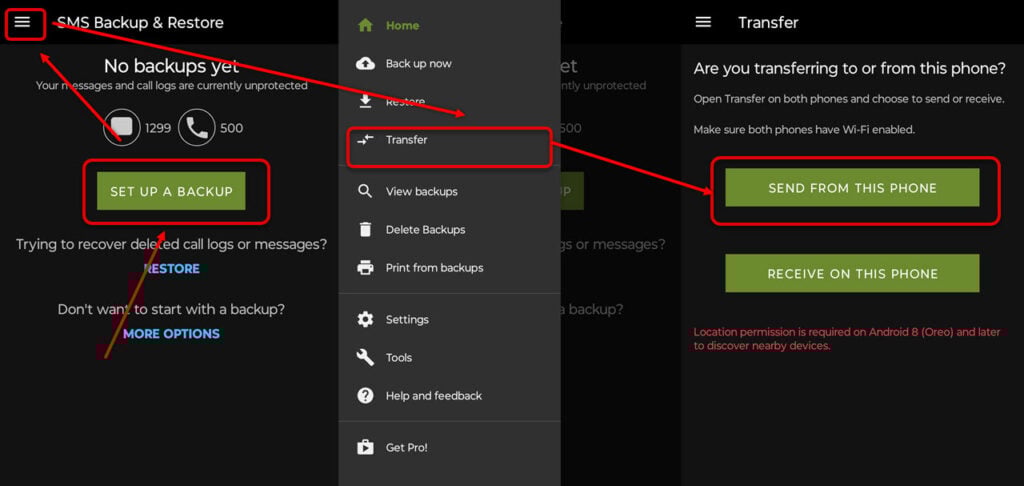
Now, follow the instructions given below:
- Open SMS Backup and Restore and give the necessary permissions for the app to work properly. Next, tap on Set up a backup to backup your text messages.
- Next, tap on the hamburger menu button and then select Transfer.
- Now, select Send from this phone.
After that, follow the same steps on the other phone. Remember to tap Receive on this phone instead of Send from this phone in step 3.
There are other apps that you can use for the same purpose such as MobileTrans, SMS Organiser, and Easy Share that you can use to transfer texts from Android to Android.
Also read: What does Sent as SMS via Server mean?


