Instagram is one of the most popular social media platforms on the planet, with millions of subscribers worldwide. However, as well polished as the Instagram app might be, there are still issues that can cause problems for the users.
In this article, we’re talking about the “Oops an error occurred” issue in Instagram, the reasons behind it and what you can do to fix the problem.
What causes this error?
The error generally indicates connectivity issues. These can be caused by a number of things including:
- Internet connectivity issues.
- Outdated app version.
- Corrupt cache or app data.
- Server outages from Instagram.
Also read; Can you be hacked through Instagram DM?
How to fix this?
Here are six fixes you can try out.
Check your internet
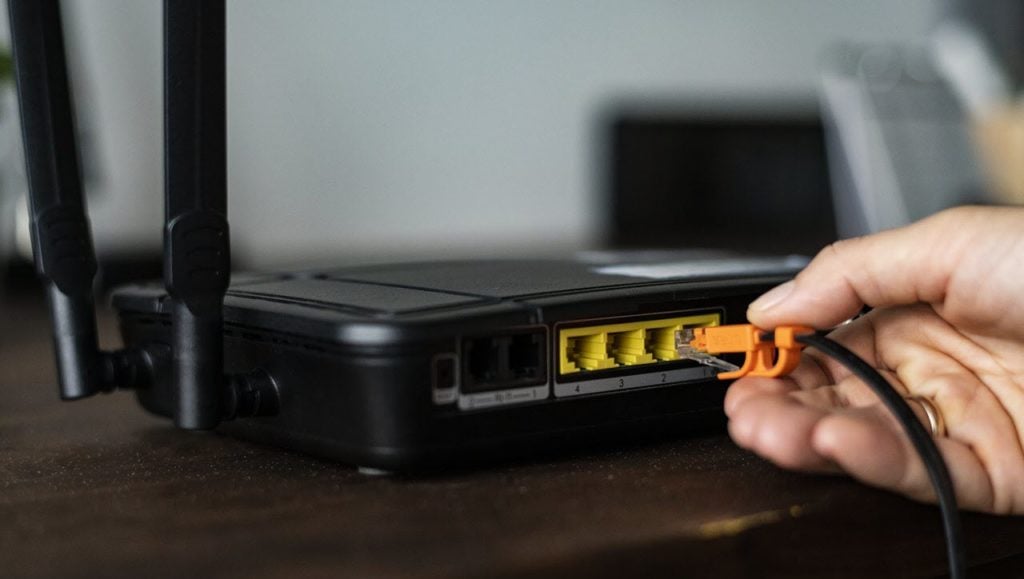
When you see an error like this, you should first check if you’re connected to the internet. If you’re on WiFi, make sure you have a stable signal and an active internet connection. If you’re on mobile data, check to see if it’s enabled and that you have good network coverage.
Restart your phone
We’ve said it before, and we’ll say it again, restarting your device can do wonders with seemingly random issues. If you’re not getting your Instagram notifications, try restarting your phone to see if it fixes your issue.
Check Instagram
The next thing is to see whether Instagram is working correctly or not. You can consult Instagram’s other social media handles to verify this. The servers generally get fixed in a few hours. To check if Instagram servers are working correctly, head to Downdetector.
Also read: How to delete Nextdoor account?
Clear the cache
Clearing the app’s cache can eliminate any corrupt files or data that might interfere with Instagram’s functionality.
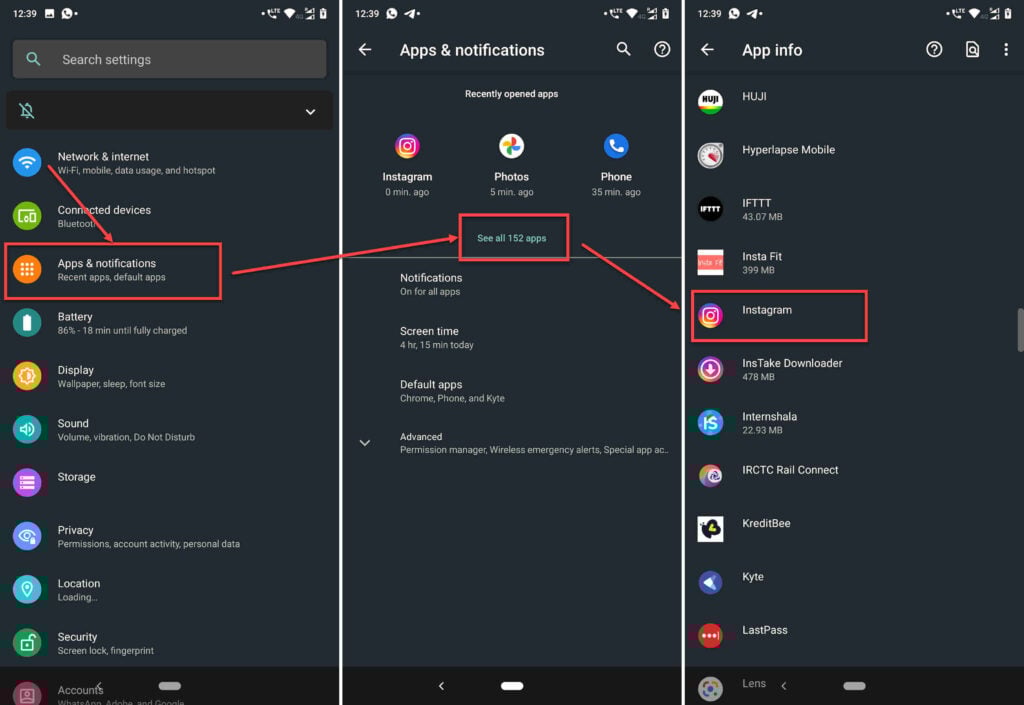
- Tap on Apps and notifications.
- Tap on Show all apps and find Instagram from the list. If you’ve recently used Instagram, it’ll show up in the recent apps as well.
- Tap on Instagram.
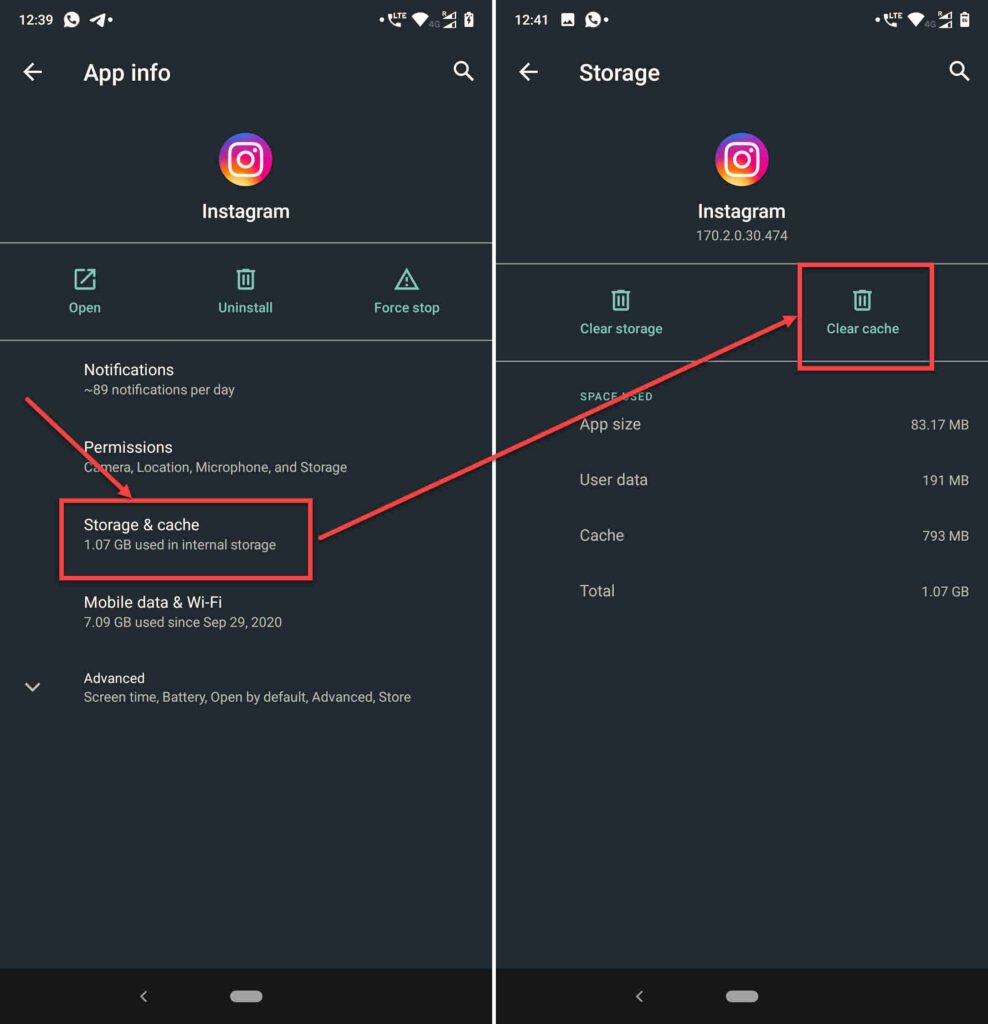
- Then tap on Storage & cache.
- Then tap on the Clear Cache button.
This should resolve the problem.
Try logging into Instagram with a different device
Instagram might’ve blocked your device’s IP address. To counter this, try logging into your account from another phone or computer to see if you can get around the issue.
Reinstall the app
Reinstalling your app can fix many issues, including those that cause your notifications to stop working. Whether you’re on Android or iOS, try reinstalling the app to see if it resolves the issue.
Also read: Fix: Windows wslregisterdistribution failed with error: 0x80370102