Sea of Thieves, a popular multiplayer game developed by Rare that immerses players in a thrilling pirate-themed world, has captured the hearts of many players since its release. However, despite its exciting quests and treasure hunts, some players have encountered a frustrating error known as the Lavenderbeard error.
This article discusses what is Lavenderbeard error, what causes this error and five methods to help you fix the issue.
Below we have discussed:
What causes the Lavenderbeard error?
Lavenderbeard is an error that is commonly encountered by PC and Xbox players when attempting to host or join Sea of Thieves. The full Lavenderbeard error message says ‘The Sea of Thieves Services are temporarily unavailable. Please try again. (Lavenderbeard)’.
This error can be caused by various reasons which are mentioned below:
- The game server is down.
- Outdated version of the game.
- The firewall is restricting the game.
- Issues with Xbox credentials.
Also read: Fortnite out of memory error: Quick Fix
How to fix the issue?
Here are six methods to help you fix the issue:
Check the server status
The source of the problem is likely at Rare’s end, so you should check out the Sea of Thieves official Twitter account or any other official source for updates. Rare typically posts when servers are offline and when they should be back online. If the servers are really down, all you have to do is wait for the devs to do their thing.
Check for game update
If you have been spending a lot of time spamming the START GAME button on Sea of Thieves, hoping for the error to go away, it’s likely that the game has already had an update pop up in the game’s background. To fix this, close the game and see if there are any downloads open in the game. If there aren’t, update the game if you need to. After that, try logging in again.
Relogin to your Xbox account
A Lavenderbeard error may occur after Sea of Thieves has been updated or reinstalled, even when the servers are online and your friends are playing. This is a common issue with an Xbox account. To fix this, log out and log back in from the main screen.
Allow the Sea of Thieves through the firewall
In certain cases, Windows Defender may overprotect your PC and prevent Sea of Thieves from running properly, which can also lead to Lavenderbeard error. To resolve this issue, you can allow Sea of Thieves through your firewall. Here are the steps to that:
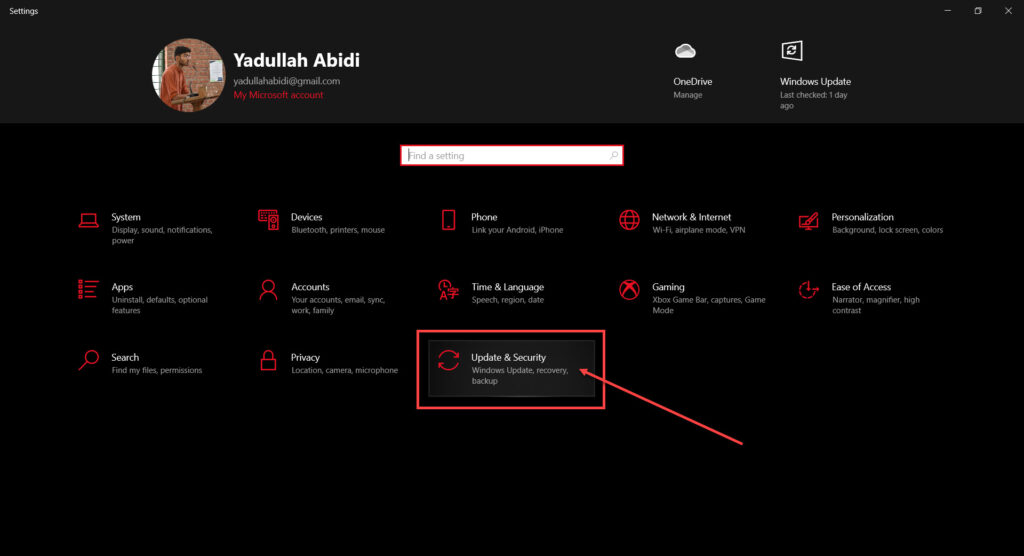
Step 1: Press the Windows + I key to open Windows settings and click the Update & Security option.
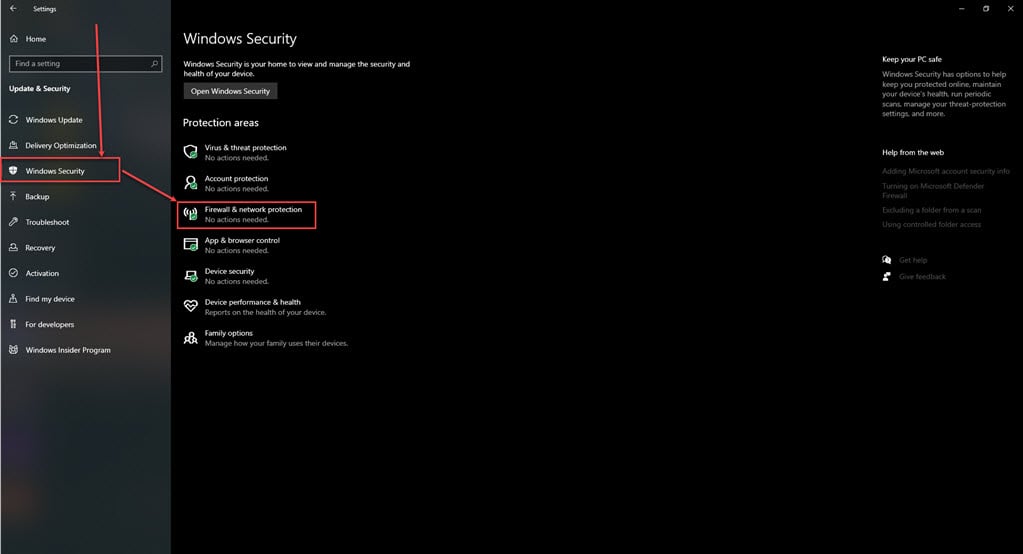
Step 2: Click on Windows Security in the sidebar and then click on Firewall & network protection on the right side.
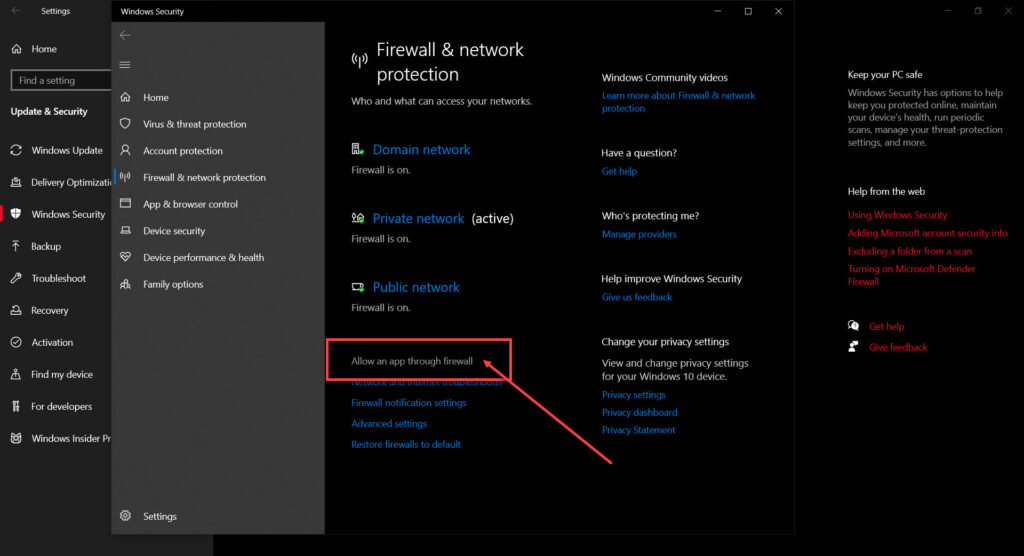
Step 3: A new window will open; click on the Allow an app through Firewall option at the bottom.
Step 4: In the allowed app’s window, click on the Change Settings button, this will allow you to edit the settings.
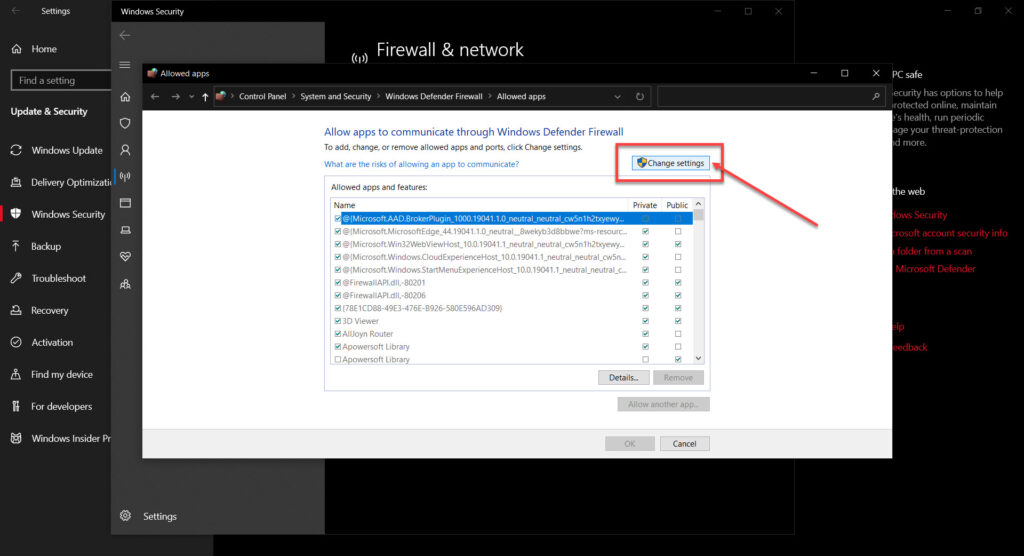
Step 5: Scroll down and find the Sea of Thieves and checkmark boxes for both private and public beside the Sea of Thieves, then click the OK button.
Clear Xbox Live credential from Steam
If Sea of Thieves Services is down for a while, you may have some issues with your Xbox credentials. Some users recommend uninstalling their Xbox Credentials, as well as the rest of their Xbox Live tokens, from Windows Credentials Manager. Here’s how to do that:
Step 1: Open the Control Panel on your PC and select Large icons in the View by menu.
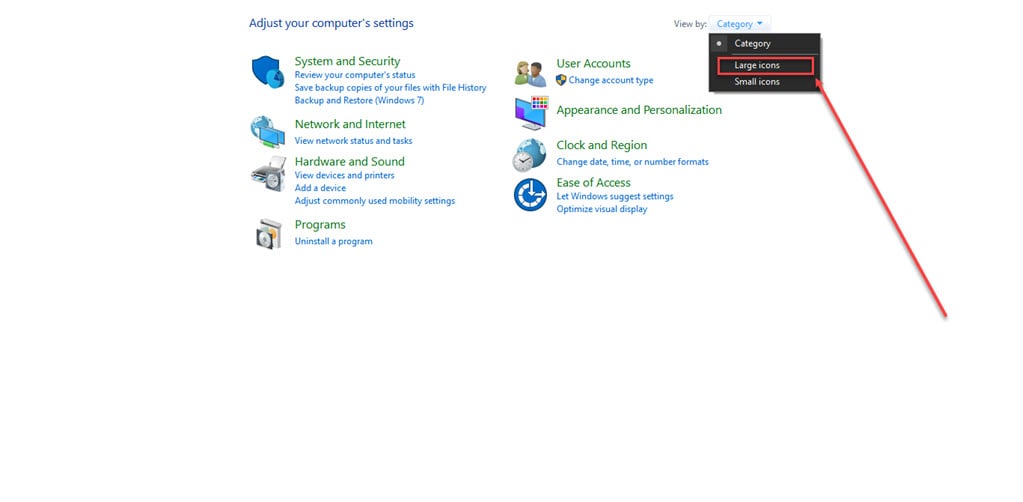
Step 2: Click on the User Accounts icon.

Step 3: In the sidebar, click on the Manage your credentials option.

Step 4: Now, click on the Windows Credentials tab.
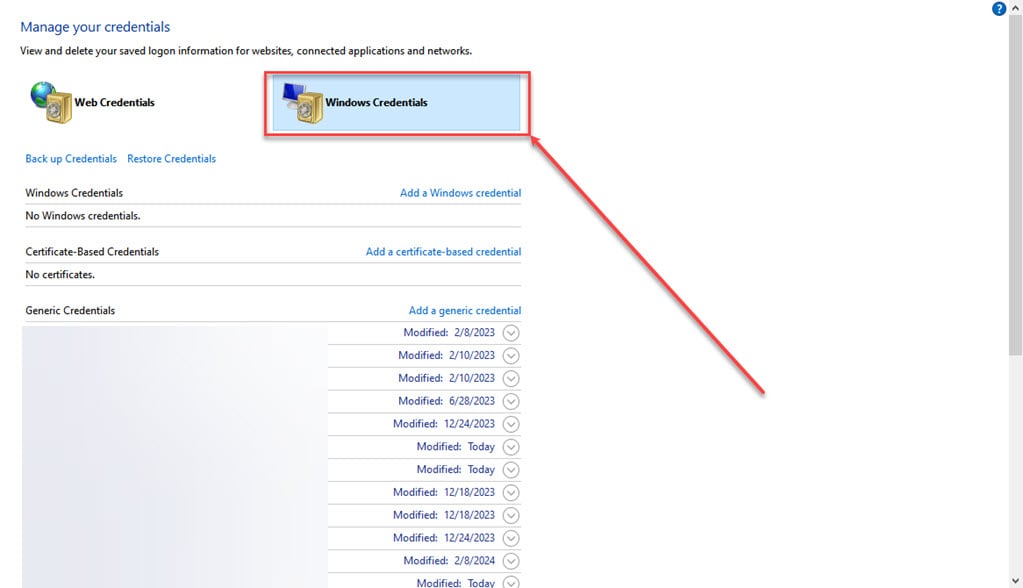
Step 5: Find the entries with Xbl_Ticket in the name and then remove every entry named 1717113201.