
You might have encountered a suspicious element called ActivityInputfld on your system if you’re a Mac user. This enigmatic entity often raises questions and concerns among users regarding its purpose and how to deal with it effectively.
Here, we discuss ActivityInputfld on Mac, how it infiltrates your Mac, and methods for removing it.
Below we have discussed:
What is ActivityInputfld on Mac?
ActivityInputfld is not a legitimate program but adware or unwanted software that can infiltrate your Mac. It might sneak in when you download free software or visit questionable websites. Once installed, ActivityInputfld can cause various issues, including:
- Displaying intrusive ads: These ads can pop up unexpectedly, disrupting your browsing experience and potentially leading to malicious websites.
- Hijacking your browser: ActivityInputfld might change your default search engine or homepage, making it difficult to use your browser as intended.
- Slowing down your Mac: Adware can consume system resources, leading to sluggish performance.
Also read: What is Extreme Security Adblocker? How to remove it?
How does ActivityInputfld end up on your Mac?
ActivityInputfld typically finds its way onto your Mac through software bundling or deceptive installation techniques. This means it may piggyback on legitimate software installations, especially if you’re downloading applications from untrustworthy sources or not paying close attention during installation.
Additionally, clicking on suspicious links, downloading files from dubious websites, or interacting with spam emails can install ActivityInputfld or similar unwanted software on your Mac.
How to remove it?
Here’s how to remove ActivityInputfld from your Mac:
Quit suspicious processes
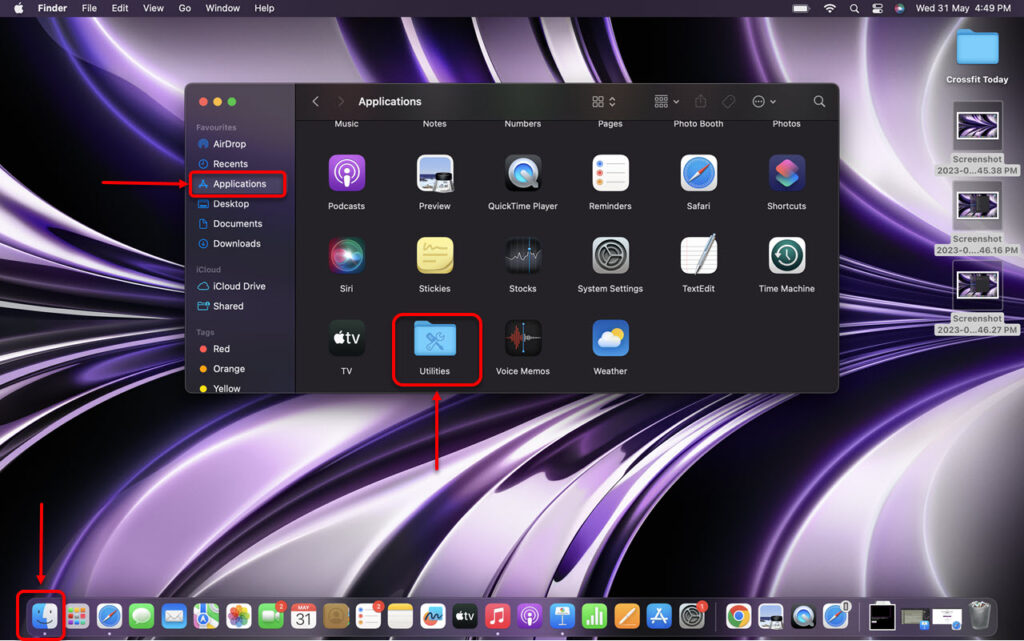
Open Activity Monitor, locate any suspicious processes related to ActivityInputfld or unfamiliar applications and quit them,. Here are the steps:
Step 1: Go to Finder, click on Applications and then click on Utilities.
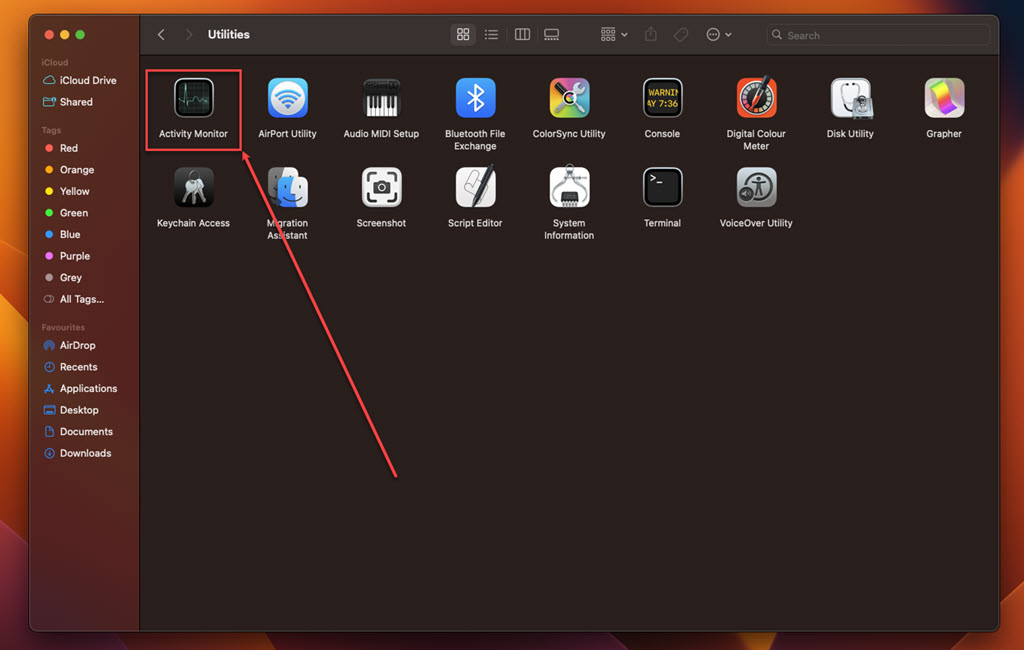
Step 2: In Utilities, run the Activity Monitor.
Step 3: In the Activity Monitor, click on the Memory tab.
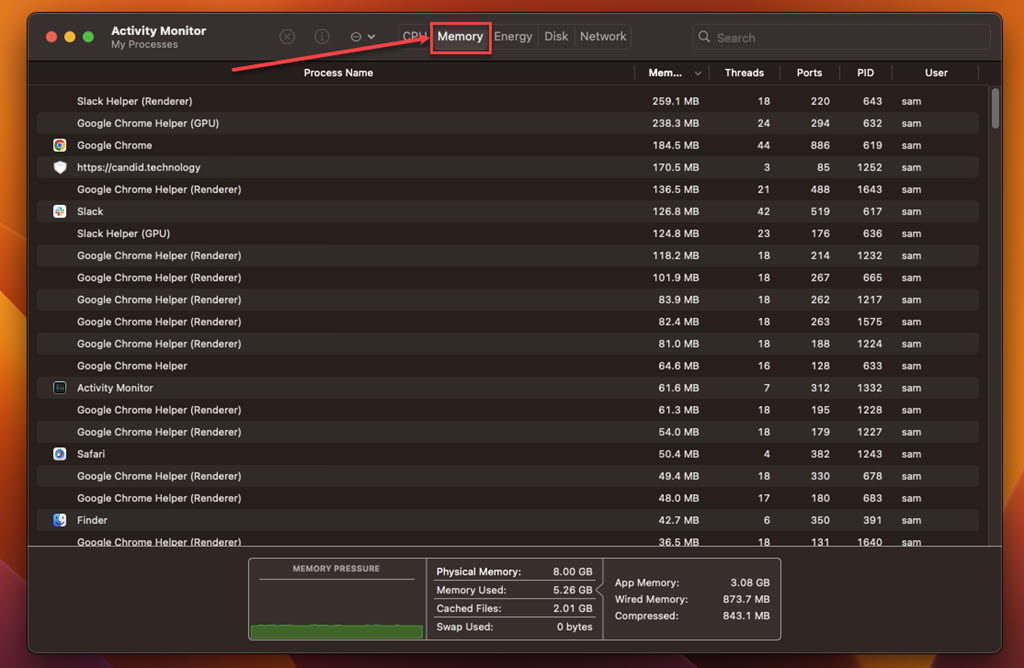
Step 4: Look for suspicious processes, select them, click on the Cross at the top and then click on the Force Quit.
Also read: What is Wtrxus? Is it safe?
Remove the suspicious apps
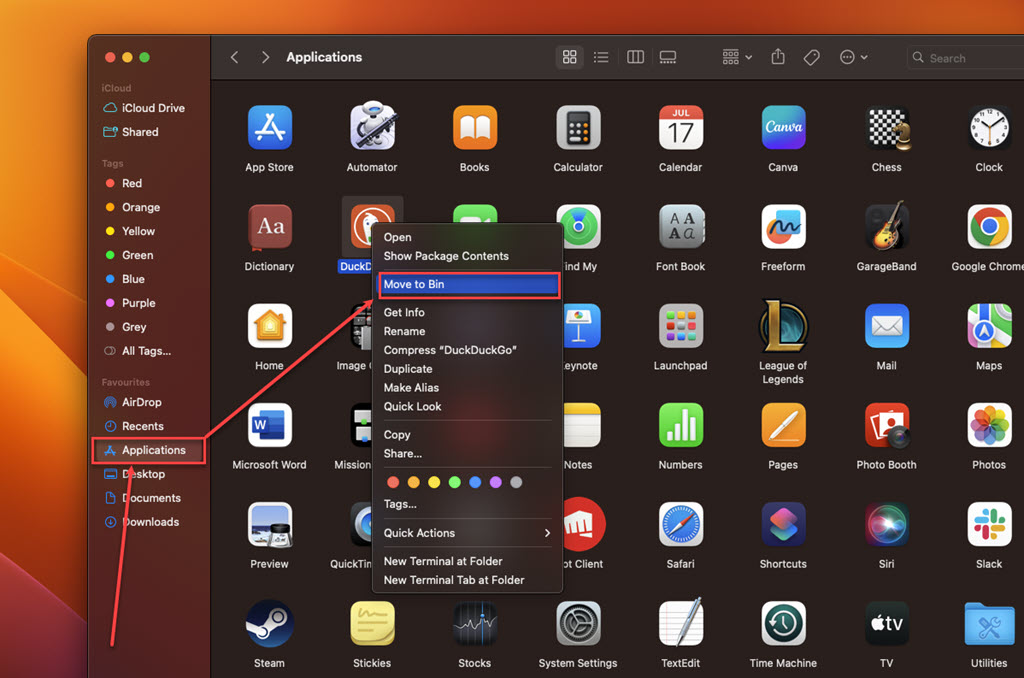
Go to Applications and look for unfamiliar apps you don’t remember installing. Here’s how to do it:
Step: Go to Finder, click on the Applications option in the sidebar, right-click on the suspicious app, and then click the Move to Bin option in the dropdown menu.
Remove the suspicious extension from your browser
Safari
Step 1: Open the Safari browser, click on Safari, and then, in the dropdown menu, click on the Settings option.
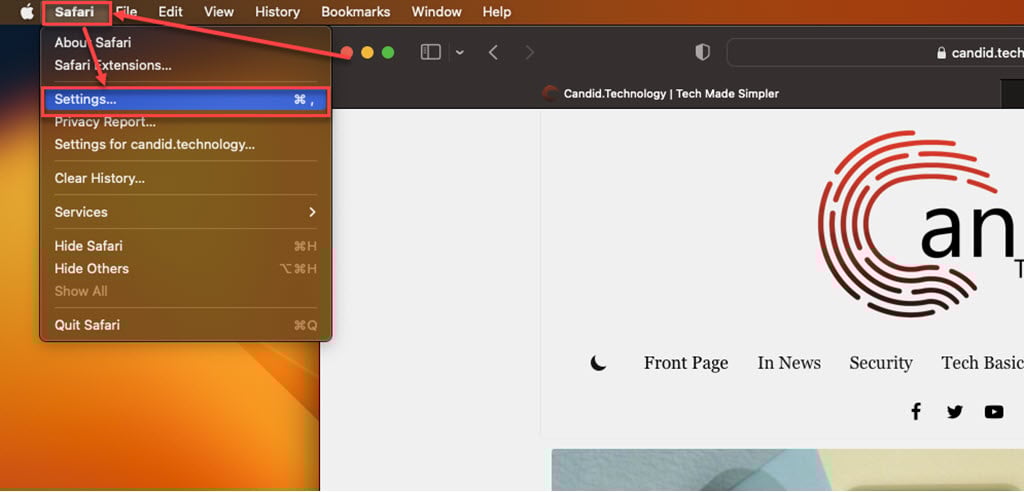
Step 2: Click the Extensions tab, select the Extension you want to remove, and then click Uninstall.

Chrome
Step 1: Click on the Triple-dot menu. In the dropdown menu, hover over Extensions and then click Manage Extensions.
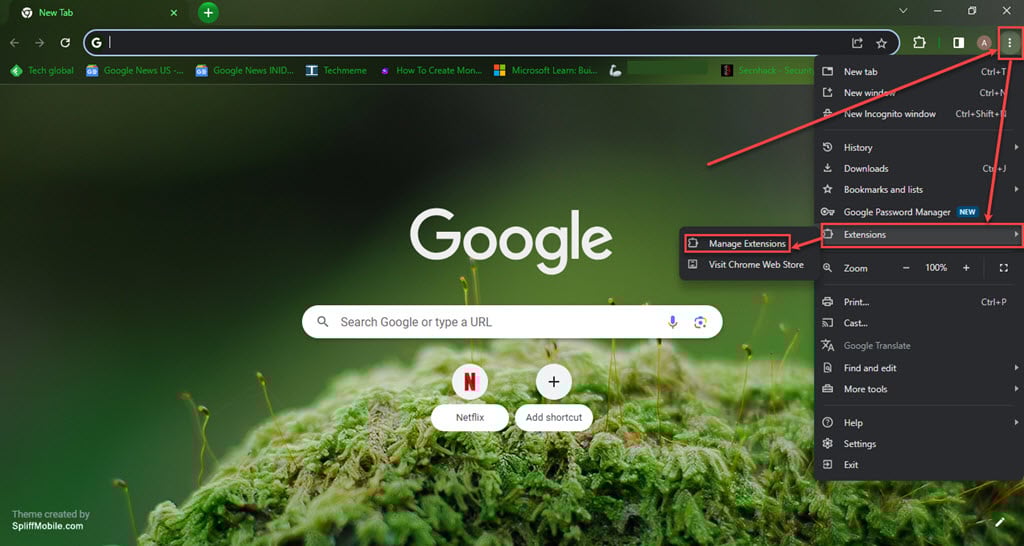
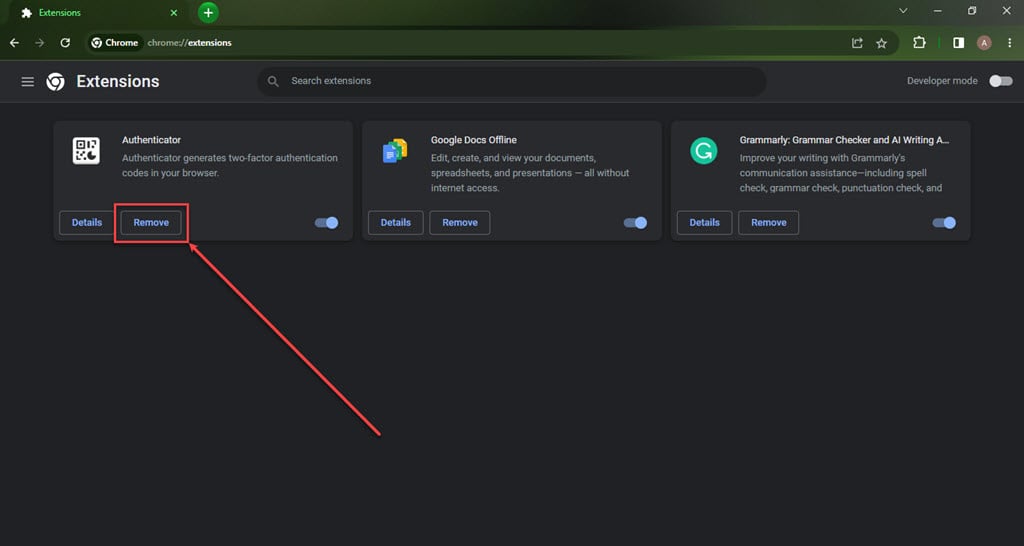
Step 2: Click the Remove button under the extension you want to remove in the Extensions.
Firefox
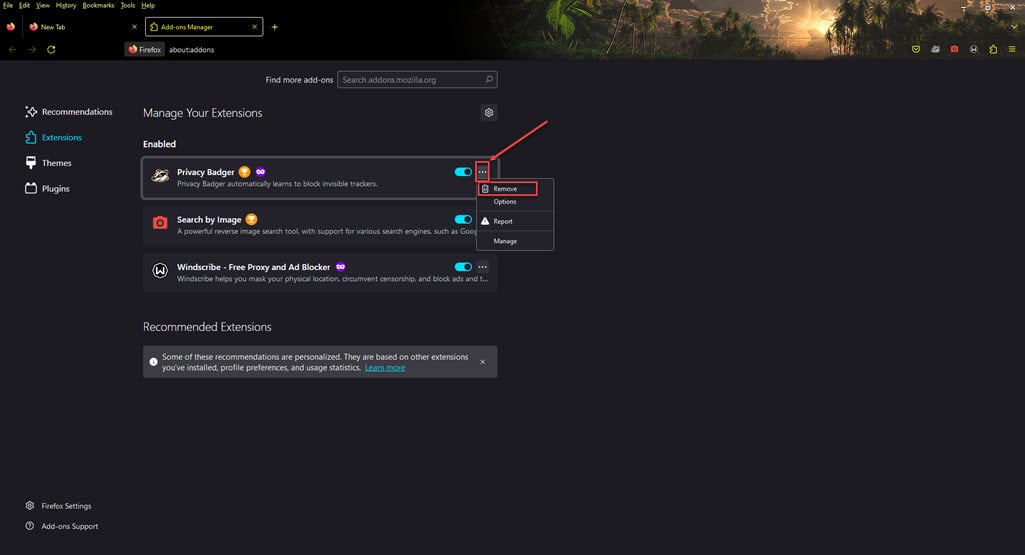
Step 1: Click on the Menu (triple horizontal bars) icon, and then in the dropdown menu, click on the Addons and themes option.

Step 2: Click on the triple horizontal dots icon beside the extension you want to remove, and then, in the dropdown menu, click Remove.
Scan for malware
Use a trustworthy antivirus or antimalware program to scan your Mac for harmful software. These tools can identify and eliminate adware, potentially unwanted programs (PUPs), and other types of malware that could be responsible for the ActivityInputfld notifications.
Following these steps, you can remove ActivityInputfld from your Mac and restore your system to normal function. Remember, staying vigilant about suspicious software and updating your Mac’s security software can help prevent future infections.
Also read: Bitwarden vs Keepass: Which one is better?





