
Smartphones are now essential for staying connected, getting work done, and having fun. But sometimes, users face problems that interrupt this smooth experience, like not being able to download apps on their iPhones. This annoying situation can happen for different reasons, from problems with the internet connection to issues with the phone’s software.
This article discusses various causes why you are unable to download apps on your iPhone and a few methods to fix the issue.
What causes this issue?
Below we have mentioned a few possible reasons that might be interrupting the downloading of apps on your iPhone:
- Temporary system glitches.
- Poor internet connection.
- Low on storage.
- Outdated software.
- Issues with the Apple ID.
- Content restriction is enabled.
- Issues with the payment methods.
Also read: How to uninstall apps on iPhone?
How to fix the issue?
Here are a few methods that might help you fix the issue:
Restart the device
A simple yet effective step is to restart your iPhone. This can help clear temporary glitches and refresh system processes. Power off your device, wait a few seconds and then power it back on.
Check your internet connection
One of the primary reasons for download failures is a poor or unstable internet connection. Ensure your iPhone is linked to a strong WiFi or stable cellular data network. If you’re using WiFi, try resetting your router or connecting to a different network to eliminate connectivity issues.

Update your iPhone
Running outdated iOS software can lead to compatibility issues and hinder app downloads. Make sure your iPhone is running on the latest iOS version. To do that, follow the steps below:

- Go to the Settings app on your phone and tap on General.
- Tap on Software Update.
- If an update is available, install it and download the app again.
Check the storage
iPhones have limited storage capacity, and if your device is running low on storage, it may prevent new apps from being downloaded. Frequently checking and clearing your device’s storage by deleting unwanted files and apps can fix this issue. Here are the steps to do that:
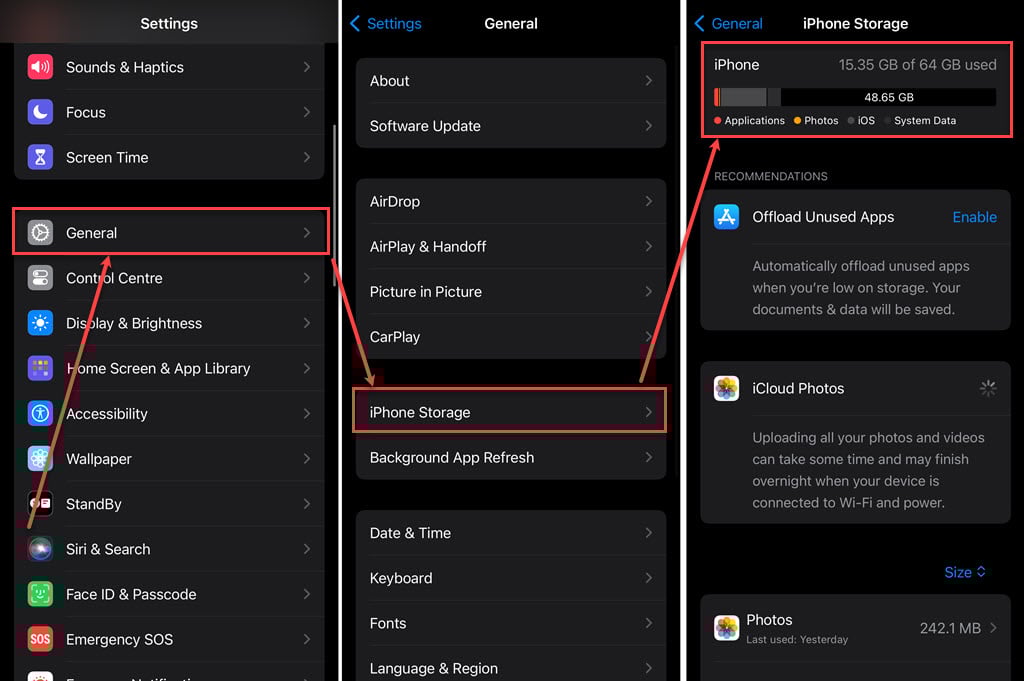
- Go to the Settings app on your phone and tap on General.
- Tap on iPhone Storage.
- Check if the storage is full, then clear some storage by deleting unwanted apps and files.
Check out our article to learn how to delete apps on iPhone
Re-login to the App Store
If you cannot download apps, it might be due to issues with your Apple ID authentication. sign out and then sign back in to resolve this issue; here are the steps:

- Open the App Store on your phone.
- Tap on your Profile icon at the top right corner of the screen.
- Now, scroll down to the bottom and tap on Sign out.
Disable Content and privacy restrictions
You may be unable to download apps because the iPhone restricts the process. To disable the restriction, follow the steps below:

- Go to the Settings app on your phone, scroll down and tap on Screen Time.
- Tap on Content & Privacy Restrictions.
- Turn the toggle off beside Content & Privacy Restrictions.
Check payment method
To download apps on your iPhone, you must provide your payment details in your Apple ID. So, if your credit card is expired or not allowed, your iPhone won’t be able to download apps. Just updating your payment info should solve the issue. Here is how to do that:

- Go to the Settings app on your iPhone and tap on Your Name.
- Tap on Payment & Shipping. You might have to sign in with your Apple ID.
- Check your payment methods or add a new one.
Reset Network Settings
It might be possible that your network settings are causing the issue. To reset them, follow the steps below:

- Go to the Settings app on your iPhone and tap on General.
- Tap on Transfer or Reset iPhone.
- Now, tap on Reset.
- Tap on Reset Network Settings.
- Enter the passcode and tap on Reset Network Settings to confirm your action.

Factory Reset iPhone
If even resetting your network settings did not resolve the issue, then as your last resort, factory reset your iPhone. Here are the steps:
- Go to the Settings app on your iPhone and tap on General.
- Tap on Transfer or Reset iPhone.
- Tap on the Erase all Content and Settings option.
- Tap on the Continue button.

Also read: How to change your iPhone’s name?


