Google has quite a suite of web-based programs for its users, including everything from cloud storage to office productivity apps like Docs and Slides. However, as easy to use as these programs are, they aren’t perfect and can run into some issues occasionally.
In this article, we’re talking about error 150 in Google slides, its causes and what you can do to fix the problem.
What causes Error 150 in Google Slides?
Error 150 is a generic online error code that indicates playback failure on a video. It can be caused by several reasons, including but not limited to:
- Network connectivity issues
- Unsupported video format
- Browser compatibility issues
- Server-side issues where the video is hosted
- Copyright or DRM restrictions
Also read: How to save videos using inspect element?
How to fix error 150 in Google Slides?
Here are five fixes you can try out.
Refresh the page
You may also see this message at times because a page couldn’t load properly. In such cases, try refreshing the page to see if you can get the page to load.
Check internet connection
Now’s also a good time to check whether or not you have an active internet connection. If you’re on WiFi, make sure you’ve got an active link and that there are no signal issues. On cellular data, ensure it’s enabled and you’re getting good network coverage.

Restarting your router can help eliminate seemingly random internet and connectivity issues that may be hindering your connection to the video’s host server.
Also read: Fix: Samsung TV Plus not working
Use a VPN
Using a VPN can help you bypass any geo-restrictions that might be applied to your IP address. Some sites and content are geo-restricted to certain parts of the world for several reasons, including local governing policies and copyright issues. Using a VPN can change your IP address, meaning you should be able to access the service or site without issues.
Clear your browser’s data
Corrupt files in your cache or otherwise can cause this error as well. Clear them out to see if you can get Chrome to work.
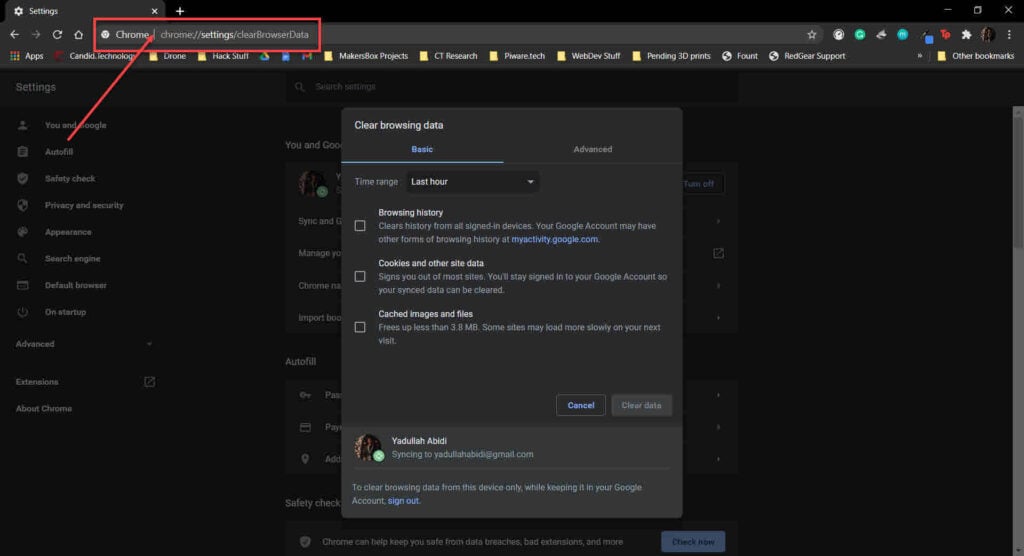
Step 1: Type in chrome://settings/clearBrowserData in your browser’s address bar and hit Enter.
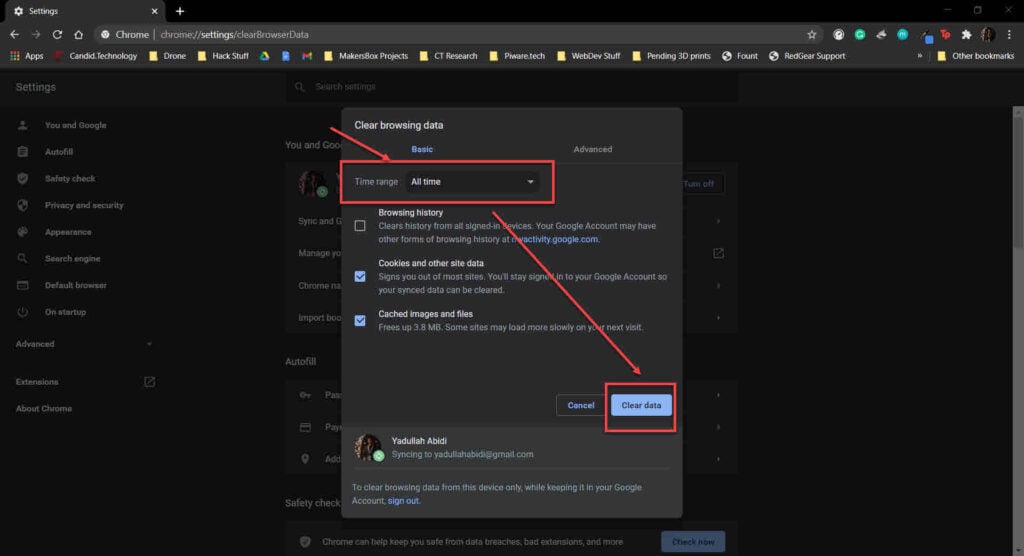
Step 2: Select the cache and cookies options and make sure the Time range is set to All time. Click on the Clear now button to clear out all the data.
Disable your extensions
At times, browser extensions can cause problems with specific sites’ functionality. Try disabling them to see if that fixes the problem.
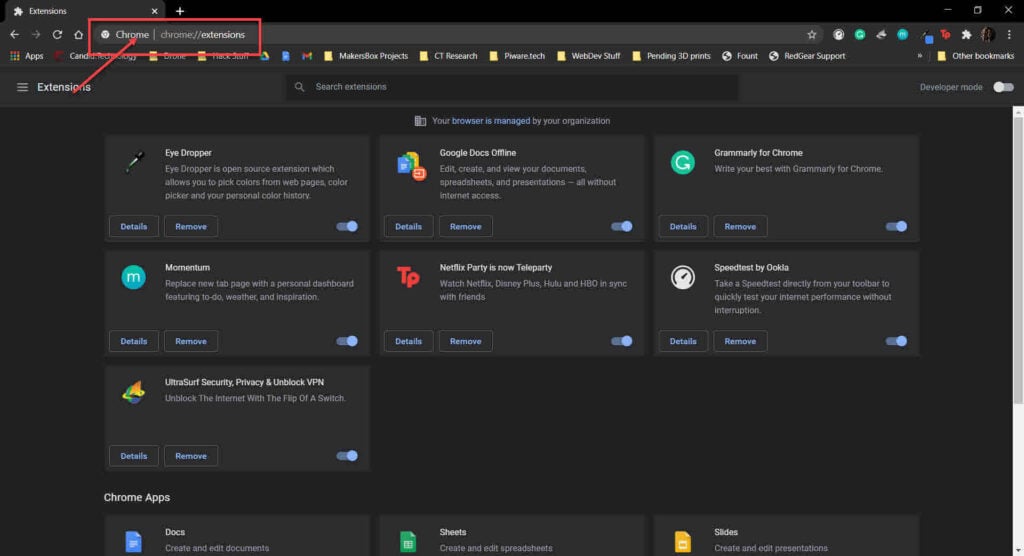
Head over to chrome://extensions and try disabling all your extensions to check if the browser starts functioning as normal again. If it does, enable them individually until all the essential extensions are working again.
Also read: How to fix the ‘Google Slides file too large’ error?