
OBS Studio is a powerful open-source tool for screen recording and streaming, but some users may encounter the “Your GPU may not be supported” error when trying to run it. If you’re facing this issue, don’t worry — it is easy to fix.
Here’s a YouTube video explaining the fixes in detail:

Follow these steps below to resolve the problem and get resolve the problem and get OBS running smoothly on your system.
Here we've covered:
Adjust graphics settings in Windows
The most common reason for the “Your GPU may not be supported” error is incorrect GPU settings. You need to ensure that OBS is using your dedicated GPU instead of the integrated one.
Here’s how to do that:
Step 1: Open Windows Settings by pressing the Windows key + I or click on the Start menu and then click on Settings.
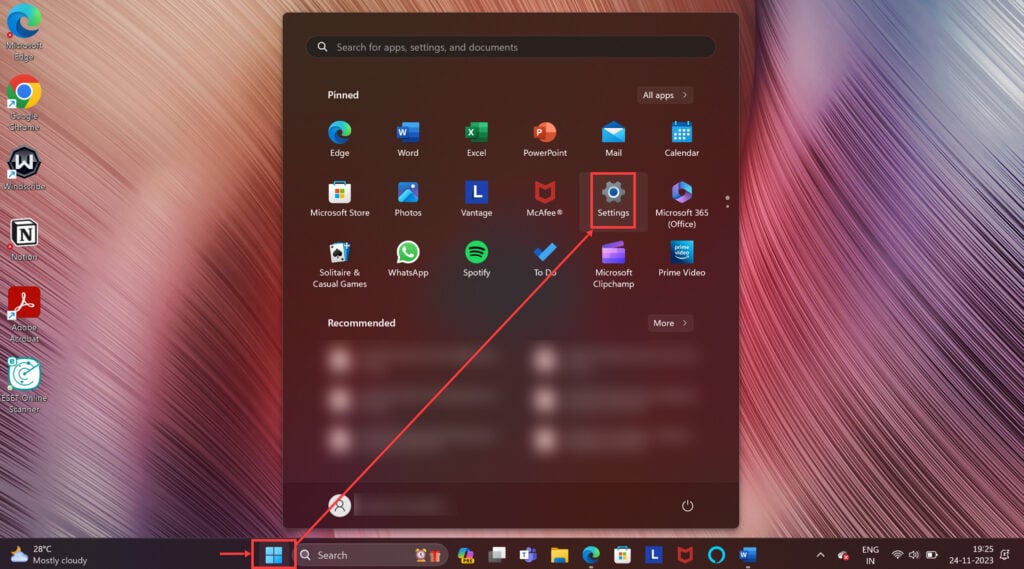
Step 2: Now, search Graphics Settings.

Step 3: Now, select Graphics.
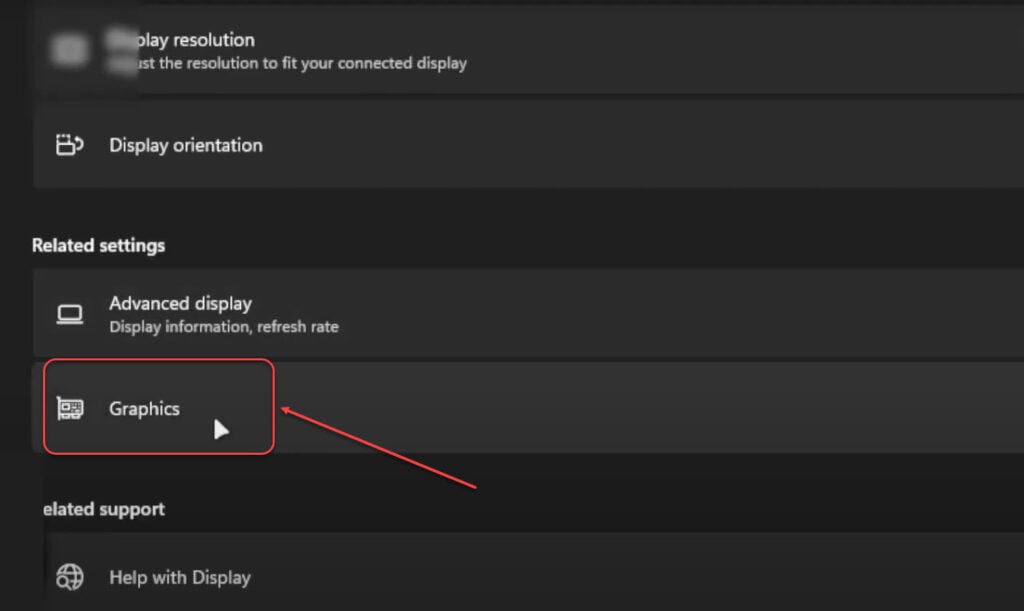
Step 4: Find OBS Studio in list and then select Options.

Step 3: Click on OBS, select Options and then select the High Performance (Uses dedicated GPU) option. You’ll see two other options: Let Windows Decide, and Power Saving (Uses integrated GPU). Click Save and restart OBS.

Note: If OBS is not listed, click the Browser option under Custom options for apps , navigate to where OBS is installed, and then add it manually.

Also read: How to 1v1 in CS2 (Counter-Strike 2)?
Update your GPU drivers
If adjusting the graphics settings doesn’t fix the problem of OBS “Your GPU may not be supported” error, your GPU drivers may be outdated. Follow these steps to update them:
Step 1: Press the Windows key + X and then select Device Manager. Expand Display Adapters to check if you have an Nvidia, AMD, or Intel GPU.

Step 2: Now download the latest driver depending on your GPU:

- Nvidia: Head to this article to understand how to update your Nvidia GPU.
- AMD: User Radeon Software or head to the official website for update.
- Intel: Visit the Intel Driver and Support Assistant.
Once the update is complete, restart your computer. Open the OBS again and check if the issue is resolved.
Also read: How to reset Logitech G HUB mouse settings? 2 Quick Methods
Use DirectX Control Panel (DXCPL)
If the problem persists and you have an older GPU that OBS doesn’t support, you can try using DXCPL (DirectX Control Panel) to force compatibility.
Note: This is not recommended unless you have no other option, as it may cause instability.

Download DXCPL from a trusted source and then install and open the program. Click Edit List, add the OBS executable file. Under Device Settings, enable Force WARP and set Feature Level Limit to DirectX 11.
By following these steps, you should be able to fix the “Your GPU may not be supported” error with OBS Studio.
Also read: Fix: MSI Center User Scenario not working




