
Your iPhone records all your app and media purchases, making it easy to revisit your digital acquisitions. However, there may be instances where you want to delete or clear your purchase history, whether for privacy reasons or to declutter your account.
There is no way to delete the purchase history on iPhone, but you can hide the apps you have purchased and installed on the App Store.
This article discusses how to hide apps from purchases in the App Store on your iPhone in a few simple and easy steps.
Also read: How to make a PDF on iPhone?
How to hide apps from the purchase list?
There are two places where you can access the purchase history — App Store and Settings.
You can hide apps from the purchase history in the App Store, but in Settings, you can only see the apps and the amount you have spent on them. It does not allow you to delete or hide the apps from the Settings.
So, the best option for you is to sign out of your Apple ID because even if you hide apps in the purchase history on your App Store, those apps will still be visible in the purchase history available in Settings.
To hide the apps in your purchase history on App Store on your iPhone, follow the steps below:
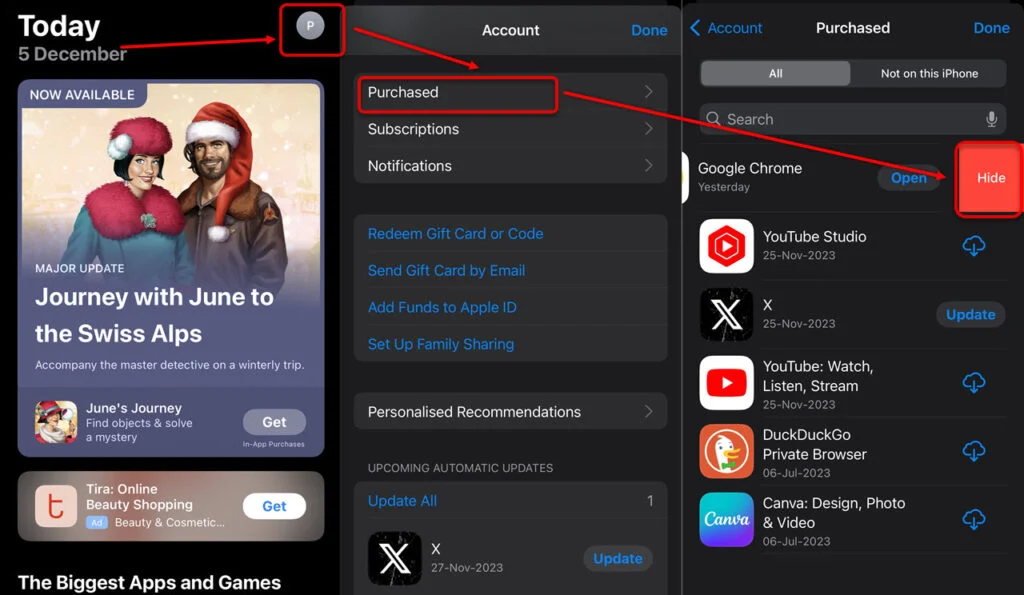
- Go to the App Store on your iPhone and tap on the Profile icon at the top right corner of the screen.
- Tap on the Purchased option. A list of all the apps that you have installed will appear.
- Swipe left on any apps you want to hide from the purchase list and tap on Hide. After you are done, tap on Done at the top right corner of the screen.
Also read: How to add AirTag to the second phone?


