
You may have kept some hidden photos on your iPhone to keep some photos private and to mix these with your other photos. Keeping some photos private also keeps the photo album clutter-free.
But how do you find these hidden photos on the iPhone again? If this question gives you nightmares, don’t worry; we’ve got you covered.
In this article, we’ll explain how to find hidden photos on an iPhone so you’ll never have to worry about hidden photos again.
Here’s what we’ll cover:
Also read: How to delete files on iPhone?
Method 1: Using the Album feature in the Photos app
Perhaps the easiest way to find hidden photos on your iPhone is using the Album feature in the Photos app.
Follow the steps given below to do so:
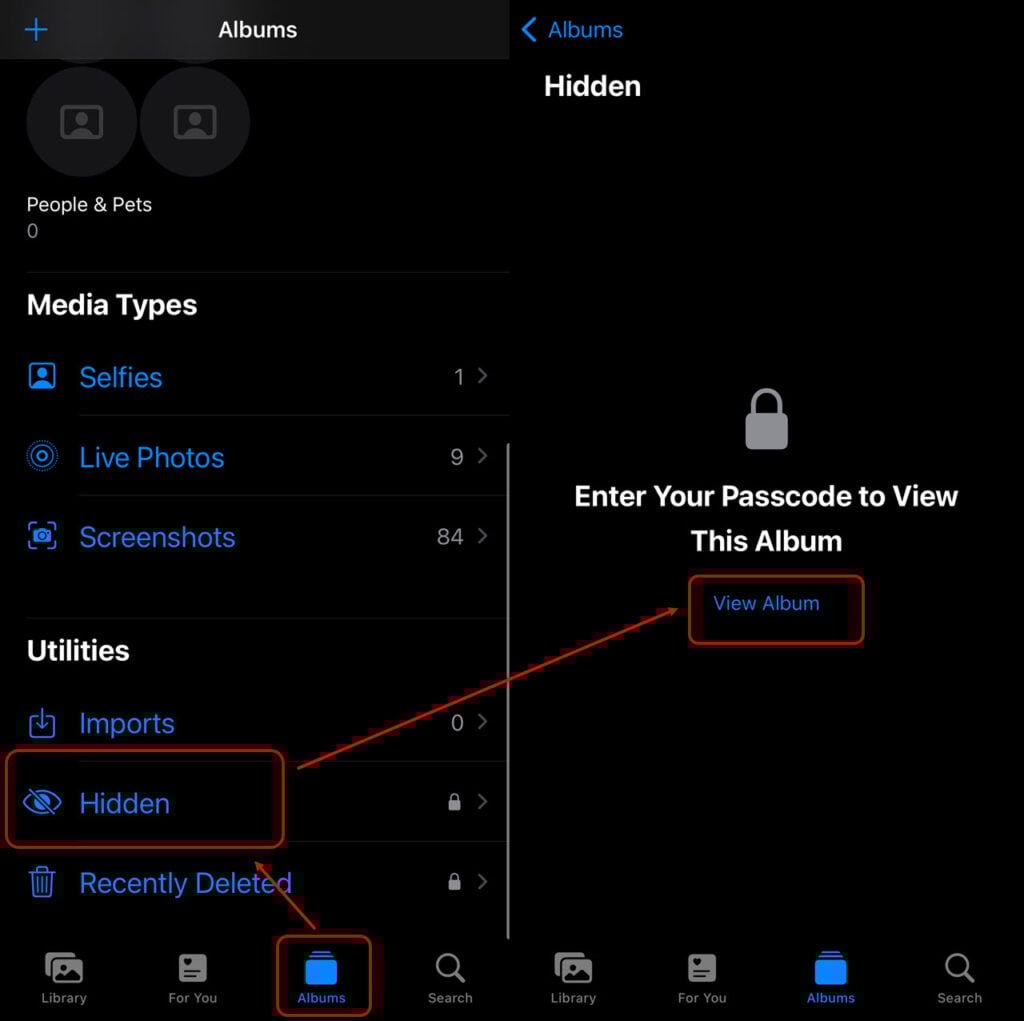
- Open Photos and then tap on Album at the bottom. Enter your iPhone’s passcode.
- Scroll down and locate the Hidden option under the Utilities heading.
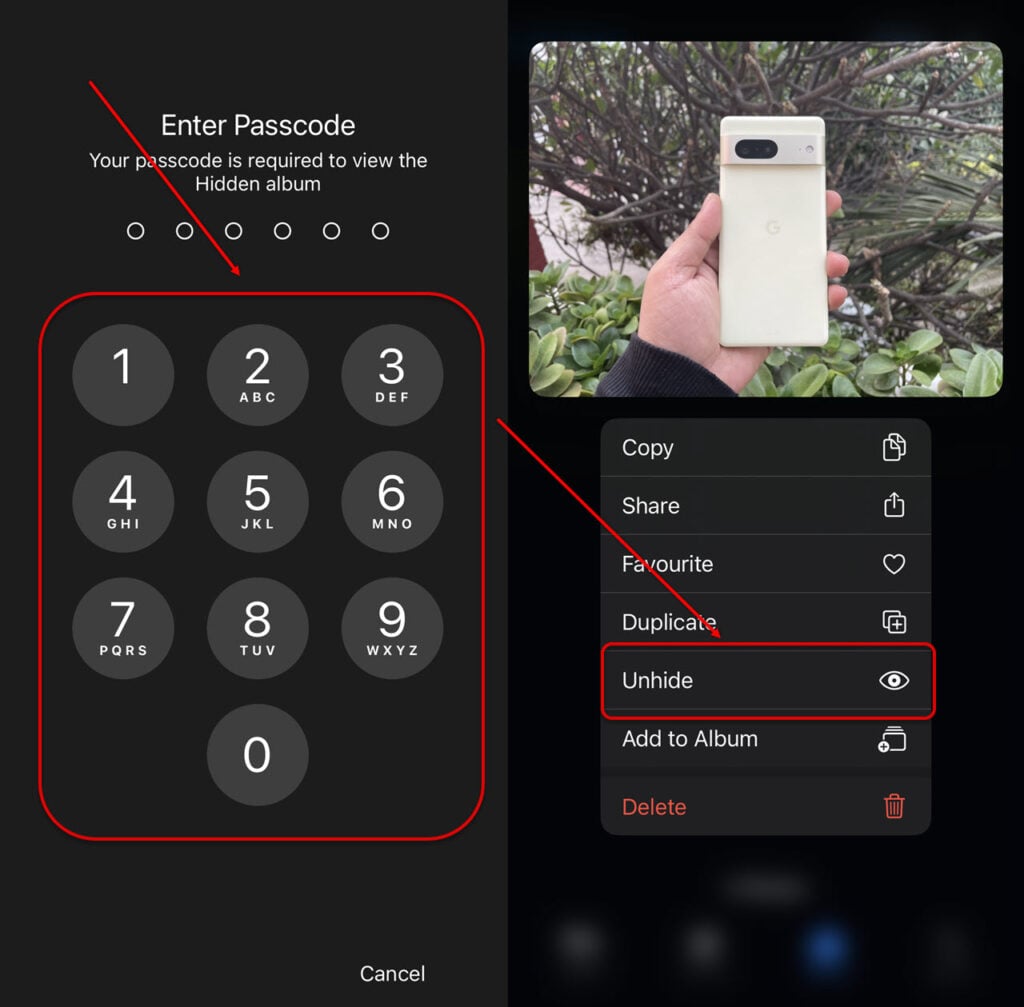
- Long press the photo that you want to unhide.
- Tap on Unhide from the options that appear.
Also read: How to enable cookies on your iPhone?
Method 2: Find hidden photos on iPhone via iCloud
The second way to find hidden photos is via iCloud. Sometimes, it may happen that you don’t have access to your iPhone, and you want to access your hidden photos right away.
Here’s how to do this:
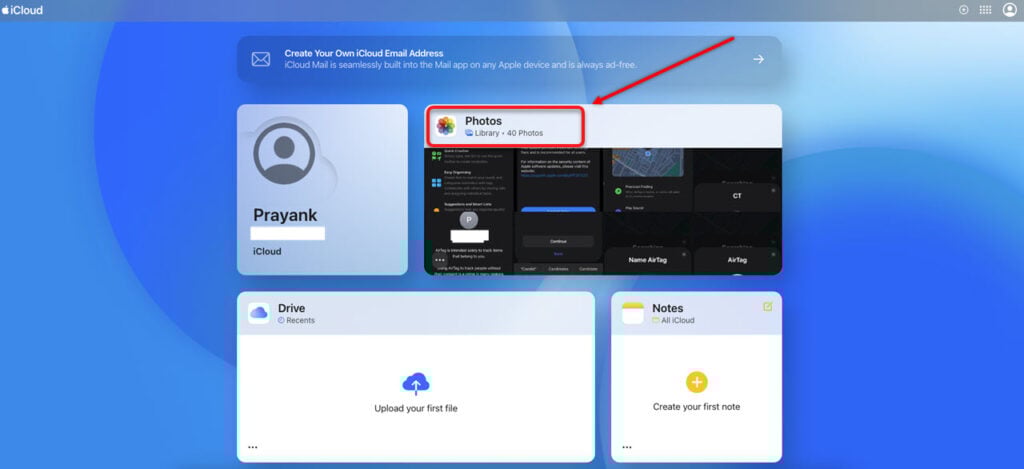
- Open iCloud.com on your computer and then enter your Apple ID and password.
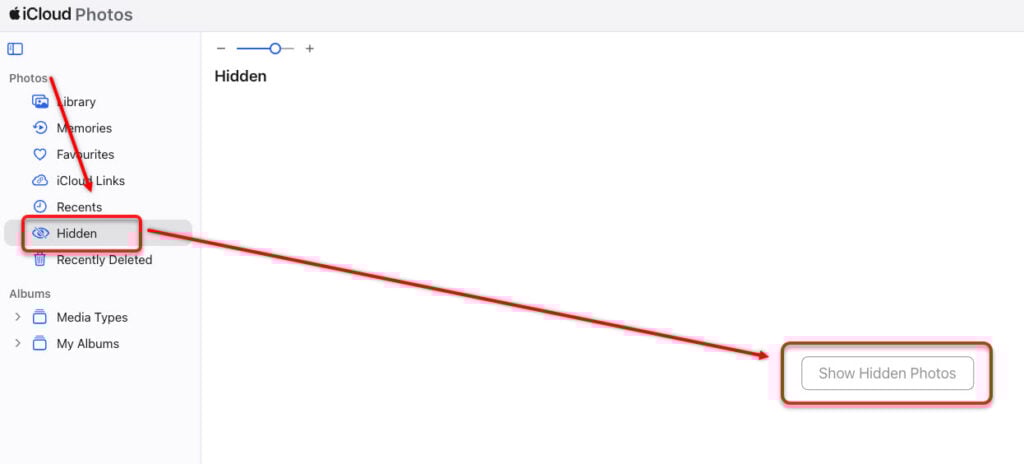
- Now, navigate to Photos > Hidden.
- Next, click on Show Hidden Photos.
- Select the photos that you want to unhide, click the three-dot button and then select Unhide.
Also read: How to change your iPhone’s name?
Ensure Hidden Photos are visible
You can ensure that your hidden photos is visible via the Settings option — available only for iOS 14 and above.

Head to Settings > Photos and then enable the Show Hidden Album option.
In conclusion, finding hidden photos on your iPhone is easy and requires only a few taps. Follow any of the three methods and access your private photos quickly.
Also read: Is iPhone SE waterproof?


