Secure Digital (SD) cards are widely used to expand storage in various devices, such as cameras and smartphones. Over time, you may need to format your SD card to clear space, troubleshoot issues, or prepare it for use with a different device.
Wondering how to format an SD card on a Mac? This guide discusses various ways to format an SD card on your Mac.
Also read: How to select all on a Mac?
Format SD Card using Disk Utility
Whether you want to free up the space in your SD card or want to format it for your privacy, formatting an SD card on a Mac is straightforward. Here are the steps to do that:
Step 1: Insert the SD card into the card slot on your Mac if it has one. If not, you’ll need an SD card reader plugged into one USB port.
Step 2: Open Finder, click on Applications and then click on the Utilities folder.
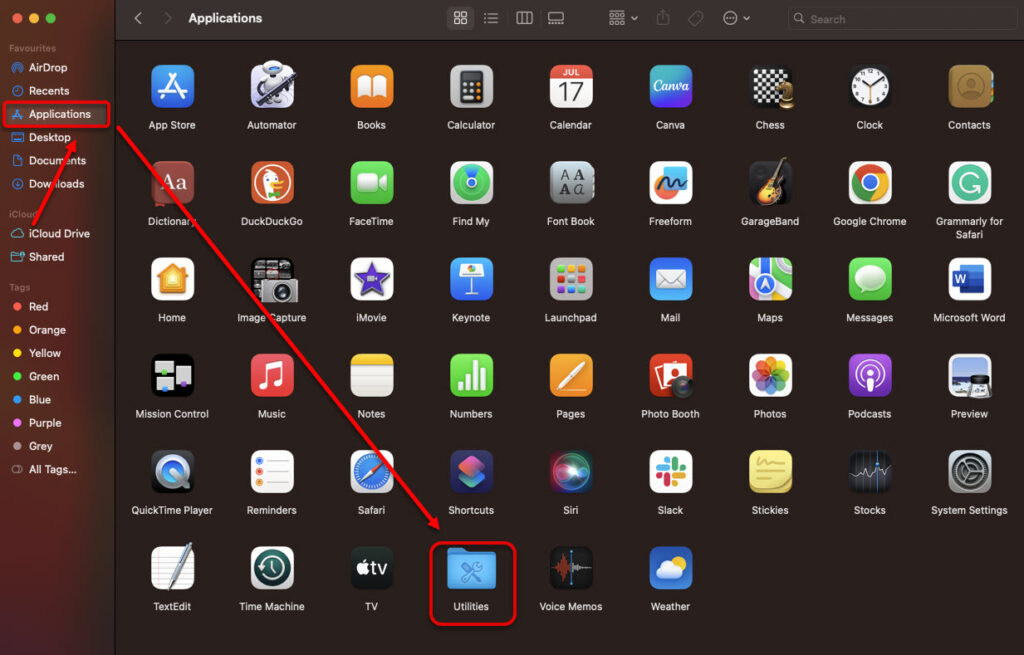
Step 3: Click on the Disk Utility.

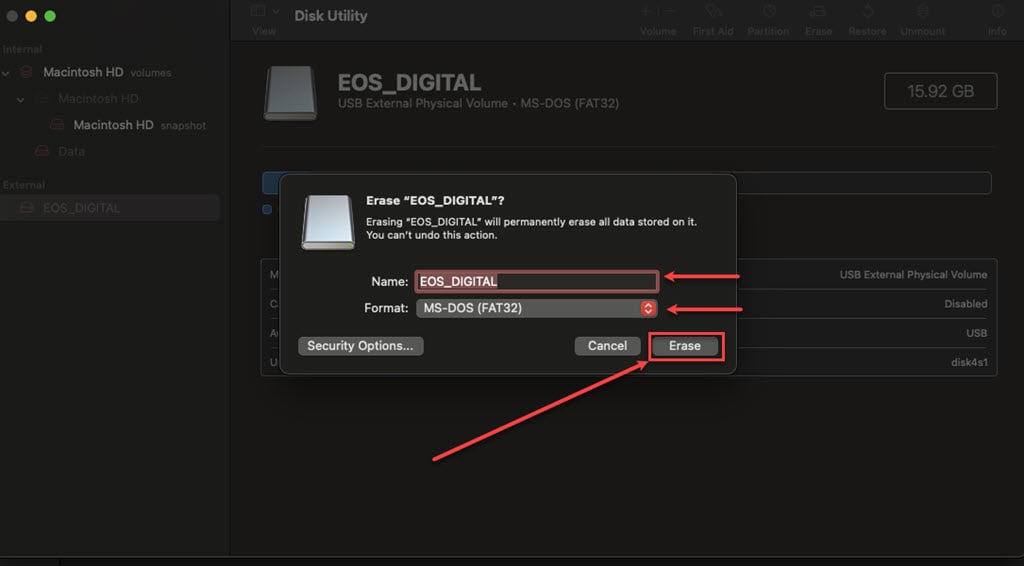
Step 4: In the Disk utility, you will see all the available storage devices in the side panel. Choose the card that you want to format. After selecting the card, click the Erase button at the top.

Step 5: A pop-up window will appear. Type a name for the SD card, then select the file system format; most SD cards support FAT32 and ExFat format. After you are done, click on the Erase button.
Format SD Card using Terminal
If you like using the terminal to do tasks on your Mac, then here are the steps to format an SD card using the terminal on your Mac:
Step 1: Ensure the SD card is connected to your Mac.
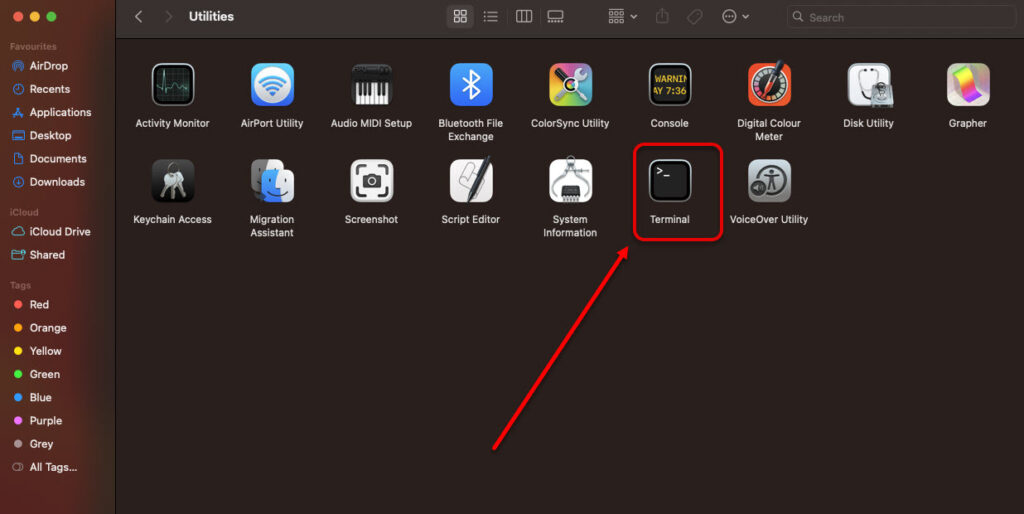
Step 2: Open Finder, click the Applications option in the sidebar, and then click on the Utilities folder.
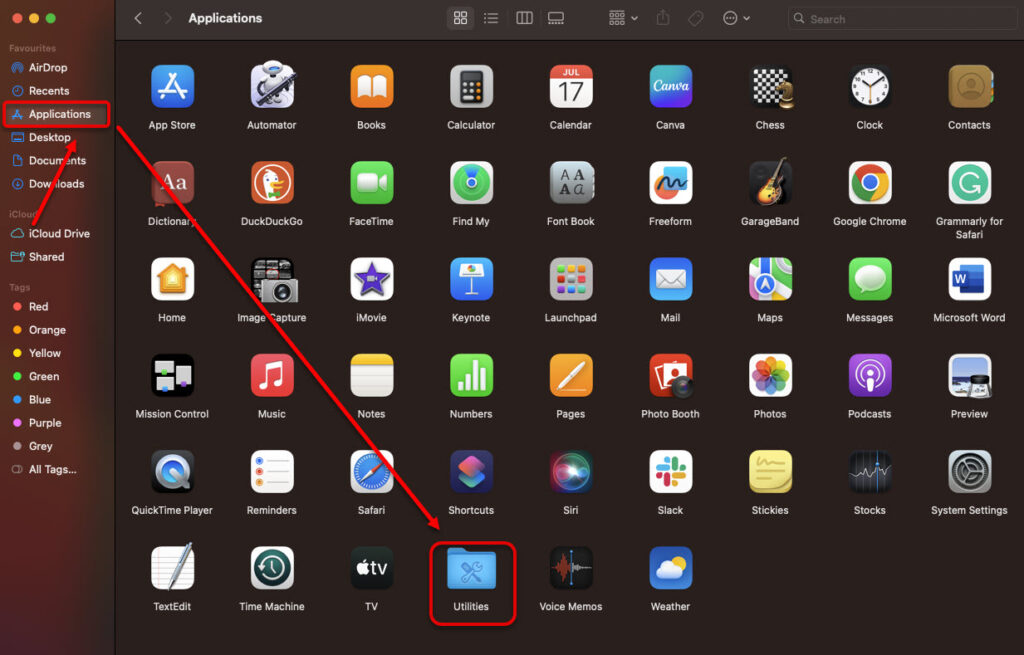
Step 3: Double-click on the Terminal.
Step 4: In the Terminal, type the command diskutil list and hit Enter. A list of all the storage devices will appear. Identify the card that you want to format.
Step 5: To format a card without changing its file system format, type the command diskutil reformat disk2 (disk2 is the disk number of your SD card) and hit Enter. To format the SD card and change the file system format, type the command sudo diskutil eraseDisk FAT32 MBRFormat /dev/disk2 and hit Enter.