macOS offers a lot of features to enhance user experience, and one such basic yet essential function is the ability to select all items in a particular context. Whether you are working with files, text, or any other content, being able to select everything at once can save you time and effort.
Curious about how to select all on a Mac? This article discusses various methods to select all on a Mac in a few simple steps.
Also read: Why is the Shift key not working on Mac? Quick Fix
Methods to select all on Mac
Here are the various methods to select all on your Mac:
Select all
If you want to quickly grab all the files on your desktop or in Finder, just press Cmd + A. This will pick everything in that area, whether it’s just a couple of files or a whole bunch. It’s handy for swiftly organising or removing multiple items at once.
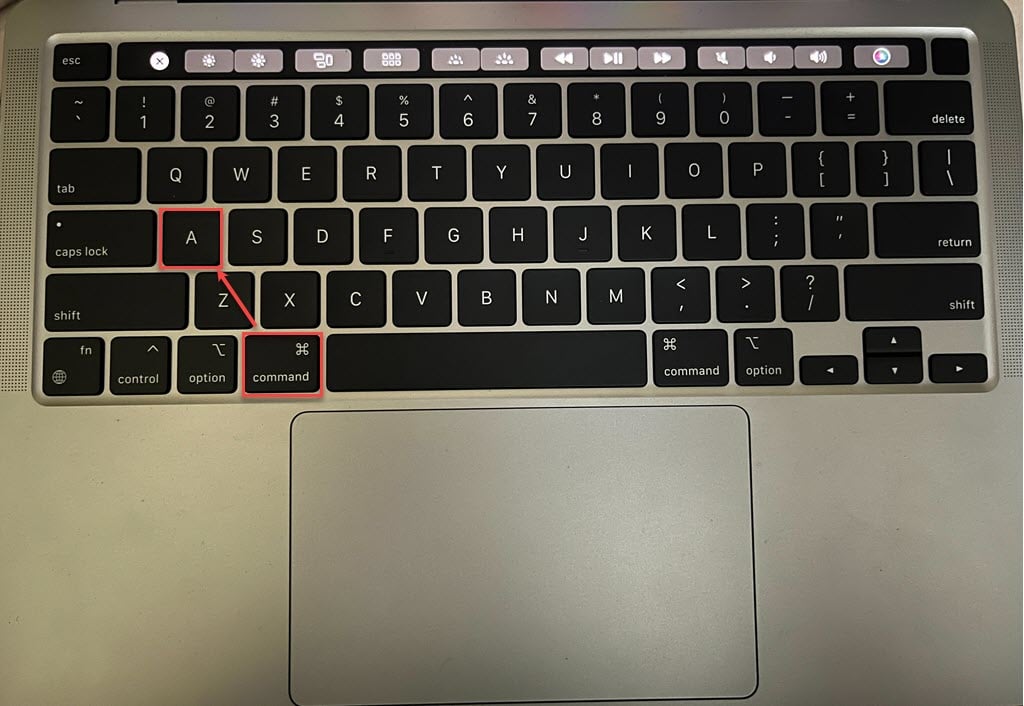
Click and drag to select all
If you want to gather many files quickly, click on an empty area and drag your mouse. This action creates a box that you can adjust in size while dragging. Drag the box over the files you’re interested in, and they will be selected automatically. Once you’ve selected your files, you can click on the group and then move it to a different folder or delete them all simultaneously.
Also read: Left-click not working on Mac: Quick Fix
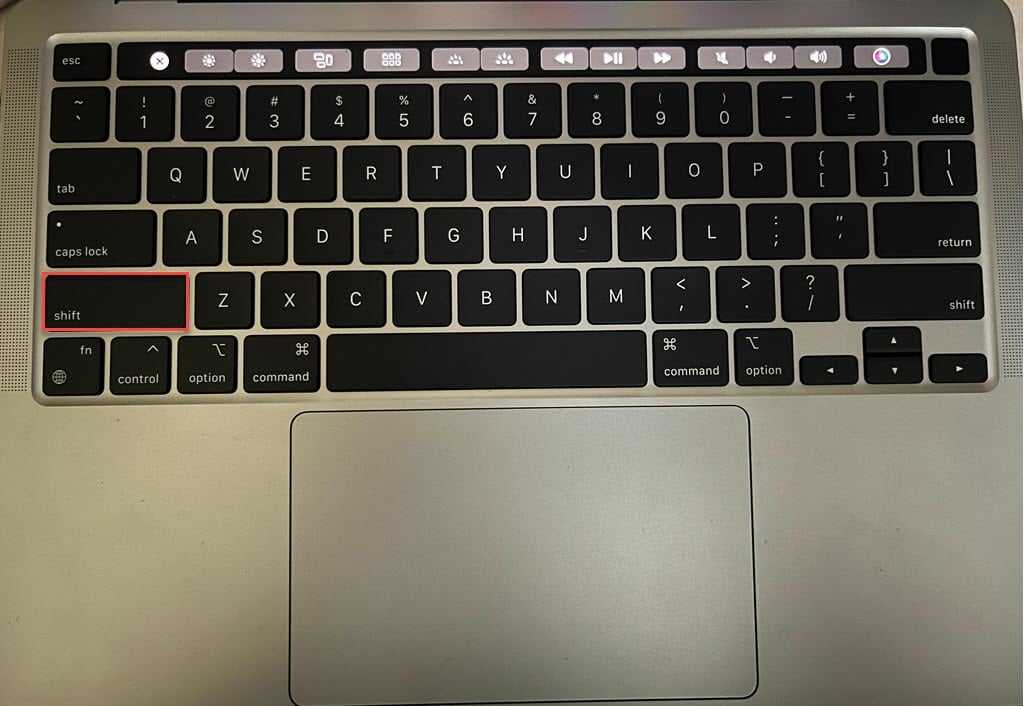
Select the first and last files
If you want to choose several files listed below the other, you can pick the ones you need. Just click on the first file, hold down the Shift key and click on the last one. This action will select both the files you clicked on and everything in between those files.
Select files one by one
This is the ideal choice if you want to pick specific files from a folder instead of selecting all of them. Simply hold down the Command key and click on the files you’re interested in. As you keep the Command button pressed, you can choose as many files as you need. These selected files will be highlighted in blue, making it clear which ones you’ve picked.

Also read: How to hide files on a Mac?