Photo: Farknot Architect / Shutterstock.com
Do you want to inspect elements on a Mac? Inspecting elements is an important function of web developers to understand the nuances of web development.
Web designers also use inspect elements to modify the website to understand how to make it aesthetically pleasing.
In this article, we will explain how you can inspect elements on Mac on various browsers. But before that, you should know why to inspect elements on various platforms.
Also read: How to save videos using inspect element?
What does Inspect Element do??
Inspect element is a handy browser tool, that allows you to delve into any webpage’s HTML, CSS, and JavaScript code. It grants you the power to tweak the code in real-time, observing the immediate impact on the page. It’s worth noting that these alterations are exclusive to your view and don’t alter the website.
Here are some compelling reasons to make use of Inspect Element:
- Pinpoint and resolve code errors or layout discrepancies.
- Experiment with diverse styles or scripts before implementing them on your website.
- Gain insights from fellow developers by examining their coding approaches on websites.
- Access images or videos that may not be readily available through regular means on a website.
- Navigate around certain website restrictions or filters.
How to inspect element on Mac?
In this section, we will explain how to inspect element on Mac.
Using Safari inspect element
Safari is the default web browser on Apple devices. Here’s how to inspect element in Safari on Mac:
Step 1: Open Safari and then head to Safari > Settings.

Step 2: Now, click on Advanced and then check the box titled Show Develop menu in menu bar.

Step 3: You will see the Inspect Element option when you right-click on any blank space on a website. Alternatively, you can press Command + Option + I.

Once you have opened the inspect element console, double-click on any part of the code to make changes. Once you are done, close the inspect element window by pressing the cross button at the top right corner.
Also read: Why is the Delete button not working on Mac? Quick Fix
Using inspect element on Chrome on Mac
If you’re using Chrome browser on Mac, here’s how to inspect element on it:
Step 1: Open Chrome and head to the webpage you want to inspect. Right-click on the blank space or any element and then select Inspect.
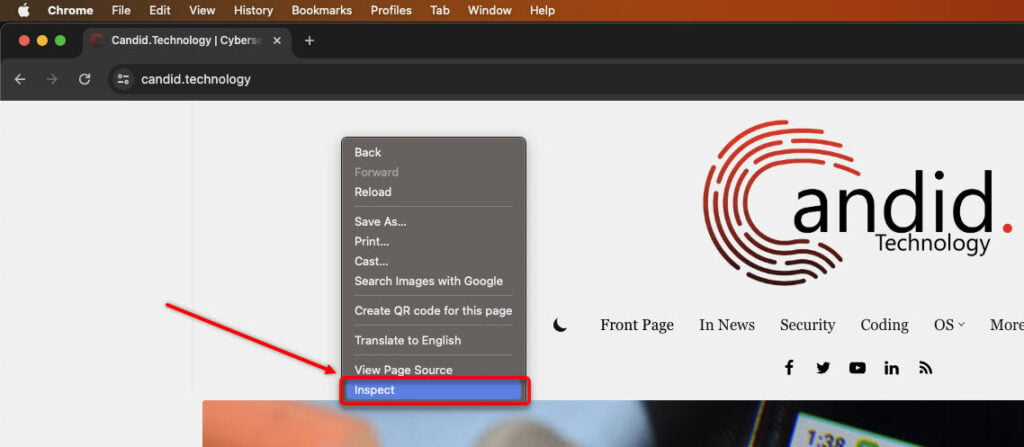
Step 2: You’ll see the HTML codes of the elements and the CSS styles on the right side of the screen. Take a look at the screenshot below.

That’s it. You can now easily inspect element on a Mac on Safari and Chrome browsers. On other browsers, too, the process is more or less the same. Either you will directly see the Inspect option, or you must head to Settings and first turn on inspect element.
Also read: How to inspect element on Android?