Photo: Yasin Hasan / Shutterstock.com
You must know how to rename a file on Mac for better data organisation. It is a simple and useful process that requires only a fraction of the time but goes a long way in keeping the folders and files in order so that you can access them later.
One of the benefits of renaming files and folders is that it makes them more descriptive and meaningful. For example, for a document named ‘report.pdf’, you can change the name to ‘November-Month-Sales-Report.pdf. See the difference between the two file names. One is just a general expression detailing that some reports will be in the file. However, the other one details the content.
There are different ways to rename a file on Mac. In this article, we’ll talk about a few of them.
Rename a file on Mac
In this section, we’ll explain two ways to rename a single file on your Mac:
Method 1: Right-clicking to rename a file on Mac
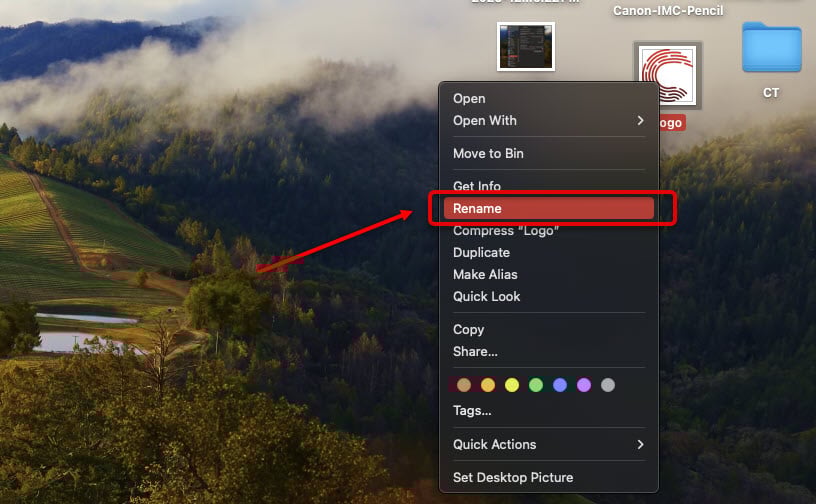
This is perhaps the easiest way to rename a file on Mac.
Method 1: Locate the file, right-click, and then select the Rename option.
As explained earlier, type a new file name that exactly mentions what the file is about. Finally, press the Return key to finalise the process or click on a space on the desktop.
Method 2: Alternatively, you can click on the file name twice with a micro-second gap between the two clicks to rename it.

Method 3: Another way to right-click on Mac is by pressing the Control button on the keyboard and simply left-clicking on the file.
You can use most symbols in a file name. However, you cannot use a colon (:) or begin the file name with a full stop (.), as the words after a full stop signify the file type and, in some cases, slash (/).
Keep this in mind; otherwise, you cannot rename the file, which can be frustrating.
Also read: How to sync messages from iPhone to Mac?
Method 2: Using Finder
The second method to rename a file on Mac is by using the Finder.
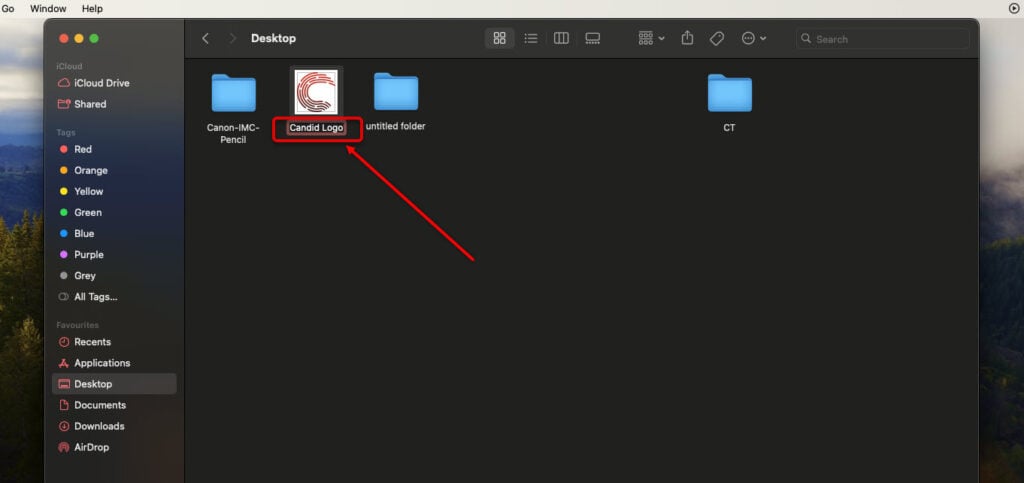
Open Finder and then locate the file that you want to rename. Now, click on the file name twice, but each click should have a bit of a gap. It should not be your normal double-click as it will open the file. You can also press the Return key.
After the two clicks, you will see the file name appears highlighted. Press Backspace or Delete to erase the current file name and enter a new one. When done, press Return or click anywhere on the window.
Also read: How to find the MAC address in Windows 11?
How to rename multiple files on Mac?
The process of renaming multiple files on Mac is almost similar to that of renaming a single file. Here’s how to do that:
Step 1: Open the Finder app and press and hold the Command key while simultaneously clicking on the files to select them. Now, right click and select Rename.

Another way to select a batch of files is to click on the first file to select it and then press the Shift button. After that, select the last file of the batch.
Step 2: Enter the target text you want to replace in the ‘Find’ box and the new text in the ‘Replace with’ box.

If you want to add a text before the previous file names, write that text in the ‘Add Text’ box.

To change the format of files, head to Format and then select the format as per your preference.
In conclusion, renaming a file or multiple files on a Mac is easy. Follow the steps given above and easily organise your Mac.
Also read: Can you get Procreate on Windows?