
Sharing your location on Android can be useful in times of need. If you’re late, you can send your location to your family so that they can ease their mind. Or you can ask your friends to send their location so that you can go and pick them up.
Or, let us say, you ordered food and the delivery service wanted to know your location. Without the location-sharing ability, life would have been a bit difficult. Imagine calling your delivery driver and explaining your home’s route.
There are many ways to share your location on Android such as using Google Maps, Messages, or another social messaging application such as WhatsApp or Telegram.
In this article, we’ll explain how to share your location on Android easily.
- Location sharing on Android using Google Maps
- Location sharing on Android using Google Messages
- Location sharing on Android using WhatsApp
- Location settings on Android
How to share location on Android using Google Maps?
Google Maps is perhaps the most widely used app used by travellers worldwide. When was the last time you asked someone for help in finding the route? This shows how much we are dependent on Google Maps for excursions or even intra-city travel.
You can share your Google Maps location on several platforms. Here’s how to do that:
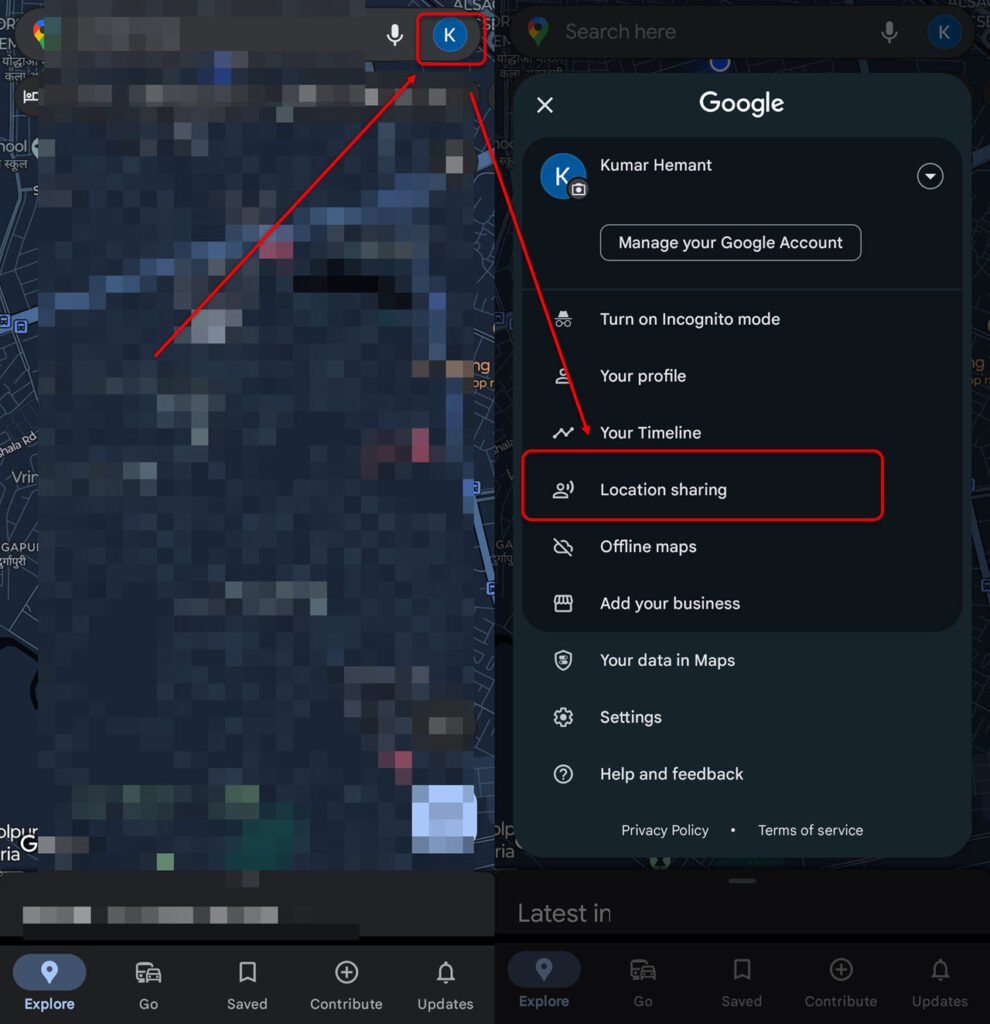
- Open Google Maps and then tap on your profile picture at the top right of the screen.
- Next, tap on Location sharing.
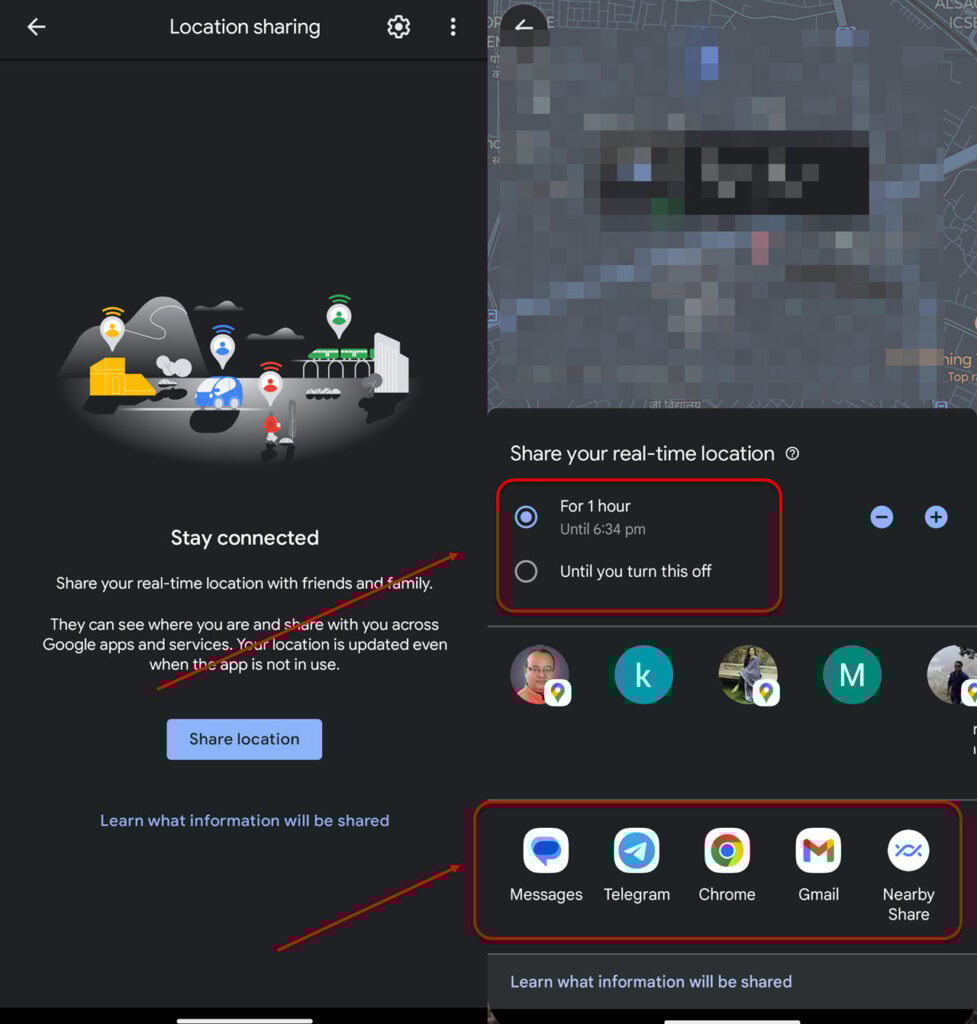
- On the next screen, tap on the Share location button.
- Now, select the time period. You have two options here: For x number of hours or Until you turn this off. If you choose the latter, location sharing will be activated till you turn it off manually. On the other hand, if you select the first option, then you will have to set the number of hours by pressing the plus or minus buttons on the right.
- Finally, select the platform where you want to share your location. The platforms include Messages, Chrome, Gmail, or Nearby Share and messaging apps like Telegram.
After you have shared your location with your friends, family or contacts, they can see your location along with your mobile’s battery level and network status.
Also read: How to turn off Android Auto?
How to share your location on Android using Google Messages?
You can easily share your location on Android using Google Messages. It is the default messaging app on Android and supports Rich Communication Service (RCS). This means that this seemingly simple app lets you send photos, videos, GIFs, stickers, and files along with providing end-to-end encryption.
Here’s how you can use Messages to share your location:
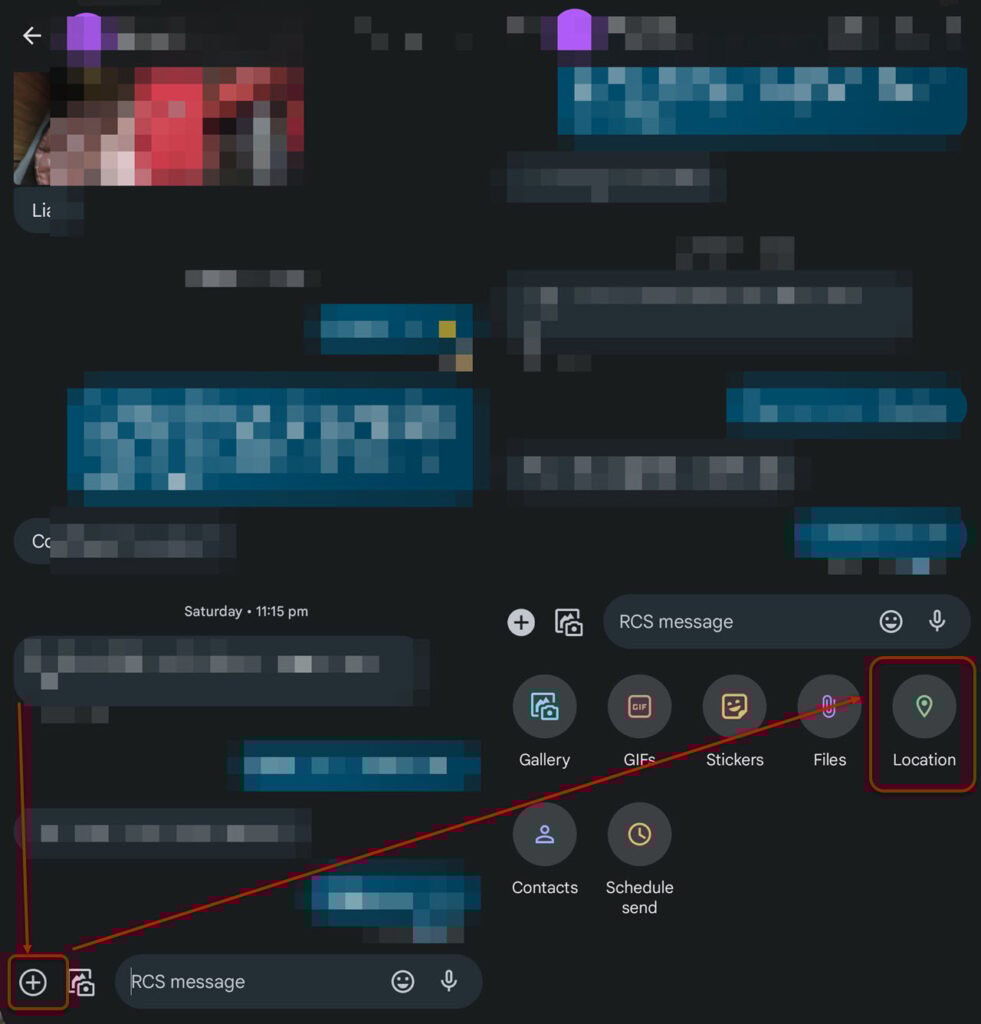
- Open Messages and then select a contact or conversation where you want to send the location. Next, tap on the ‘aim’ button at the bottom left of the screen.
- Next, select Location.

- Finally, tap on the right arrow to share your location. If you see a small lock under the arrow, it means that the communication is end-to-end encrypted. On the other hand, if you see SMS written under the arrow, the communication isn’t secure.
The other person will see a map with your location on it.
Also read: What is KLMS agent?
How to share your location on Android using WhatsApp?
WhatsApp, like many other messaging apps, allows location sharing, both static and live. Here’s how you can share your location on Android on WhatsApp:

- Open WhatsApp and then select a contact. Now, tap on the attachment icon (paperclip) at the bottom.
- Next, select Location.
- Now, tap on the Share live location or Send your current location option as per your preference.
Also read: How many contacts do I have?
How to adjust location settings on Android?
Before you can share your location, you will have to tweak your location settings on your Android phone.

Head to Settings > Location and toggle on the switch in front of Use location.

To select the apps that can access your location, head to Settings > Location > App location permissions and then tap on the app. Here, you will see three options:
- Allow only while using the app
- Ask every time
- Don’t allow

Select the option as per your preference. If you want the app to access your precise location, turn on the toggle in front of Use precise location.
In conclusion, sharing location on Android is quite easy. Follow the steps given above to share your location on Google Maps, Google Messages, and WhatsApp on Android.
Also read: 15 productivity tips to Google like a pro


