
With the powerful video capabilities of modern iPhones, capturing and editing videos has become easier. Sometimes, you may need to speed up a video to fit it into a specific time frame or add a dynamic touch. Fortunately, the iPhone provides user-friendly tools to enhance your video editing skills.
This article discusses how to speed up a Slo-Mo video and how to speed up a regular video on your iPhone in a few simple steps.
Also read: How to delete files on iPhone?
How to Speed up a Slo-Mo video?
If you’ve captured a video on your iPhone using the Slo-Mo feature, you can easily edit and increase its speed using the built-in Photos app. Follow these steps to get it done:
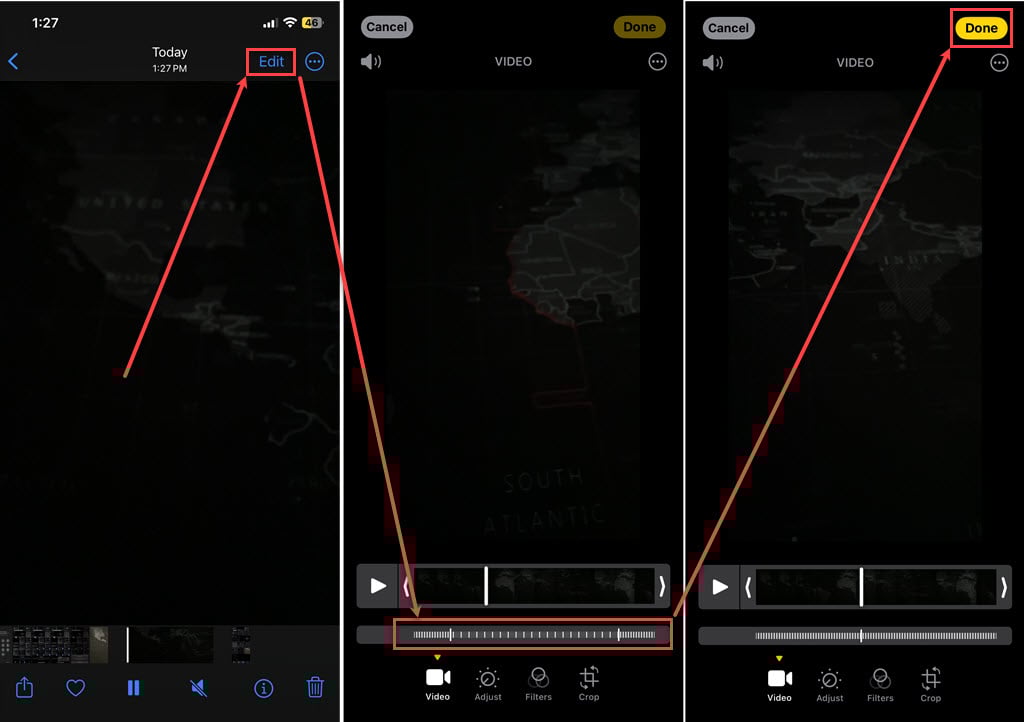
- Go to the Photos app on your iPhone and open the video you want to speed up.
- Tap on the Edit button available at the top right corner of the screen.
- Below the video frame, there are two vertical white bars. Drag them together to remove the Slo-Mo effect and bring it to the speed of the regular video.
- Tap on the Done button available at the bottom right corner of the screen.
Also read: How to delete photos from my iPhone but not iCloud?
How to Speed up a regular-speed video?
If you’re looking to make a regular-speed video faster, you can upload it to the iMovie app, which is free, and then use its built-in speed tool. Here is how to do it:

- Go to the iMovie app on your iPhone, and a new project screen will appear. Tap on the Movie option.
- Select the video you want to speed up and tap on the Create Movie button at the bottom of the screen.
- Tap on the video clip timeline; the editing tools will appear at the bottom. In the editing tools, tap on the Speed tool (Speedometer).
- Now, drag the yellow slider to the right to increase the speed of the video; you can increase the speed of the video by up to 2x. After you are done, tap on the Done button at the top left corner of the screen.
- Tap the Save button at the bottom of the screen to choose how you want to save it.

Also read: Fix: Unable to load video on iPhone


