
Receiving an incoming call is one of a smartphone’s primary functions. However, it can be frustrating when your device fails to display incoming calls on the screen. This issue can disrupt communication and lead to missed calls, causing inconvenience in both personal and professional settings.
This article discusses various reasons why incoming calls might not be showing on your screen and seven methods to help you fix the issue.
Below we have discussed:
Also read: How to fix white spots on your phone’s screen?
What causes this issue?
There are various reasons why incoming calls might not be showing on your screen and they are mentioned below:
- Temporary system glitch.
- Phone app’s Notifications are disabled.
- Do Not Disturb mode is enabled.
- Corrupted cache.
- The phone app doesn’t have a display over other app permission.
How to fix the issue?
Here are seven fixes to help you fix the issue:
Restart your device
A simple restart can often fix temporary glitches. Power down your phone and turn it back on. This might be all it takes to get your incoming call notifications working properly.
Check notification settings
It’s possible that you’ve turned off notifications for incoming calls on your Android phone. If you’re not seeing notifications for incoming calls, adjusting this setting should help you resolve the issue. Here’s how to do it:
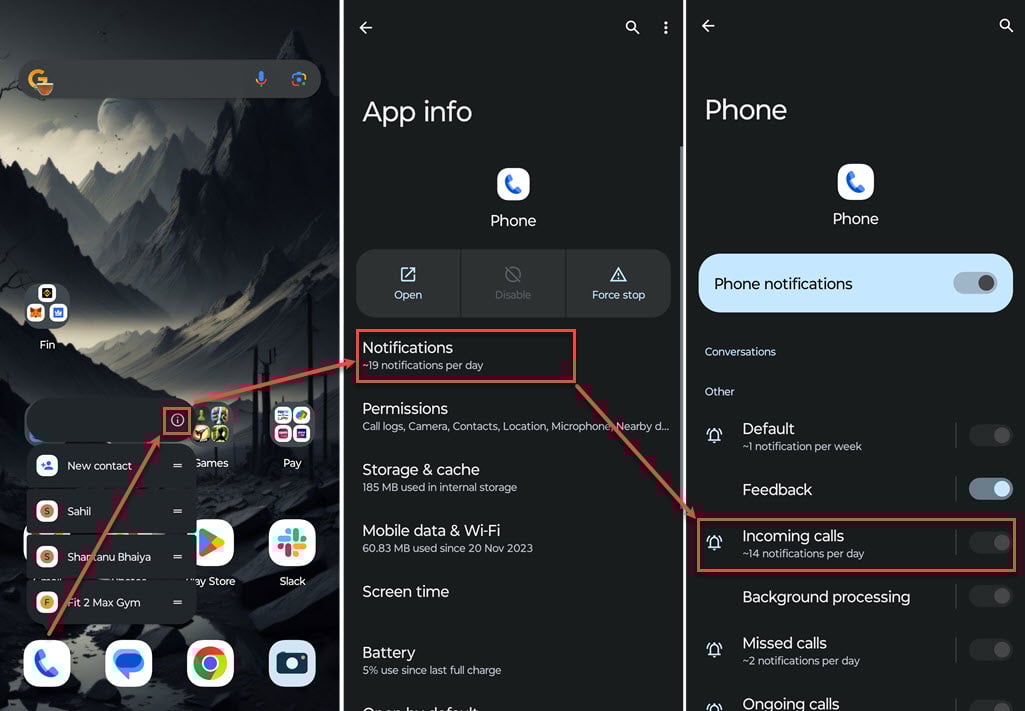
- Tap and hold the Phone app icon, a menu will appear, tap on the i icon at the top right corner of the menu that appeared.
- Tap on the Notifications option.
- Make sure the toggle is turned on beside the Phone Notifications option at the top and the incoming call option.
Disable Do Not Disturb
Enabling Do Not Disturb stops apps from sending you notifications. If you disable DND, you might start seeing notifications for incoming calls on your screen.

- Open the Settings app on your phone and tap on the Sound & Vibration option.
- Tap on the Do Not Disturb option.
- Make sure it’s turned off.
Check out our article to learn more on how to disable DND
Clear Phone app cache
The cache stores temporary files and components offline to speed up app reloading. But as time goes on, accumulated cache data can turn into junk files that might cause bugs. So, try clearing the Phone app’s cache to fix the problem. Here are the steps:

- Tap and hold the Phone app icon, a menu will appear, tap on the i icon at the top right corner of the menu that appeared.
- Tap on the Storage & Cache option.
- Now, tap on the Clear cache button.
Check permissions
The Phone app needs permission to show content over other apps. If you don’t grant this permission, it could affect how the app works, leading to calls not appearing on the screen. Here are the steps:

- Open the Settings app on your phone and tap on the Apps option.
- Tap on the Special app access option.
- Tap on the Display over other apps option.
- Scroll down and tap on the Phone app.
- Make sure the toggle is turned on beside Allow display over other apps.

Reset app preferences
Resetting app preferences can be useful for resolving any settings that might be causing issues with incoming call notifications. This action resets preferences for all apps on your Android device, including the Phone app, back to their default settings. Here’s how to do it:

- Open the Settings app on your phone and tap on the Apps option.
- Tap on the See all apps option.
- Now, tap on the Triple dots icon at the top right corner of the screen.
- In the menu, tap on the Reset app preferences option.

Also read: How to unlock your Android smartphone with a broken screen?





