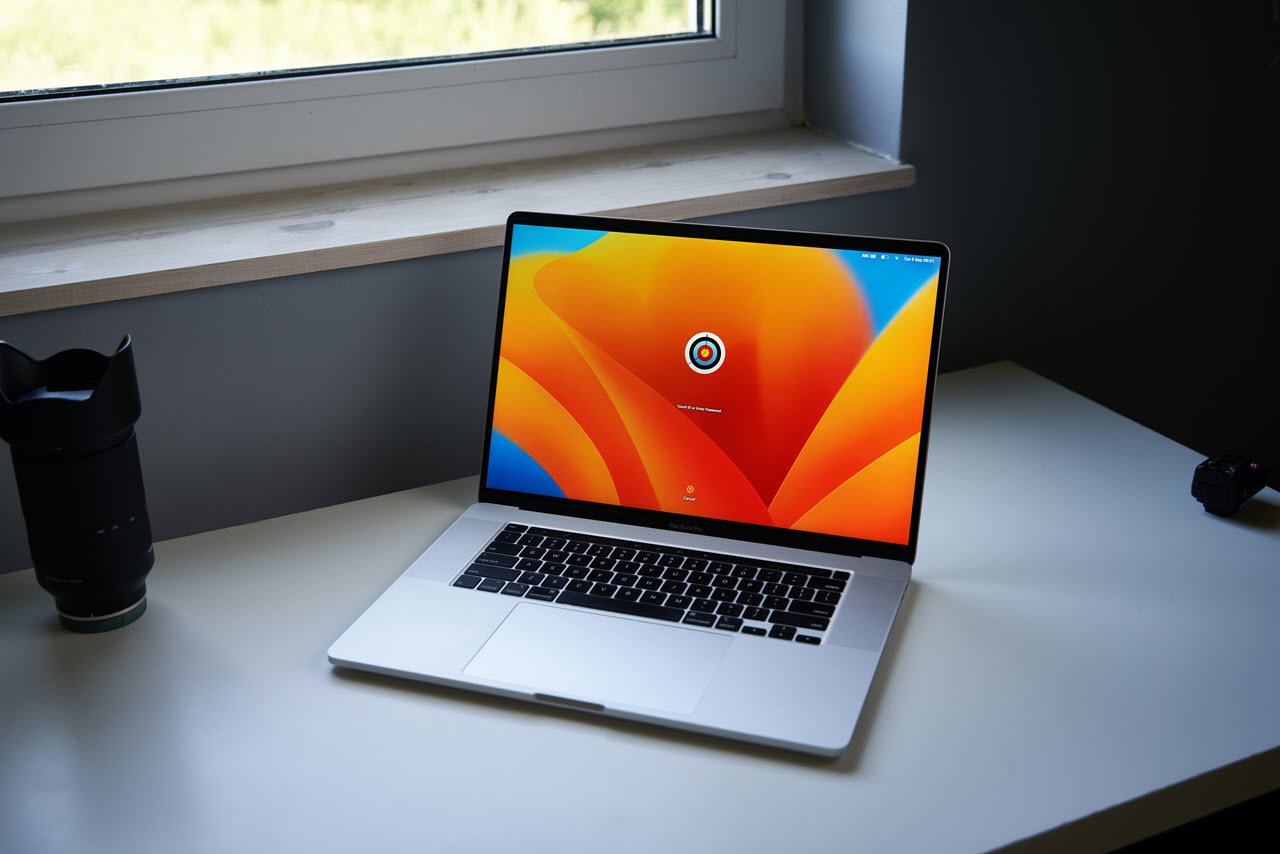
When working on your Mac, a non-responsive left click can be frustrating. A malfunctioning left click can disrupt your workflow, whether you’re using a wired or wireless mouse, a touchpad, or even the built-in trackpad on your MacBook.
Is the left click not working on Mac? This article discusses various methods to help you fix the issues with the left click on your Mac.
Methods to fix the Left-click on Mac
Here are a few methods that might help you fix the issues with left click on your Mac:
Restart your Mac
It may sound simple, but often, a simple restart can resolve many issues, including problems with the mouse. Give your Mac a fresh start and see if the left-click works again.
Check for Physical obstructions
Ensure no physical obstructions are affecting your trackpad’s functionality. Dirt, dust, or debris can accumulate over time and interfere with the trackpad’s sensors. Gently clean the trackpad with a soft, lint-free cloth, and make sure nothing is blocking its path.
Also read: How to connect a mouse to the Mac?
Check the external mouse or trackpad
Numerous individuals discovered that the left click glitch on their Mac occurred because a wireless mouse or trackpad was accidentally clicked repeatedly by an object, causing the Mac to stop recognising left click commands. Therefore, if you’re using an external mouse, it’s advisable to double-check it and ensure it’s securely stored in a safe location.
Check for Software update
Outdated software can lead to compatibility issues, including problems with your trackpad. Make sure your Mac is running the latest version of macOS. Here are the steps to that:
Step 1: Click on the Apple menu, then click on the System Settings option in the dropdown menu.
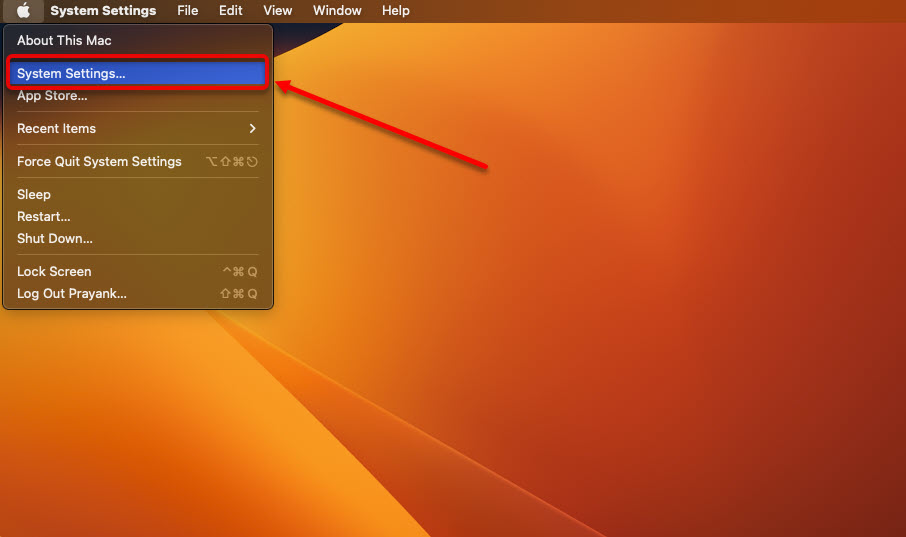
Step 2: In system settings, click on the General option in the sidebar and then click on the Software Update option on the right.

Step 3: If you have any available macOS updates, install them.

Reset SMC
The System Management Controller (SMC) manages various hardware functions, including mouse input. Resetting it might help resolve the issues with the left click on your Mac. The steps to reset the SMC differ with different Mac models.
Reset the SMC in a Mac with the T2 chip
Step 1: Shut down your Mac
Step 2: Press and hold the right Shift key + left Control key + left Option key for about seven seconds and hold the Power button.
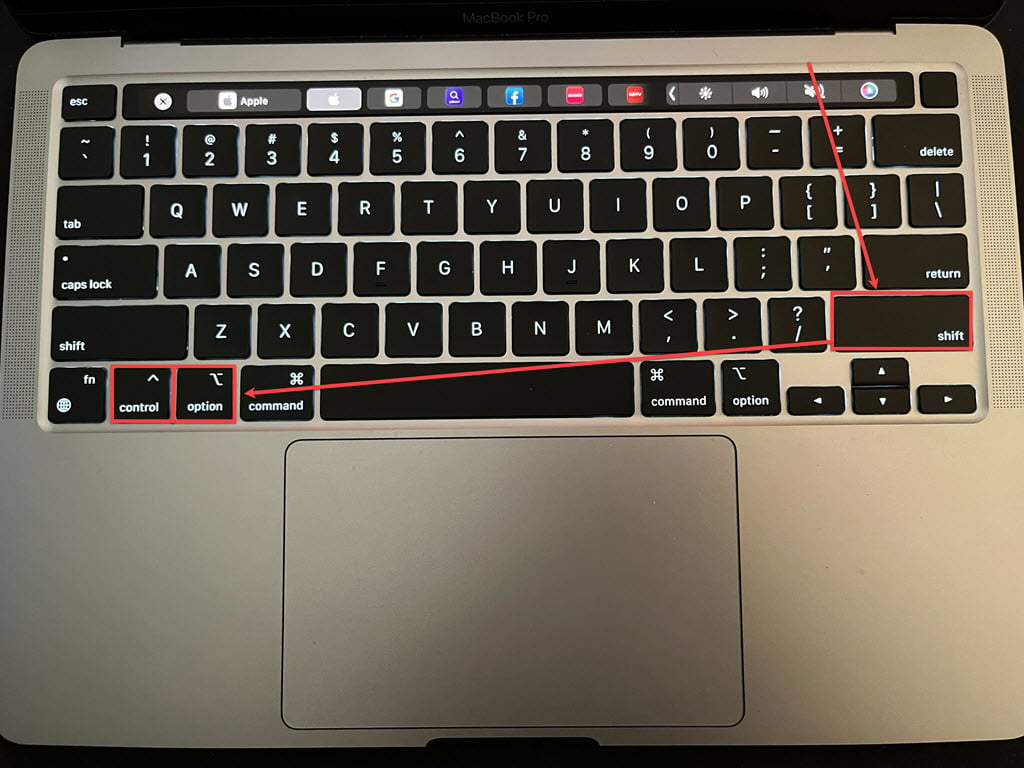
Step 3: Keep holding all four keys for another seven seconds. If your Mac is turned on, it will turn off on its own while you are holding these keys.
Step 4: Release all the keys, wait a few seconds, and press the Power button to turn on your Mac.
Reset the SMC in an Intel Mac with a removable battery
- Step 1: Shut down your Mac and remove the battery.
- Step 2: Hold the Power button for about five seconds.
- Step 3: Reconnect the battery and turn on your Mac.
Reset the SMC in an Intel Mac with a non-removable battery
Step 1: Shut down your Mac.
Step 2: Press the Shift + Control + Option keys on the left side of the keyboard. While holding these keys, press the Power button and hold them all for 10 seconds.
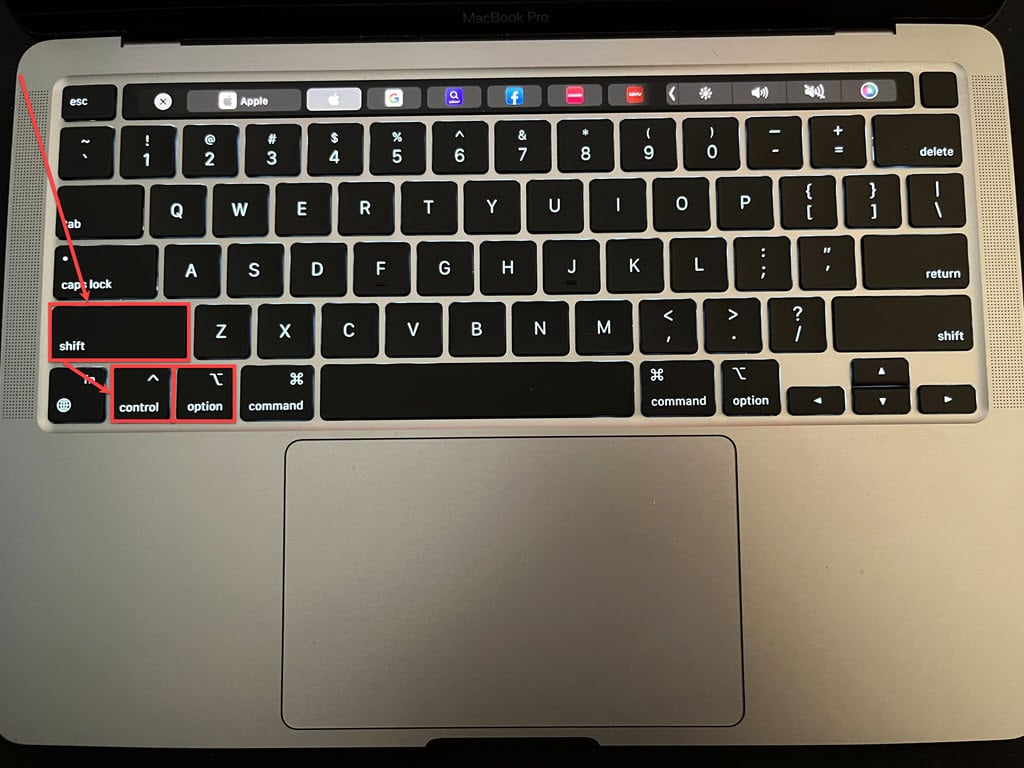
Step 3: Release the keys and press the Power button to turn on your Mac.
Resetting the SMC (System Management Controller) on Macs powered by Apple’s M-series chips isn’t officially supported because these chips handle system functions differently. Nonetheless, according to the experiences of many users, you can achieve a similar effect to an SMC reset by completely turning off your Mac and waiting for 30 seconds before turning it back on.
Also read: What is Apple VT H264 hardware encoder OBS on Mac?
Reset NVRAM/PRAM
NVRAM (Non-Volatile Random-Access Memory) or PRAM (Parameter RAM) stores certain settings related to input devices. Resetting this memory can help resolve various hardware-related problems. Here are the steps to reset them:
Step 1: Shut down your Mac.
Step 2: Press and hold the Command + Option + P+ R buttons as you turn on the Mac.
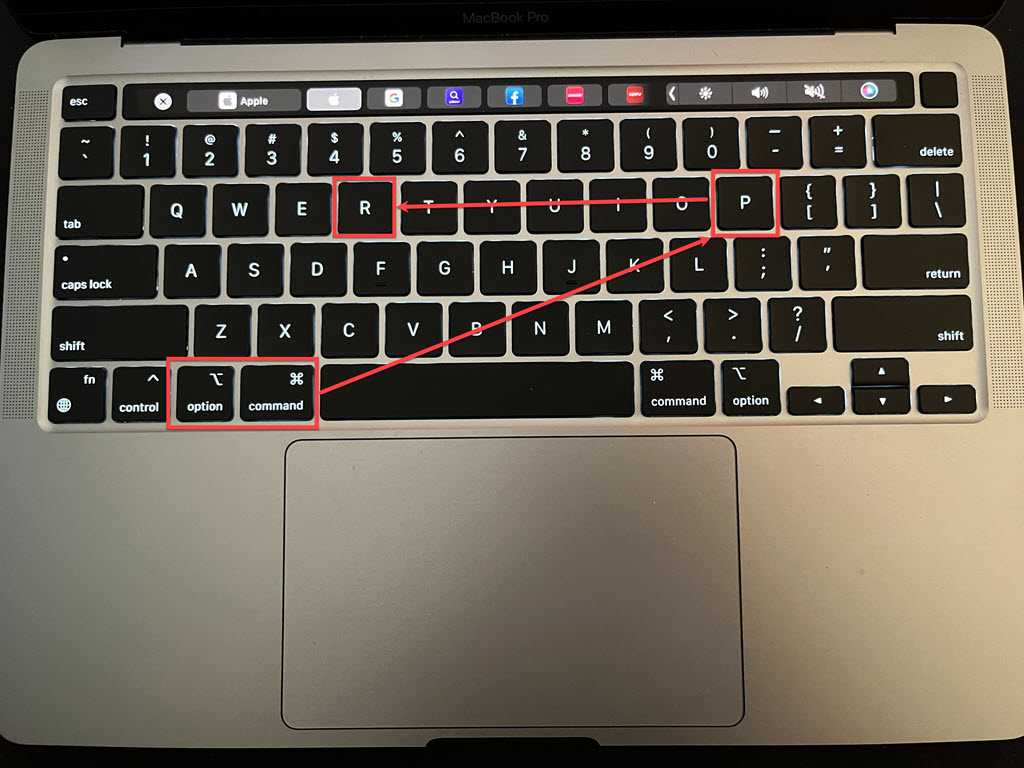
Step 3: Hold the keys until you hear the startup sound twice.
A simple restart will be enough if you have a Mac with Apple silicon.
Delete Plist files
Plist files contain the configuration and preferences of the devices and apps; deleting the Trackpad Plist files will reset it and might resolve the issue. To delete them, follow the steps below:
Step 1: Open Finder, click on the Go tab and then in the dropdown menu click on the Go to Folder.

Step 2: Go to ~/Library/Preferences and find the files com.apple.preference.track.plist and com.apple.AppleMultitouchTrackpad.plist and delete these files.
Step 3: Restart your Mac.
It will remove all the trackpad property files, including those that might have gotten corrupted. After restarting your Mac, the system will recreate these files.
Visit an Apple store
If none of the above solutions work, it might be time to contact Apple Support or visit an Apple Store for professional assistance. There could be an underlying hardware issue that needs repair or replacement.
Also read: How to change the scroll direction on a Mac?