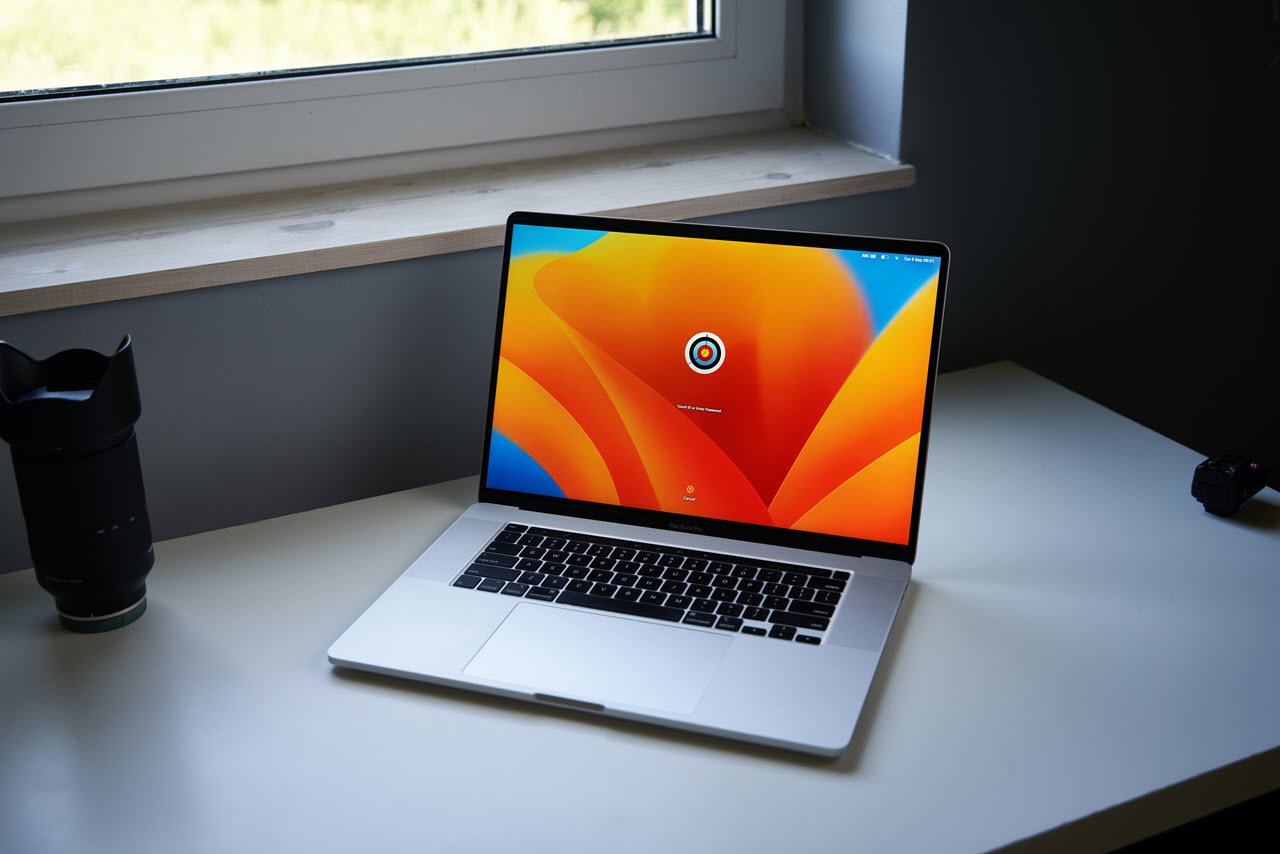
Touch ID has become an essential feature on mobile devices. This technology provides a secure and convenient way to unlock the devices and authorise various actions and adds an extra layer of protection to your personal data. However, sometimes they might not work as expected.
If your Touch ID is not working properly, this article discusses why it is not working and a few ways to fix it.
Why the Touch ID is not working?
There can be various reasons that might affect the Touch ID and stop it from working properly.
- Your finger or Touch ID sensor is wet or dirty.
- There might be problems with the Touch ID sensor.
- Changes in the Touch ID settings could be causing problems.
- Make sure your macOS is up to date.
- If you’re using an external keyboard, it may have trouble connecting.
- Other hardware issues.
- Your Mac could be physically damaged.
Also read: How to lock screen on Mac?
How to fix the issue?
Here are a few ways to help you fix the issues with your Touch ID:
Ensure Touch ID is enabled
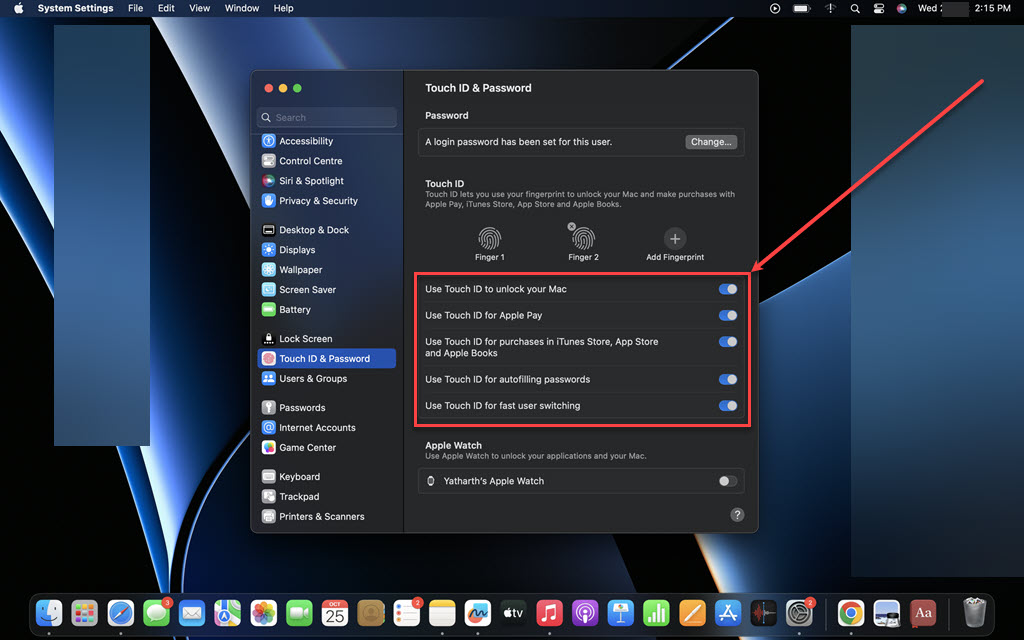
If you have a new Macbook and haven’t enabled the Touch ID, it is obvious it won’t work. Also, sometimes, Touch ID may get accidentally disabled. To enable it, follow the steps below:
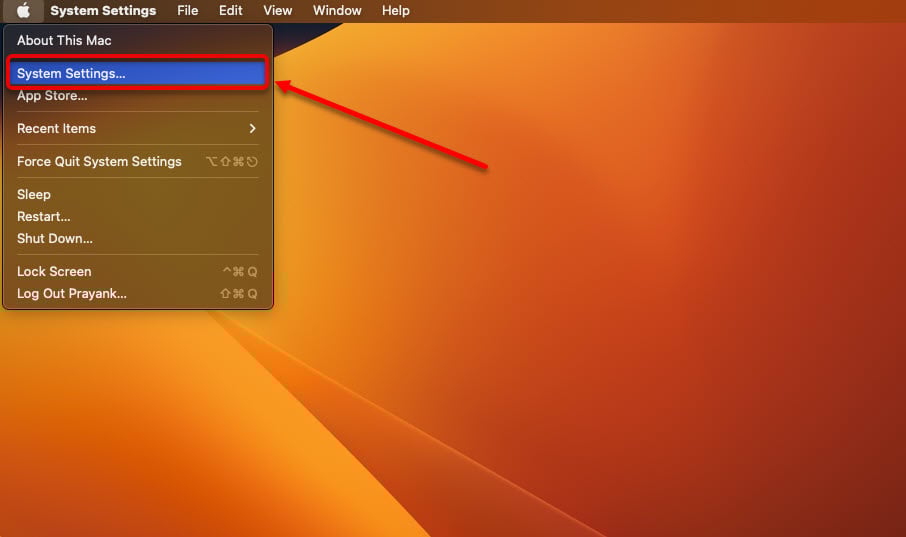
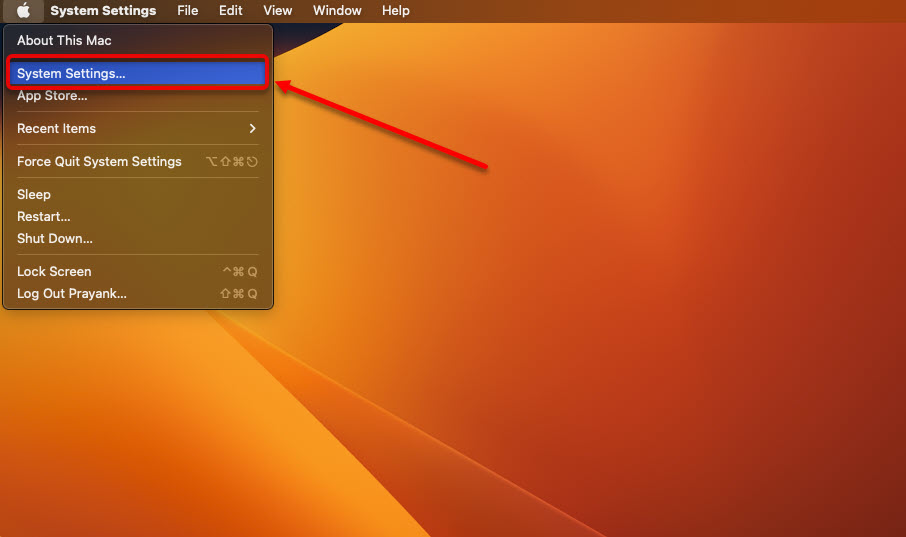
Step 1: Click on the Apple menu; click on the System Settings option in the dropdown menu.

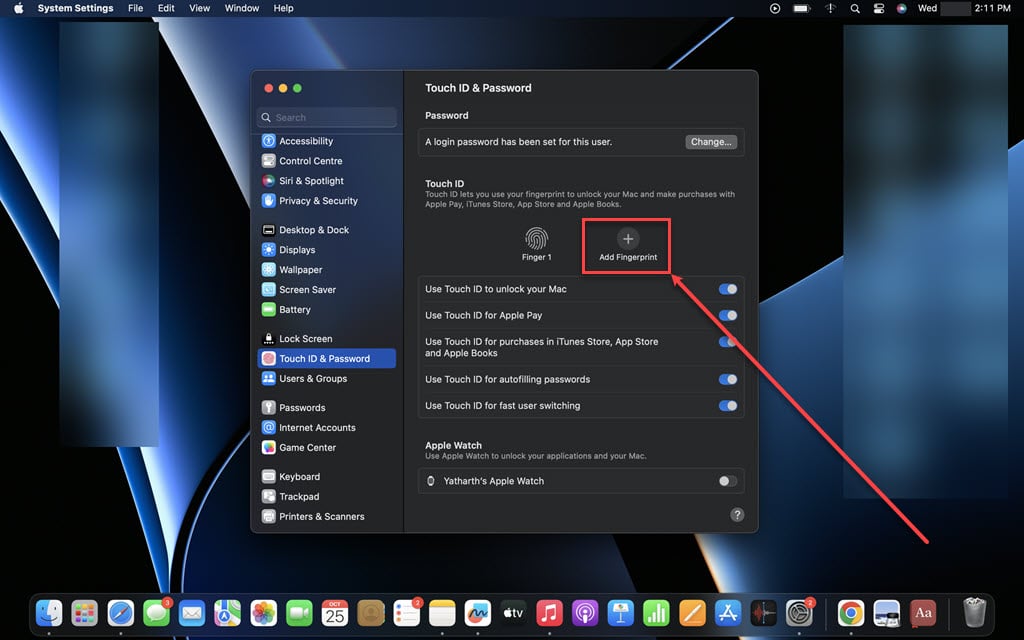
Step 2: Click on Touch ID and Password in the sidebar and then on the right side of the screen, under the Touch ID section, turn the toggle on beside the option where you want to use Touch ID.
Clean the Touch ID Sensor
Sometimes, the simplest solutions can work wonders. If your Touch ID isn’t responding as it should, cleaning your fingerprint sensor is the first thing to try. Over time, dust, dirt, or even a smudged screen protector can interfere with its performance. Gently wipe the sensor with a clean, soft cloth, and make sure your fingers are clean and dry when attempting to set up or use Touch ID.
Reboot the device
There may be some temporary glitches or other temporary issues on your device. Rebooting your Mac can resolve many temporary issues, including those related to Touch ID.
Re-add your fingerprint
If your fingerprint data becomes corrupted or inaccurate, it can lead to Touch ID problems. You can delete your existing fingerprint data and re-add it to resolve the issue. To do that, follow the steps below:
Step 1: Click on the Apple menu. In the dropdown menu, click on the System Settings option.
Step 2: Click on Touch ID and Password in the sidebar, and then on the right side of the screen, hover over your fingerprint and click on the Cross (X) icon that appears on it.

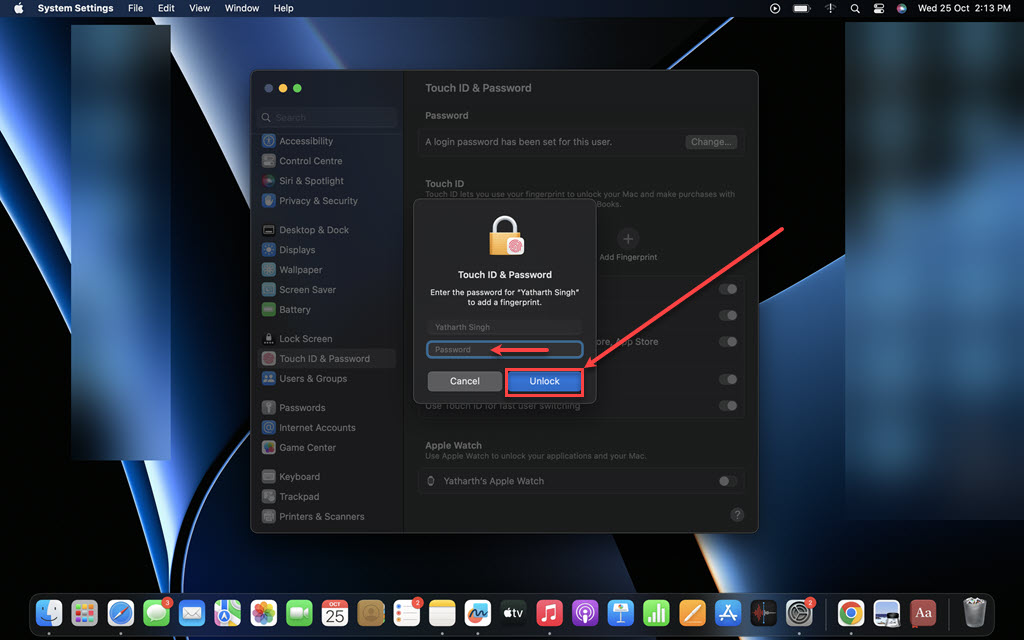
Step 3: Enter the password and click on the Unlock button.
Step 4: Click on the Delete button.

Step 5: Now, restart your device and return to the Apple menu > System Settings > Touch ID & Password > Add Fingerprint to add your fingerprint.
Update software
Sometimes, the issue with Touch ID not working can be easily fixed by updating your Mac’s operating system. Apple often releases software updates that include bug fixes and enhancements, which might address your problem.
To check for updates, follow the steps below.
Step 1: Click on the Apple menu, then click on the System Settings option in the dropdown menu.
Step 2: In system settings, click on the General option in the sidebar and then click on the Software Update option on the right.

Step 3: If you have any available macOS updates, install them.

Check if your Mac is compatible
Not all MacBooks can use Touch ID. Only newer Macs with Apple Silicon chips and macOS 11.4 (Big Sur) or later can support this feature. his includes Macs using Monterey and Ventura. You can check the list of compatible devices to see if your Mac works with Touch ID.
Reconnect your Magic Keyboard
If you have a compatible Magic Keyboard with Touch ID, but it’s not recognising your fingerprint or not working as expected, you can try reconnecting it.
- Turn off your keyboard.
- Connect your keyboard to your Mac using the USB-C to Lightning cable.
- Turn on the keyboard and see if Touch ID starts working. You can unplug the cable and continue using the keyboard wirelessly if it does.
Also read: How to turn keyboard light on Mac?