Photo: Ascannio / Shutterstock.com
Twitter, now X, is one of the most popular social media platforms, with over 300 million annual visitors annually. The platform boasts some of the most powerful people, including the heads of the state, industrialists and businessmen, journalists, researchers, and university professors, among others.
With such a diverse audience, you may want to look into making a profile on X. But, as a new user, the symbols and icons on Twitter may confuse or overwhelm you.
In this article, we’ll explain what these symbols and icons mean so you can easily understand the platform and its functions in one go.
Twitter home icons explained
Home icons are located at the bottom shelf; you will see them as soon as you open Twitter.
These icons offer easy access to Home, Search bar, Communities, Notifications and Direct Messages on Twitter. Let us take a look at each icon below:
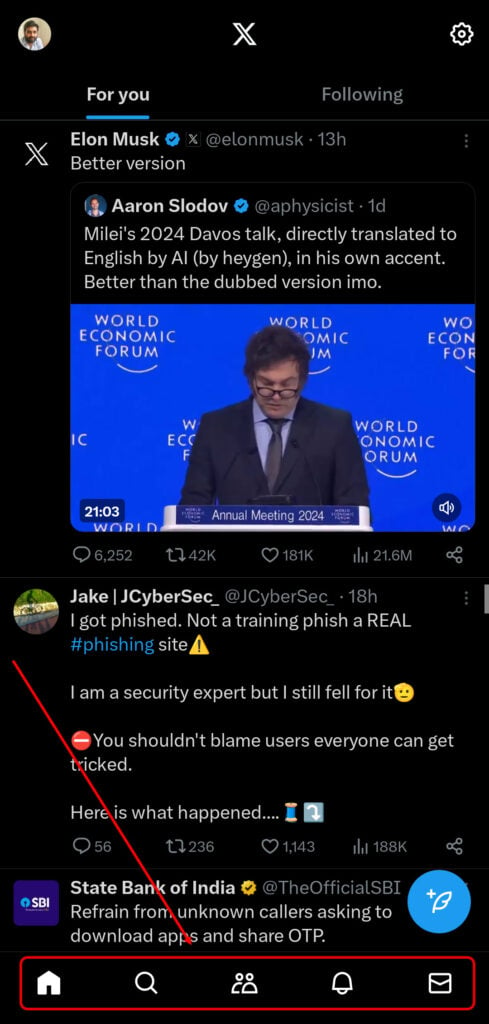
- Home: Let us start with the Home icon. This icon looks like a miniature 2D hut or a birdhouse and is located on the extreme left of the icon shelf. You can tap on his icon whenever you want to return to your home screen or see the latest tweet. You will see a blue dot above the hut when you have new tweets on your timeline.
- Search: Tapping the Search icon will take you to the search section, where you can find other accounts and hashtags related to trending topics, news, sports and entertainment.
- Communities: Communities are spaces on Twitter where you can control the rules and regulations as per your preference. To create a community, you will have to pay for X subscription.
- Notifications: The bell icon represents notifications on X. If someone mentions you in one of their tweets or someone you followed tweets, you will get a notification here. Other than that, you will also receive a follow notification if someone follows you.
- Messages: Tap on Messages to see all your DMs and if you want to talk to others on Twitter.
Also read: Why is my Twitter account getting logged out?
Twitter profile icons meaning
When you tap on your profile icon at the top left, you’ll see a host of symbols and icons. Let us discuss each one of these:

- Profile: This option shows your Twitter profile and most of the information you need on this platform, including Posts, Replies, Highlights, Likes, and Media.
- Premium: This icon is represented by X; you can buy the premium version here.
- Bookmarks: It’s simple. A bookmark represents this option to see all your saved tweets.
- Lists: Head to this option to see your lists. Lists are specific sets of accounts that you group under a heading.
- Spaces: Tap on this icon to see the current Spaces on Twitter. Spaces are audio conversations on the platform where people from all over the world join.
- Follower requests: Select this icon here to see all the follower requests you have on Twitter.
- Monetisation: If you want to earn money by tweeting, head to this icon. Just follow the terms and conditions of X, subscribe, and you’re ready to monetise your Twitter content.
Also read: What is a Twitter handle?
Twitter tweet icons explained
The third set of icons we will explain is related specifically to tweeting. Here are some of them:
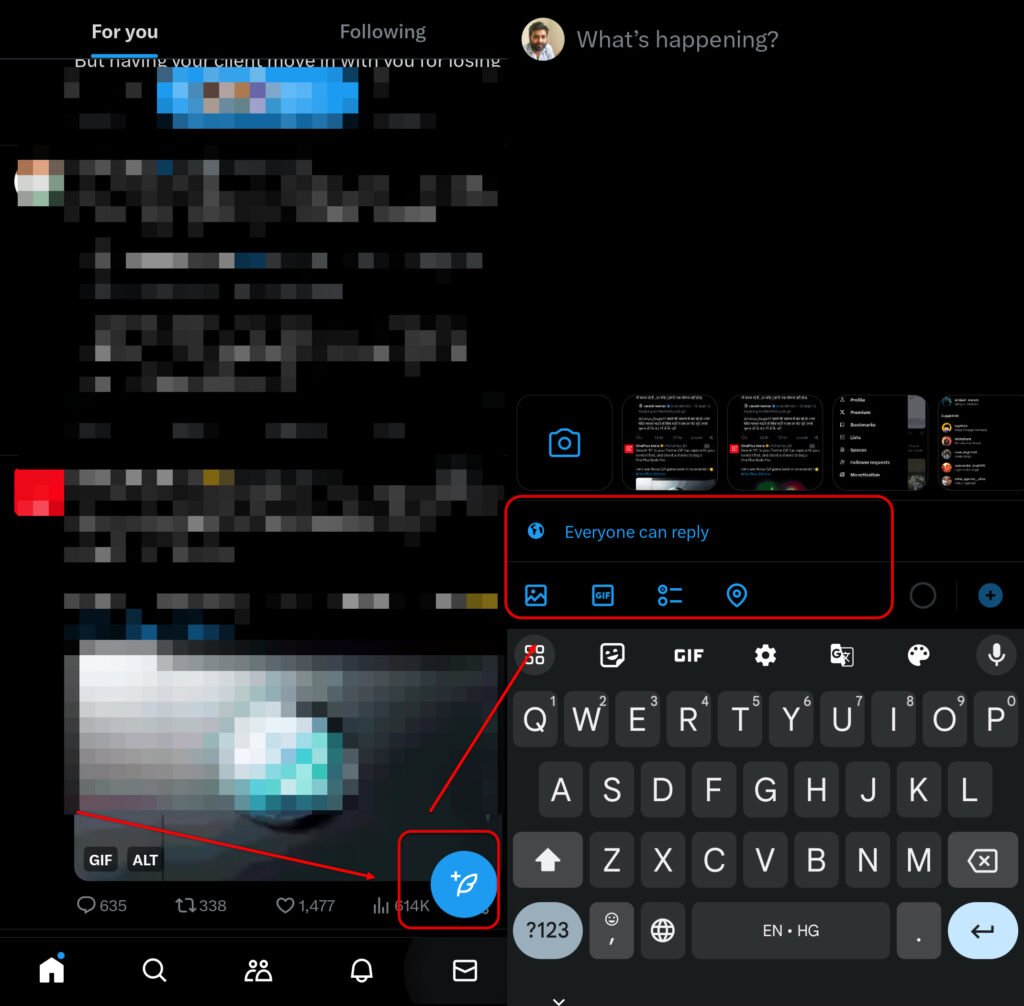
- Tweet icon: You’ll find this icon at the bottom right of the home screen. Tap on this icon to start tweeting and see other options.
- Privacy settings: Select this option to tweak your tweets’s privacy settings. You have the following options: Everyone, Verified accounts, Accounts you follow, and Only accounts you mention.
- Gallery: Select this option to upload a photo or video from the Gallery of your phone.
- GIFs: Select this icon to insert and search GIFs into your tweet.
- Poll: To include a poll in your tweet, select the Poll option and then select the poll questions.
- Location: Tap this well-known icon to share your location and other details with your Twitter followers.

- Reply: Tap on this icon to reply to a tweet.
- Retweet: This icon looks like two arrows shaped like a box. Tap on this icon to retweet your favourite tweet.
- Like: The little heart icon will help you to like the tweet. The icon will turn red if you have liked the tweet.
- Bookmark: Tap on the Bookmark icon to save this tweet for later.
- Share: This icon allows you to share the tweet via the link, bookmark, or on social media and email.
We hope that by reading this article, you have learned the meaning and usage of Twitter icons and symbols and will now be able to use the platform easily.
Also read: How to change your age on Twitter?