Urban VPN is one of the most popular new free VPN services out there right now; however, it also faces connection errors every now and then, much like any other popular VPN service.
In this article, we’ve discussed 12 ways to fix Urban VPN connection error in a jiffy.
Check your internet connection
The first step of troubleshooting anything is to reboot the device that may be causing the issue.
It almost seems like a joke now, but rebooting your device does have some pretty surprising results, and you might be able to resolve many seemingly random issues.
Issues at the ISP’s end
If the WAN light on your router isn’t on, this can indicate that you’re not getting a signal from your ISP and that they may be facing an outage.
In such cases, the best thing to do is contact them and inquire about what’s happening. Generally, your ISP would be quick to resolve any such outages.
Also read: Tor vs VPN: Which one is better?
Try another server
If the server you’re trying to connect to is overloaded, there’s a good chance that you might not be able to connect to the service. Try connecting to another UrbanVPN server to see if that resolves your problem. This method also works if you’re connected but are experiencing slow internet speeds over a VPN.
Is Urban VPN down?
Check if Urban VPN is down via their social media pages and third-party down detectors. If the service is down, there’s nothing much you can do except wait for the devs to do their job and get the servers back up and running.
Disable antivirus and any third-party firewalls
Another thing that should be on your diagnostics list is temporarily disable your antivirus and check if you can share files through your network. If you’re using any third-party firewalls, they can also cause conflict with network communications to keep you safe.
Check your credentials
If you’re running VPN software on your router, check to see if you’re using the proper credentials. Do remember that these credentials are different from your UrbanVPN account credentials and will cause your VPN not to connect if entered incorrectly.
Check your router ports
UrbanVPN requires the 443 TCP and 1194 UDP ports open on your router to work correctly. Check to see if the ports mentioned above are open and that your router or firewall allows pass-throughs for the VPN. Your provider can also block traffic on a particular port; if that’s the case, try changing the UrbanVPN default port to see if that solves your problem.
Also read: NordVPN not working: 10 Fixes
Reinstall your VPN
Try uninstalling UrbanVPN entirely and reinstalling the latest version again. That’ll ensure that any corrupt or damaged files or configurations aren’t messing with your connection.
Restart the Windows Installer Service
Restarting the Windows Installer Service can help eliminate UrbanVPN connection error.
Step 1: Press the Windows key + R to open the Run prompt. Type services.msc and hit enter.
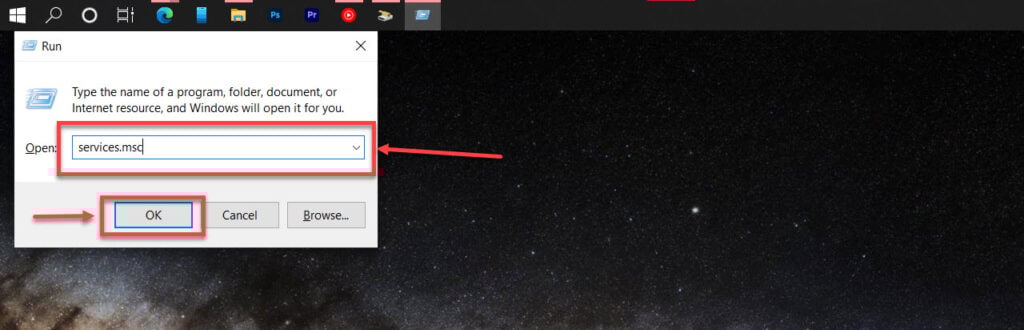
Step 2: Find the Windows Installer Service, right-click it and select Restart or Refresh, whichever is available.

If this doesn’t fix the UrbanVPN connection error, follow the guide below.
Also read: How to make a Twitter account public?
Use command prompt to flush DNS
Incorrect DNS settings can and will mess up your VPN configurations. Revert them to the default settings to see if that solves your problem. Here’s how.
Step 1: Press Windows key + R and type cmd. Then hit enter.
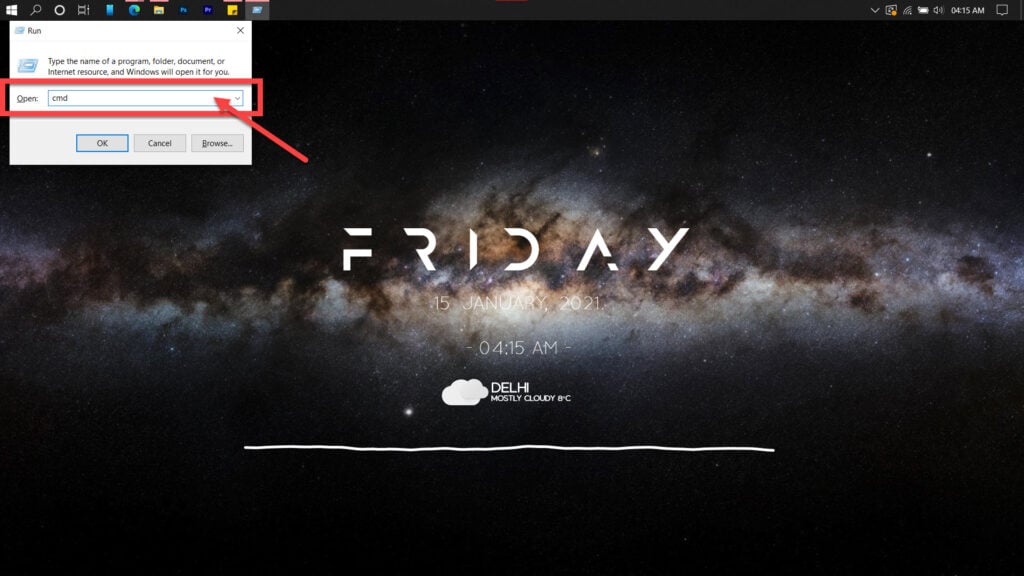
Step 2: Type in ipconfig /flushdns to reset DNS settings to default.
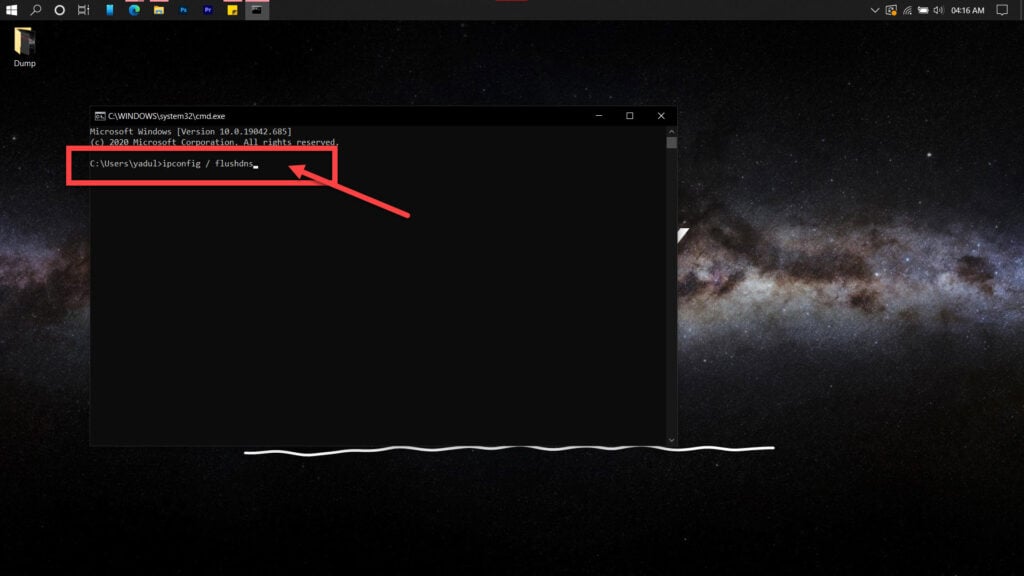
If the above command doesn’t help, try entering these commands in the Command Prompt one at a time.
netsh winsock reset
netsh int ip reset
If you suspect an issue with your router’s DHCP assignment, use these commands to release your old IP and request a new one.
ipconfig /release
ipconfig /renew
Use the following commands to reset your network stack if this doesn’t work.
ipconfig/flushdns
nbtstat -R
nbtstat -RR
netsh int ip reset C:\resetlog.txt
netsh winsock reset
Now try restarting your PC and running UrbanVPN again to see if that solved your problem.
Automatically register your IP
If your DNS settings aren’t the problem, your IP registration could be causing the issue.
Step 1: Head over to the UrbanVPN website and log in. Once there, head over to DNS Settings.
Step 2: Enable the Automatically register my IP address setting and click the Register my IP address button.
Check your PC’s timezone
Being in the incorrect timezone can often cause problems with VPNs. Check to see if you’re in the correct time zone according to your location.
You can check out this detailed guide on how to change your time zone on Windows here.
Also read: Roomba charging error 5: 4 quick fixes
Run an SFC scan
Corrupt files in Windows often cause uncalled-for errors, including the UrbanVPN connection error. Try running an SFC scan to repair any damaged files.
Step 1: Press Windows Key + S to open the Cortana/Search box and search for Powershell. Open Windows Powershell from the search results.

Step 2: Type sfc /scannow to scan your system for issues.

Step 3: If the SFC scan finds any problem, use the following command to resolve them.
DISM /Online /Cleanup-Image /RestoreHealth
Restart your PC, and the UrbanVPN connection error should be gone.
Also read: Windows not connecting to PPTP VPN: 9 Fixes