
The weather app on your iPhone is a handy tool that provides you with current and forecasted weather conditions for your location and other areas.
However, the weather app may sometimes stop working properly, showing inaccurate or outdated data, crashing, or failing to load. This can be frustrating, especially when planning your day or week according to the weather.
In this article, we’ll discuss why the weather app has stopped working and how to fix it.
Possible reasons why the Weather app is not working on iPhone
Several factors can affect the performance of the weather app on your iPhone. Some of the most common ones are as follows:
- Disabled Location Services: If the Location Services on your iPhone are disabled or have not been given the required permission, the Weather app may not function properly as the app needs your location to for weather data.
- The app’s server is down: Maybe the Weather app’s server is currently out of order or is scheduled for maintenance, causing disruptions with the app.
- Weather app background app refresh is off: As the Weather app collects data regularly, turning off the background app refresh will stop this.
- Weak internet connection: A weak or unstable internet connection will hinder the app’s access to weather centres.
- Outdated iOS version: An outdated iOS version can affect the Weather app’s performance.
- Glitches in the Weather app: Sometimes, there are minor bugs and glitches in the Weather app causing it to display wrong data or shut down completely.
Also read: How to scan a document on iPhone?
How to fix the Weather app not working on iPhone?
Now that we have understood why the Weather app is not working let us head to the fixes:
Restart your iPhone
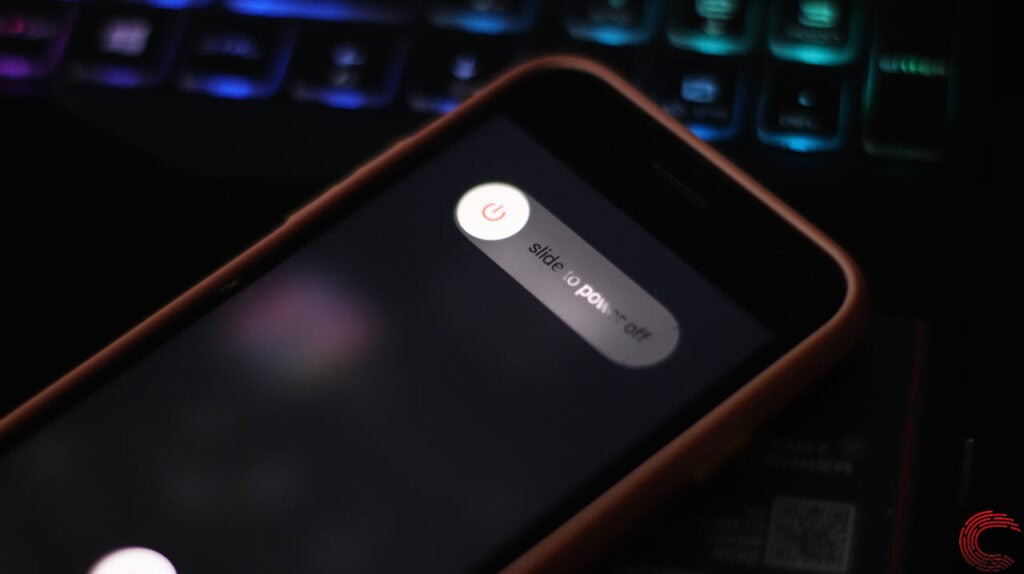
Sometimes, the simplest fixes are the easiest ones. In this case, restarting your iPhone takes the top spot.
Depending on your iPhone model, you must either long-press the power button at the top or side. On newer models, starting from iPhone X, you can restart by pressing the power button and simultaneously the volume up or the volume down buttons.
You will see a slider on your screen; swipe it to the right, and the restart process will activate.
Close the app
You can fix several minor glitches and bugs in the Weather app by closing it and opening it again.

To close the Weather app, swipe up from anywhere on the Home Screen > locate the Weather app and then swipe up to close it.
Check the servers
As mentioned, you won’t get regular data if the Weather app’s servers are down.
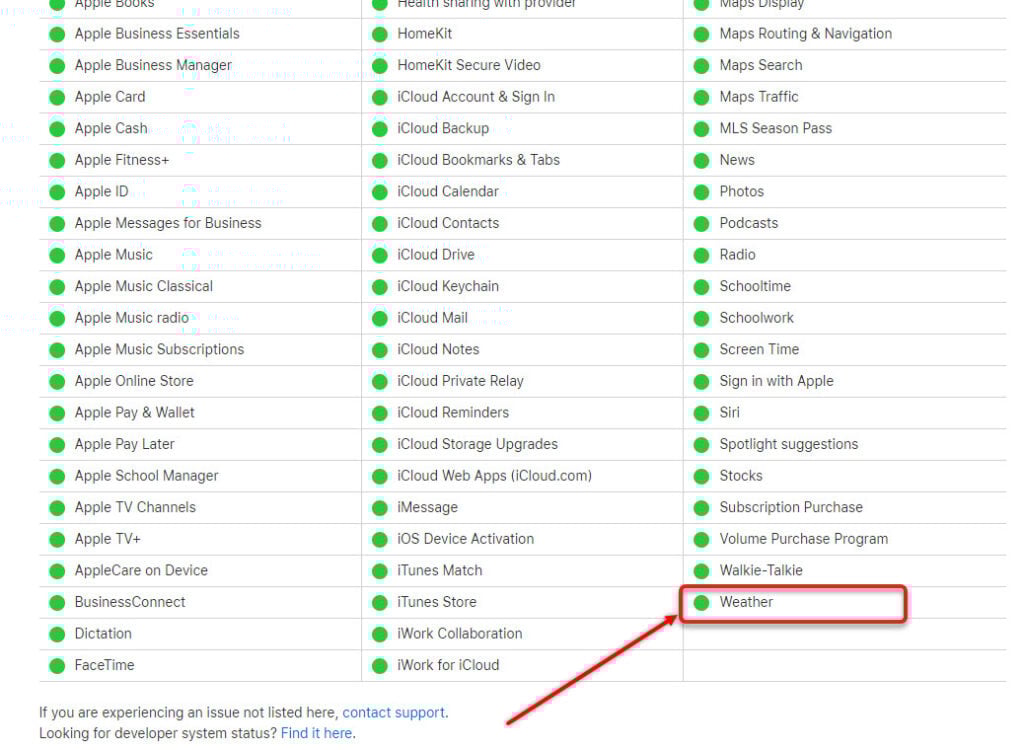
Head to the Apple System Status page to check the servers and locate the Weather app at the bottom. You will see an ‘Available’ or a green indication if everything is fine.
Fix your internet
Stable internet access can fix the Weather app not working on your iPhone problem. You can take several steps to fix your internet connection and WiFi.
We have compiled a detailed list of steps and tips that you should follow if your internet isn’t working.
Similarly, for solutions to fix your Wifi, check out our detailed article on what to do if your WiFi is not working.
Turn on the Background App Refresh
If you have turned off the Background App Refresh, the Weather app will not work on your iPhone. Follow the steps given below to turn it on:
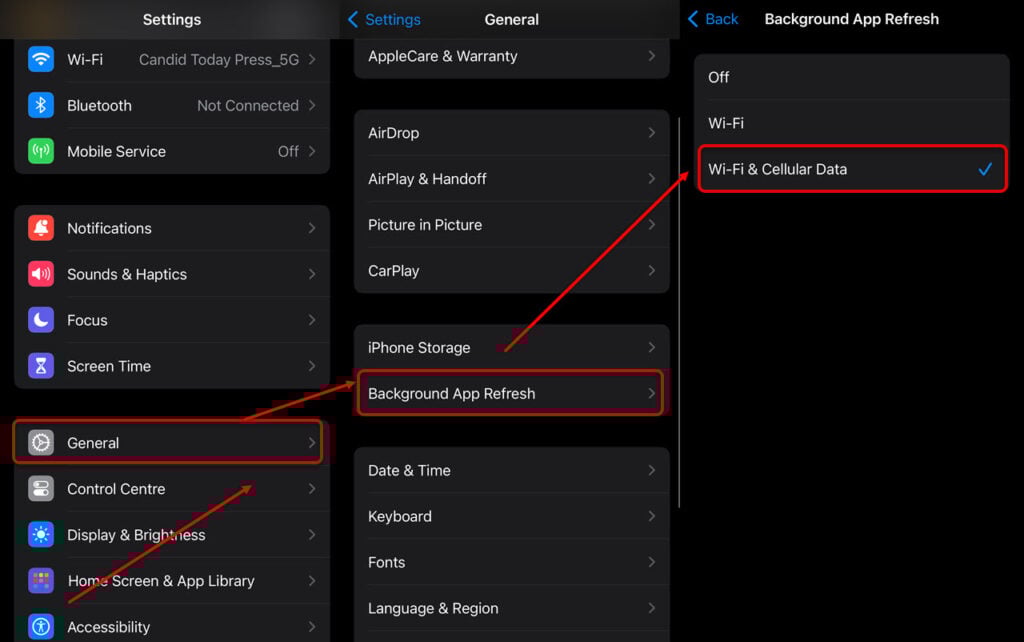
- Open Settings and then tap on General.
- Select Background App Refresh.
- Finally, select the WiFi and Cellular Data option so that if your iPhone is ever on cellular data, the Background App Refresh won’t stop. However, it may consume data. So, buy the data plan accordingly.
Also read: How to turn invert off on your iPhone camera?
Enable Location Services for the Weather app
For privacy concerns, many people choose to turn off the Location Services. Although many services work perfectly fine, some services that require constant access to your location may be disrupted. The Weather app is one such service that requires your location for more precise weather data.
Here’s how to enable Location Services for the Weather app:

- Open Settings and then tap on Privacy and Security.
- Next, tap on Location Services.

- Now, select the Weather app to see the options available for location services.
- Among the given options, select Always and turn on the toggle in front of Precise Location while you’re at it.
Instead of Always, you can also select options like While Using the App or While Using the App or Widgets. These options will allow the location services to activate when you open the Weather app or the widget. However, selecting Always is the best choice, as the app will automatically display the weather information based on your location.
Update iOS
Sometimes, updating the iOS may also help fix several issues with the Weather app.
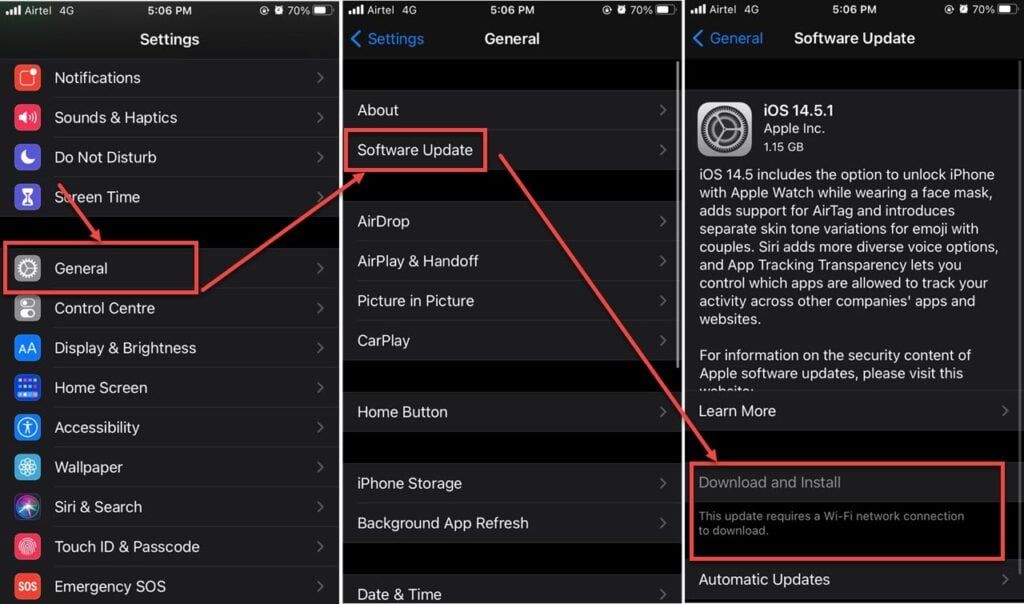
Here are the steps to update iOS:
- Open Settings and then head to General.
- Next, tap on Software Update.
- Finally, tap on Download and Install.
Reinstall the Weather app
If you have still not fixed the Weather app not working on the iPhone issue, it is better to reinstall a fresh version.
Here’s how to delete the Weather app on your iPhone:
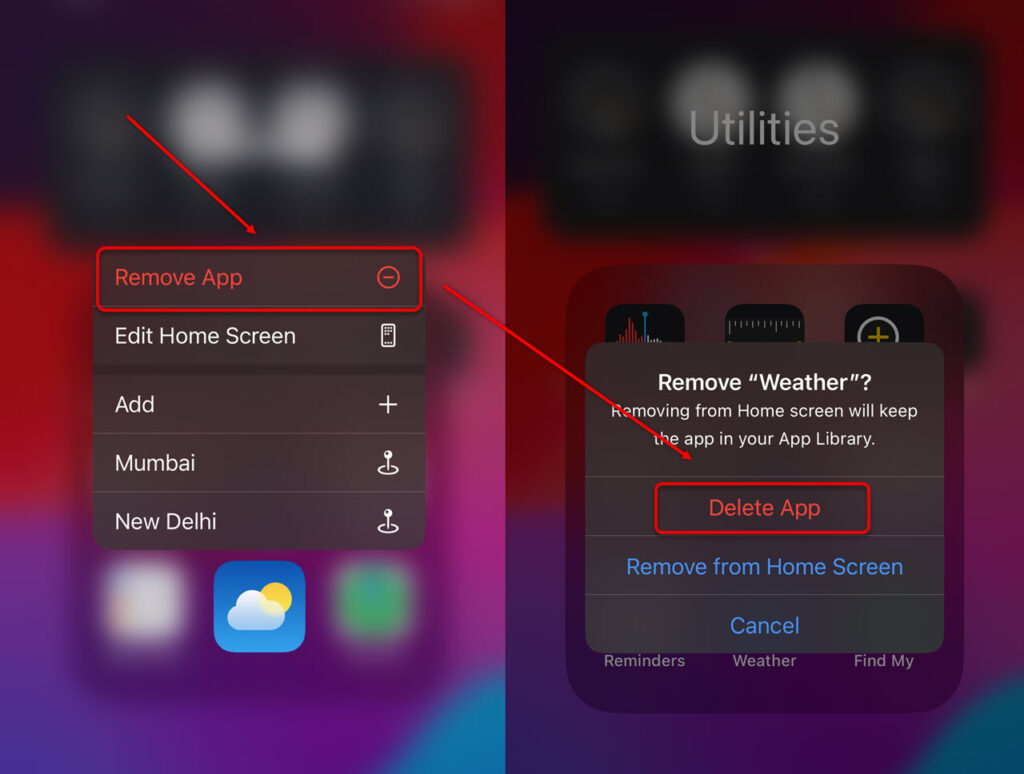
- Press and hold the Weather app and then select Remove App.
- Tap on Delete App to remove it.
In conclusion, dealing with the Weather app malfunction on an iPhone can be incredibly frustrating. However, following the steps above, you can easily resolve the issue. For third-party weather apps for iOS, head to our article here.
Also read: How much unified memory do I need?


