
Photo: Framesira / Shutterstock.com
Scanning a document on an iPhone is easy. Nowadays, smartphones, including the iPhones, come with pre-installed apps for this purpose. This means you don’t have to hunt for these apps online or in various app stores.
In this article, we’ll explain how to scan a document and a QR code with your iPhone.
Also read: Active calories vs Total calories on Apple Watch: 3 Key Differences
Scan a document on your iPhone
As we have mentioned earlier, smartphones have an in-built scanning app. iPhone users can accomplish this task with the help of the Notes app.
To do this, follow the steps given below:
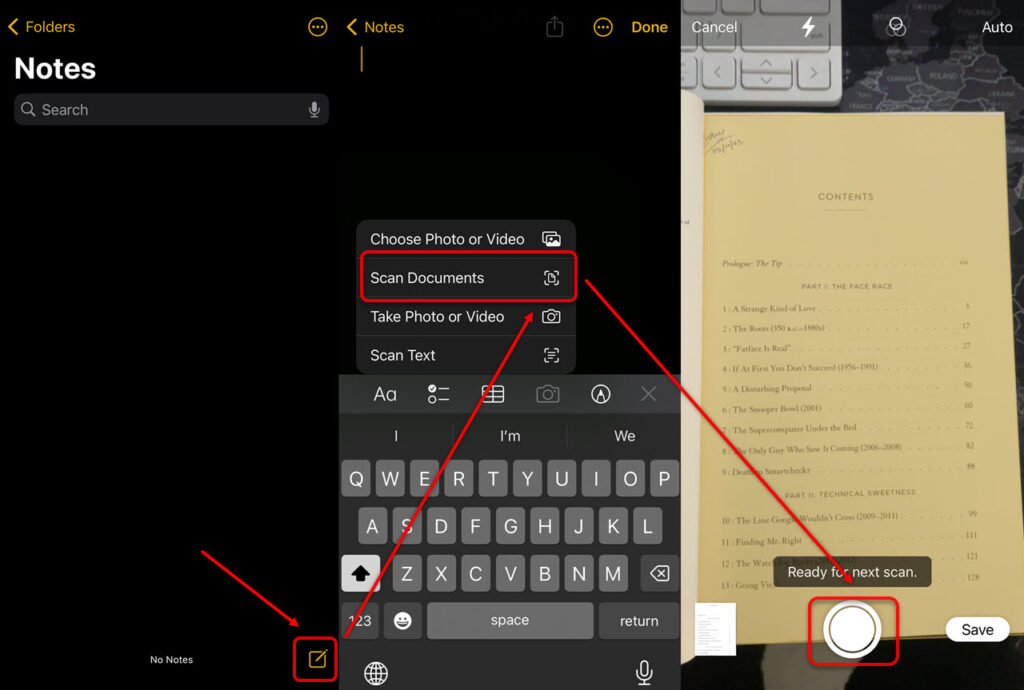
- Open the Notes app and then tap on the compose button at the bottom right. Then tap on the camera icon that appears above the keyboard.
- Next, select Scan Documents.
- Now, adjust your camera so that the entire document is scanned at once. Usually, once the camera locates the entire document, it automatically scans it. However, sometimes you have to do it manually by tapping on the capture button.

- If you only have one document, press Save to save the scan, and the document will be saved on your device. Otherwise, keep showing the documents in front of the camera, and the scan will go on.
Also read: How to block Instagram on iPhone?
Scan a QR code on your iPhone
A QR code is a set of two-dimensional barcodes you can scan for further information. Scanning a QR code eliminates the need to manually search for the link.

Although this technology is awesome and is used by millions worldwide, it also poses some risks. To scan a QR code on your iPhone, open your camera app and point it towards the QR code. The camera will detect the link and show it below the code.
Tap on the link, and you’re good to go. If you want a third-party app for this purpose, here’s an article on the top 7 QR code scanners for iPhone.
In conclusion, to scan a document on an iPhone, you need the Notes app, and within a few taps, you are finished with the work.
Also read: How to turn off private browsing on iPad?


