
Photo: Wachiwit / Shutterstock.com
Many security administrators and others frequently use Remote Desktop Connections. Recently, its usage has been gradually increasing. When someone tries to establish a Remote Desktop connection to a target system using Windows Server 2012 or a newer, they might see an error message that says, ‘Account restrictions are stopping this user from signing in’.
This article discusses the causes of the Account restrictions preventing this user from signing in error and a few ways to fix it.
Causes of the Account Restrictions error message
Below, we have mentioned a few possible reasons that might be causing the Account Restrictions error message.
- No password.
- Issues with Windows group policy.
Also read: Why is “Make this my main display” greyed out? Quick Fix
How to fix the issue?
If you are encountering the Account Restrictions error message, we have explained a few methods that might help you resolve this issue below.
Set up a password
If your user account has no password, you might encounter this error. You have to set up the password. To set up a password for the user account, follow the steps below.
Step 1: Go to File Explorer and right-click on This PC option in the sidebar, and then in the dropdown menu, click Manage.

Step 2: In the Computer Management window, Go to the System Tool > Local Users and Groups > Users.
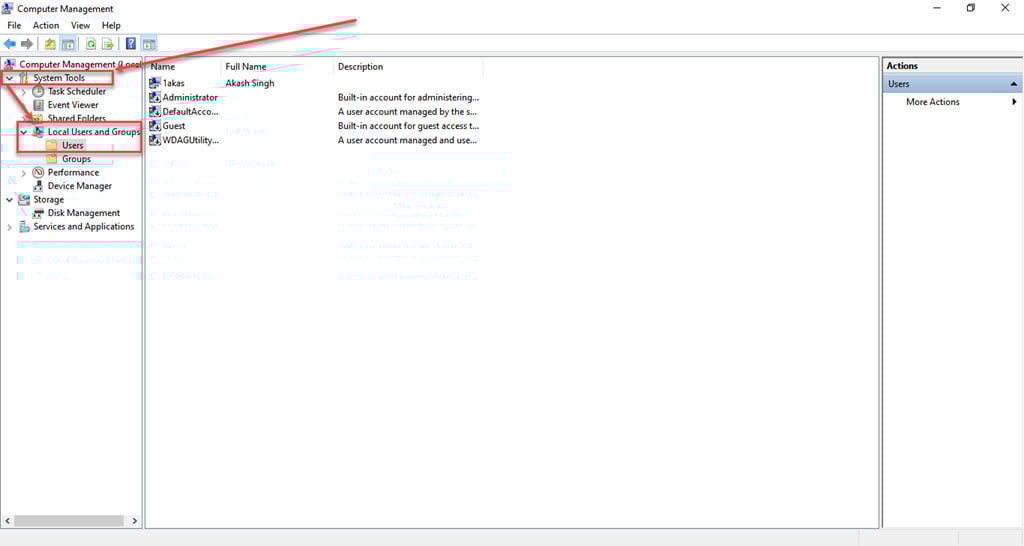
Step 3: Right-click on the user account you want to create the password, then click on the Set Password option in the dropdown menu.

Disable limit blank password
Once you set up the password, you must enter it whenever you want to log in. If you don’t want this trouble, you can disable the password check. To disable the password check, follow the steps below.
Step 1: Press the Windows + R key to open the Run dialogue box, and then in the search box type gpedit.msc and hit Enter.

Step 2: In the Local group policy window, go to Computer Configuration > Windows Settings > Security Settings > Local Policies > Security Options and then on the right side, double-click on the Accounts: Limit local account use of blank passwords to console logon only.

Step 3: Now, click on the Disabled option, then click on the Apply button and then the OK button.

Also read: Fix: The service cannot accept control messages at this time
Disable Windows Group Policy
A security policy is in place that stops the Remote Desktop client from showing the provided login details. Sometimes, this policy can cause the Account restriction error message. You need to disable this policy to fix the error and connect successfully. To disable it, follow the steps below.
Step 1: Press the Windows + R key to open the Run dialogue box, and then in the search box, type gpedit.msc and hit Enter.

Step 2: In the Local group policy window, go to Computer Configuration > Administrative Templates > System > Credentials Delegation and then on the right side double-click on the Restrict delegation of credentials to the remote servers policy.

Step 3: Click on the Disabled, then the Apply button and OK button.

Also read: How to format the Table of Contents in Word?





