
FC 25 is one of the most popular football games in the world, but like any game, it can come with its fair share of technical issues. One of the most common problems players face is their controller not working properly on PC.
If you’re experiencing this issue, don’t worry — we’ve got you covered. Here’s a YouTube video explaining the fixes:

In this article, we’ll cover the steps that you can take to troubleshoot and fix your controller issues in FC 25.
Here we've covered:
Check your controller connection
Before diving into more complex fixes, first, ensure that your controller is properly connected to your PC.
Step 1: Search Set up USB game controller by clicking on the Start menu.

Step 2: This window will display all the connected controllers. If your controller does not appear, try reconnecting it.

Note: If you’re using a wireless controller, check your Bluetooth settings to ensure it is paired correctly.
Step 3: Click on Properties and test the controller to see if all buttons and triggers are functioning properly.
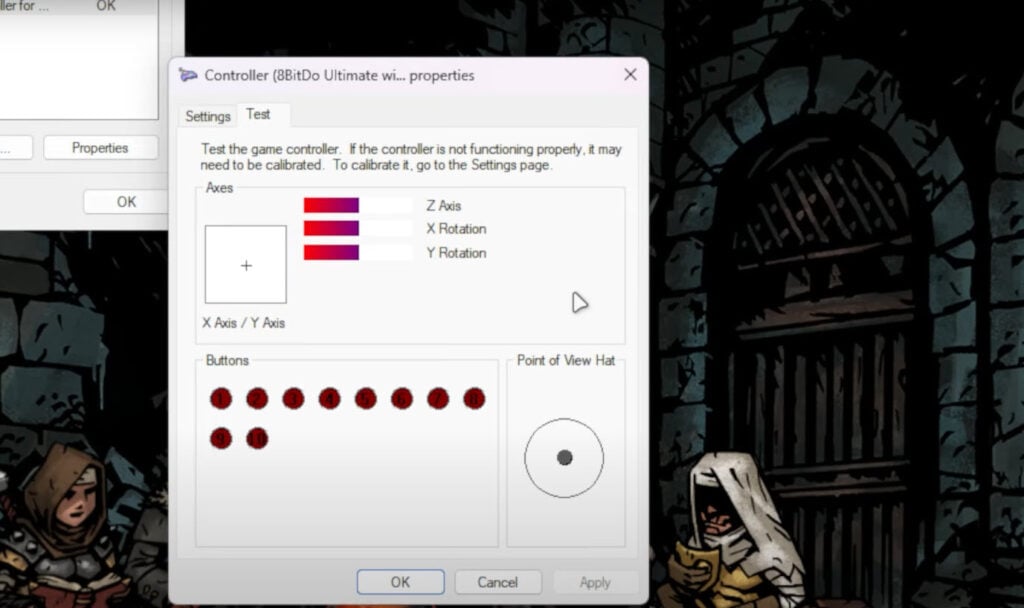
If your controller is detected and working in Windows but not in the game, the issue is likely within FC 25 itself.
Also read: How to fix ‘Failed to Unzip’ in Genshin Impact?
Check your controller input mode
Many modern controllers support both D-input and X-input modes. Windows and most modern games, including FC 25, rely on X-input for compatibility.
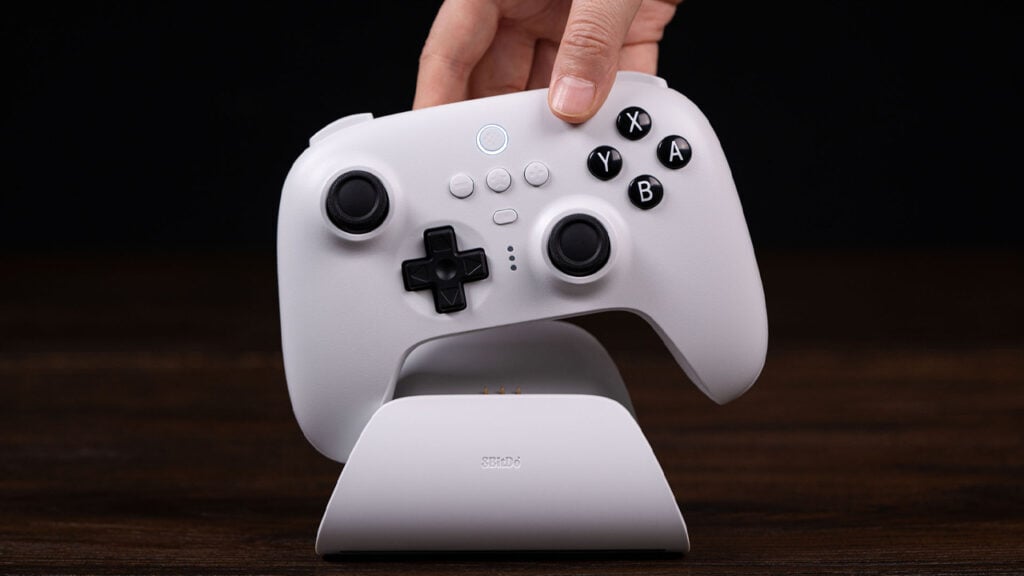
Look for a small switch on the back of your controller that toggles between D-mode and X-mode. Ensure the controller is set to X-input mode for proper functionality in FC 25.
If button mappings seem incorrect (e.g., pass and shoot button swapped), switching the input mode may resolve the issue.
Also read: How to fix the “Origin not installed” error in FIFA? 6 Quick Solutions
Adjust Steam input settings
If you purchased FC 25 through Steam, its built-in input settings could be interfering with your controller.
Step 1: Open Steam and go to your Library. Right-click on FC 25 and select Properties.
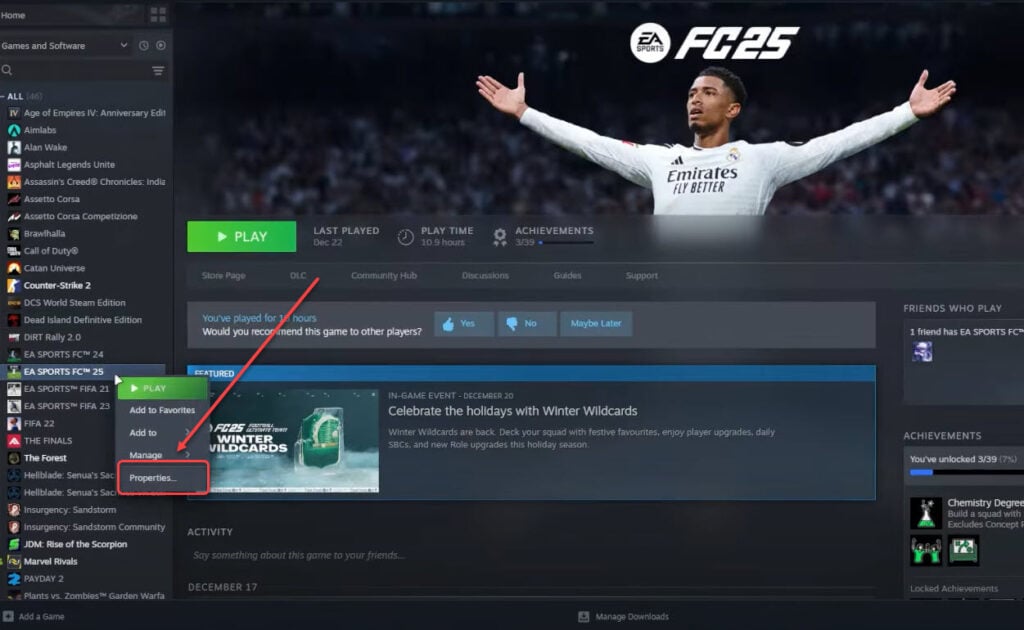
Step 3: Navigate to the Controller tab. Try Disable Steam Input to let FC 25 detect the controller directly.

If that doesn’t work, Enable Steam Input and configure your controller manually through the Controller configuration tool.
This step is particularly useful if Steam’s default settings are interfering with your controller.
Also read: How to 1v1 in CS2 (Counter-Strike 2)?
Add FC 25 as a non-Steam Game (If using EA app)
If you purchased FC 25 through the EA app, you can still take advantage of Steam’s controller support by adding it manually.
Step 1: Open Steam and click on Add a Game at the bottom-left corner. Select Add a Non-Steam Game.

Step 3: Browse your system for the FC 25 executable file and add it.
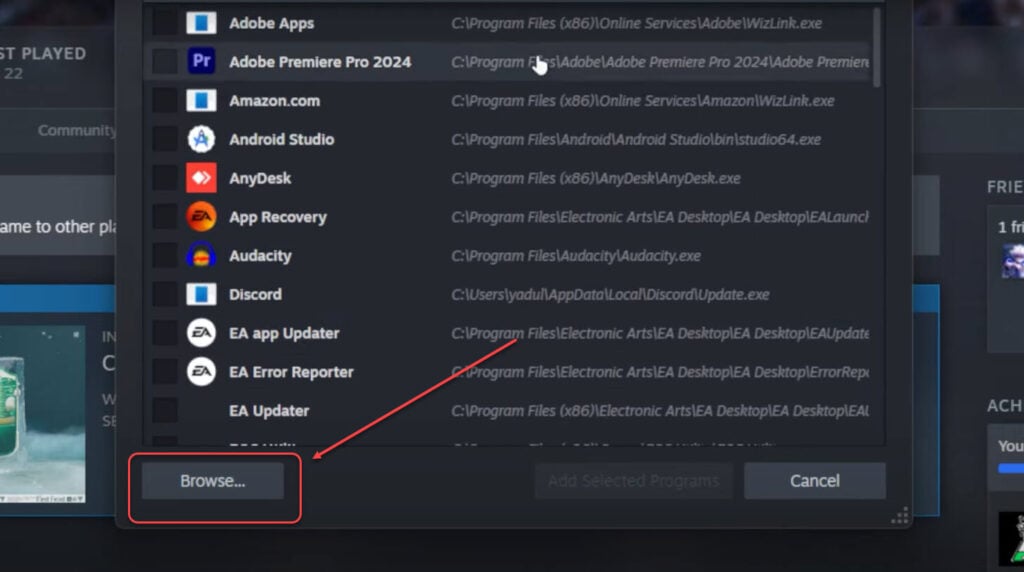
Now, you can use Steam’s controller settings even if the game was not purchased through Steam.
Also read: Fix: DirectX 12 is not supported on your system error in Marvel rivals
Use DS4 for Windows (For PlayStation controllers)
If you are using a PS4 or PS5 controller, it may not be natively recognised by Windows. In this case, you can use DS4 for Windows, a third-party tool that emulates Xbox controllers.
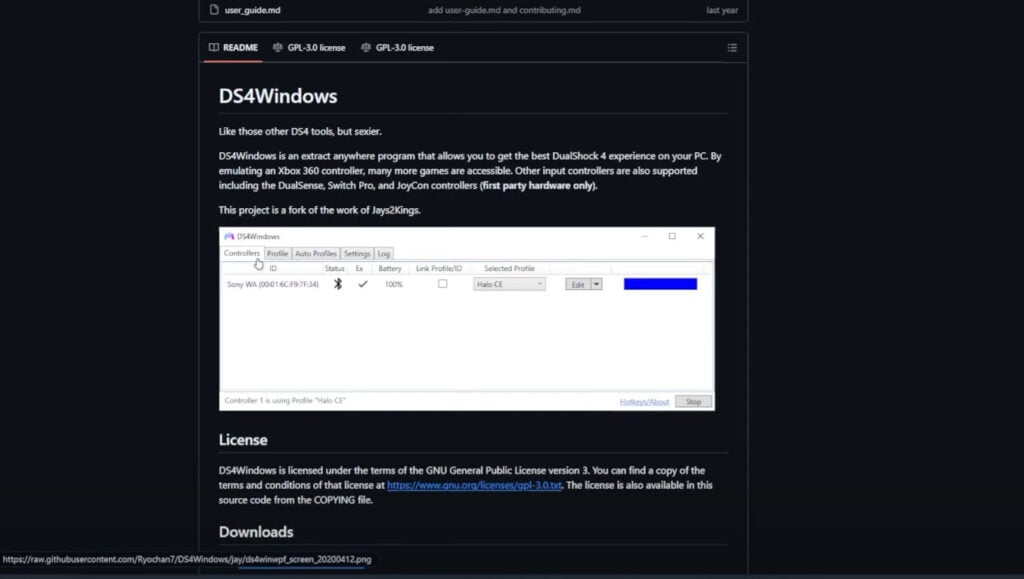
Download DS4 for Windows from GitHub. Follow the installation instructions and configure your controller. Once set up, your PlayStation controller will function as an Xbox controller, improving compatibility with FC 25.
This tool also works for Switch Pro Controllers and generic controllers, though additional configuration may be required.
By following these methods, you should be able to get your controller working seamlessly in FC 25.




