Baldur’s Gate 3 is an epic RPG adventure game, but some players have encountered issues with quicksaving. When the quicksave function isn’t working, it can be frustrating. Fortunately, there are some solutions to this problem.
Unable to quicksave in Baldur’s Gate 3? This article discusses why Quicksave is not working and a few ways that might help you fix it.
Why is the quicksave not working?
You cannot quicksave in Baldur’s Gate 3 for various reasons.
- Outdated Keyboard firmware.
- Antivirus or Windows Defender stops the game from creating files.
- Cloud syncing issues.
- Corrupted game files.
Also read: Baldur’s Gate 3 device lost error: Quick Fix
How to fix the issue?
Here are a few ways to help you fix the issue:
Update your keyboard firmware
Outdated firmware can cause various issues; some keys might also stop working and stop you from saving the game. Many players with a Logitech keyboard have confirmed that updating their keyboard firmware solved their quicksave issue.
Map another key for quicksave
If the current keybinding is not working, it might be possible that you have mistakenly changed the key for Quicksave. Ensure that the key you are using is set for Quicksave; you can also try switching to a different key binding for Quicksave.
Add exclusion to Windows Firewall
The Windows Defender might be stopping Baldur’s Gate 3 from creating files and folders on your PC, which is why you cannot do a quicksave. Adding Baldur’s Gate 3 as an exclusion to Windows Defender might solve this issue. To do that, follow the steps below:
Step 1: Type Virus and Threat Protection in Windows search.

Step 2: Under Virus & Threat Protection settings, click on Manage Settings.

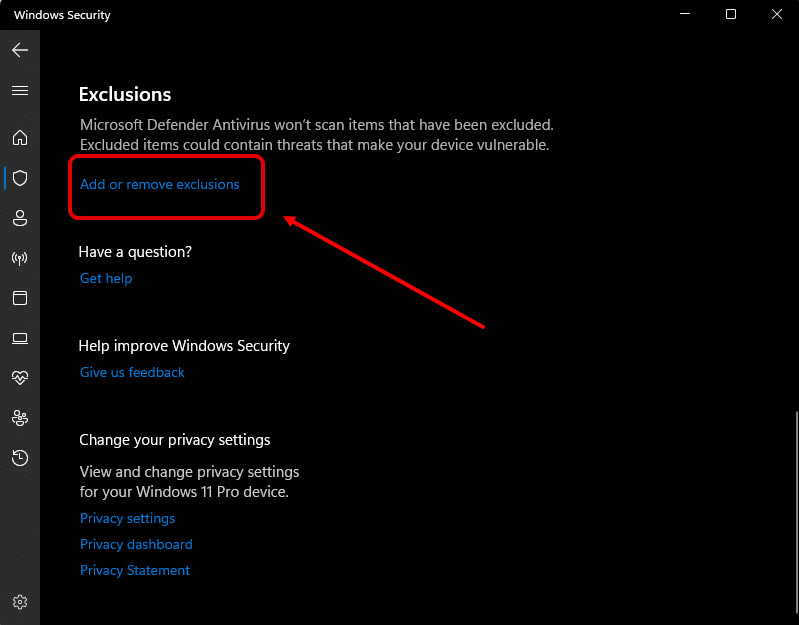
Step 3: Scroll to the Exclusions section and click Add or Remove Exclusions.
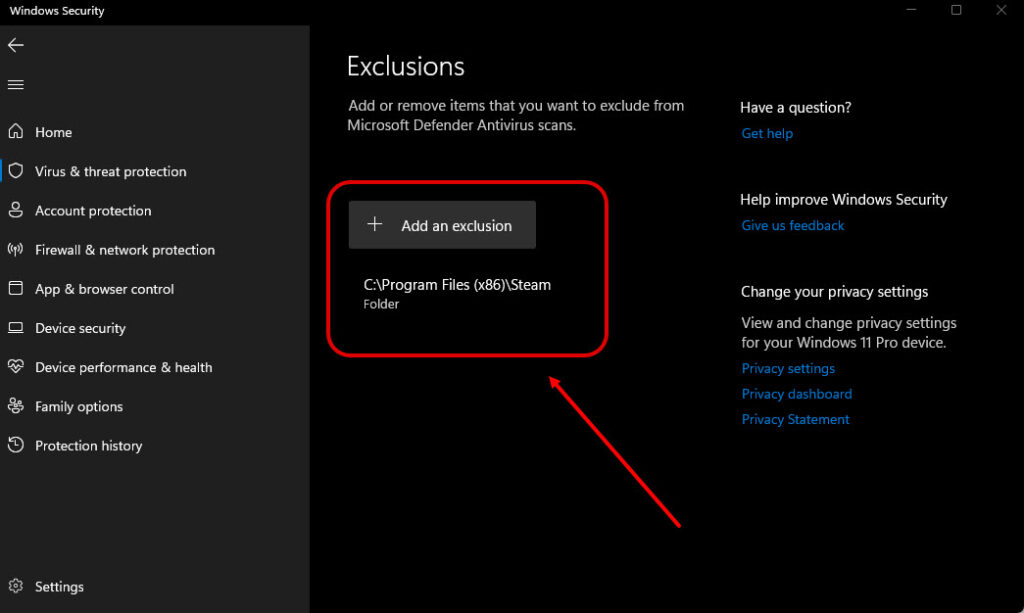
Step 4: Now, click the Add an Exclusion button and then add the .exe file of the game.
Disable cloud save
Sometimes, the issues with saving the game occur because of the cloud syncing process; disabling it might solve it. To disable cloud save, follow the steps below:
Step 1: Launch the Steam and go to the Library.
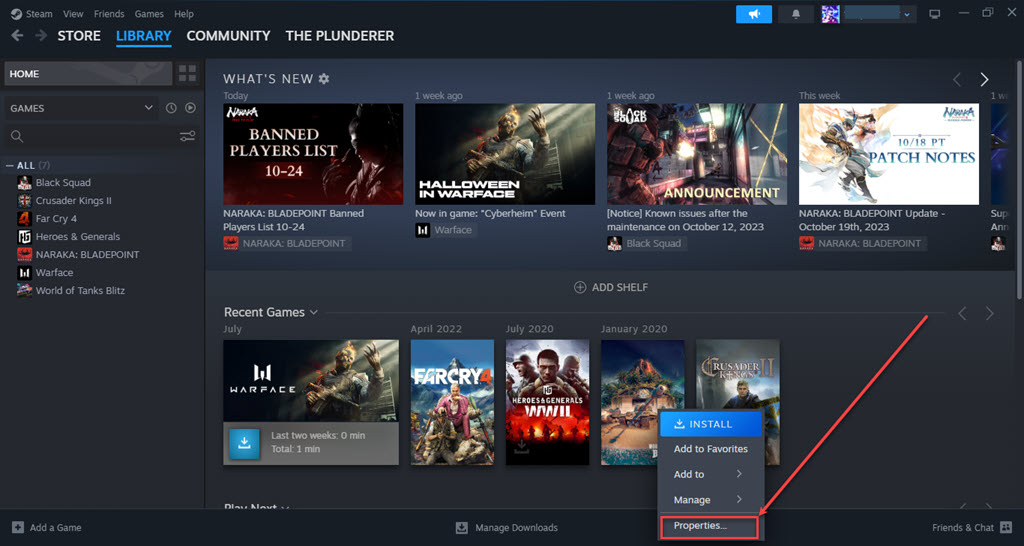
Step 2: Right-click on Baldur’s Gate 3, then click on the Properties option in the dropdown menu.
Step 3: Click on General and turn the toggle off under the Steam Cloud section.

Verify the files
If all else fails, verify the game files through your game platform. Corrupted files can lead to various issues, including quicksave problems. To verify the files, follow the steps below:
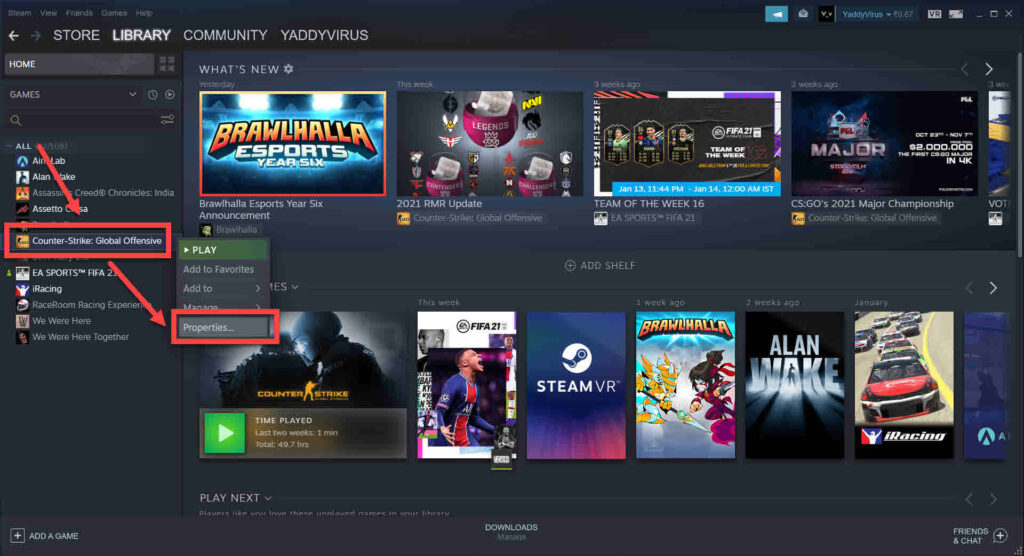
Step 1: Open the Steam and click on the Library tab. In the library, right-click on Baldur’s Gate 3, then click on the Properties option in the drop-down menu.
Step 2: Find the Local Files and click Verify Integrity of Game Files.
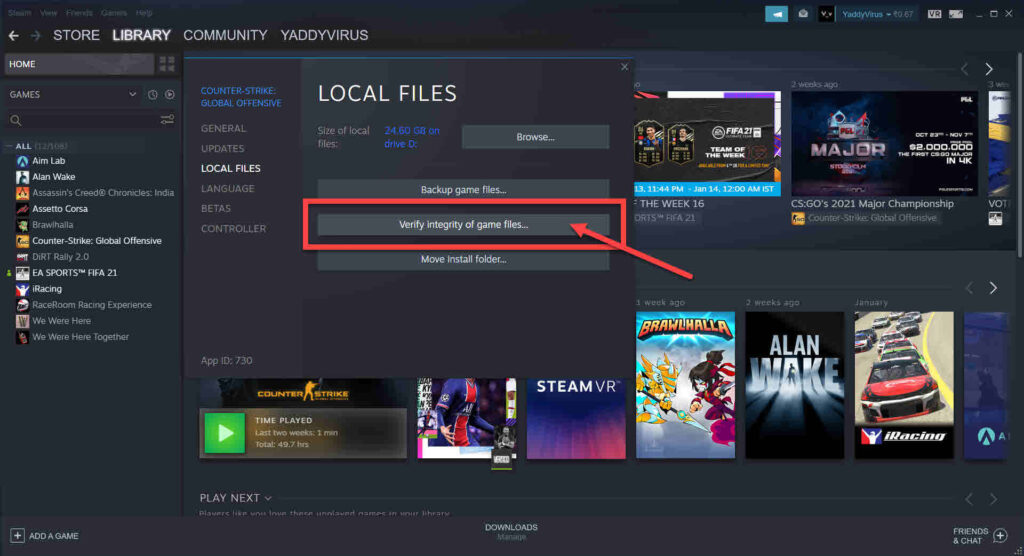
It will re-install the corrupted or missing files and ultimately fix the issue caused by those files.