Baldur’s Gate 3 has many errors, including the ‘device lost’ error. You can see the error in two different ways:
- DXGI device removed the error
- Device lost error
As an avid gamer, such errors interrupt the gaming experience and can cause frustration. So, in this article, we’re here with the fixes to resolve the Baldur’s Gate 3 device loss error.
What causes the device lost error in Baldur’s Gate 3?
The device lost error is a GPU-related error that occurs when the game has lost connection with your graphics card.
This could happen for various reasons, such as:
- Outdated or corrupt GPU drivers.
- Overclocking of GPU.
- Overheating of GPU.
- Unstable or insufficient power supply to the GPU.
- Incompatible graphics settings.
Also read: Baldur’s Gate 3 error code 516: Quick Fix
How to fix the error?
Fixing the device lost error in Baldur’s Gate 3 is quite easy. In this section, we’ll deal with some of these fixes.
Update your GPU driver
The first and most important step that you should take is to check and update your GPU drivers.
Outdated GPU drivers may cause issues with the games and other graphics-intensive work.
Head to this article here to learn how to update the Nvidia graphics driver.
Undervolt or downclock your GPU
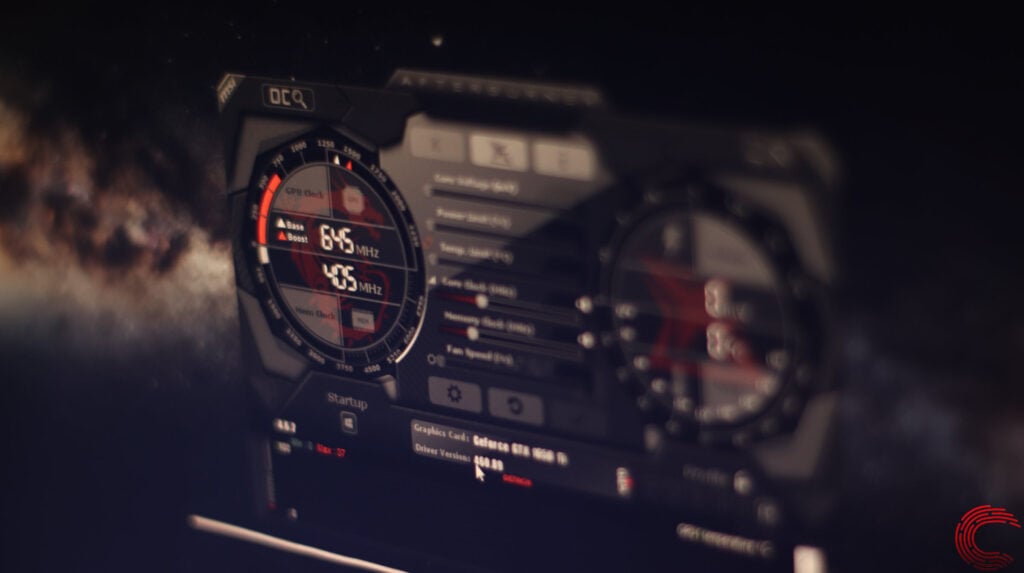
If your GPU is overheating and overclocked, you may experience glitches and game crashes.
The solution is to undervolt or downclock your GPU. For this purpose, you can try software like MSI Afterburner or EVGA Precision X1. This will lower the voltage or clock speed of your GPU.
While playing the game, monitor the temperature and GPU usage regularly.
Increase the GPU power limit
As explained earlier, if your GPU isn’t receiving enough power, it may cause errors like the device lost error in Baldur’s Gate 3.
You can use software like MSI Afterburner to slightly increase the power limit of the GPU. An increased power limit, in turn, increases the heat generation alongwith the power consumption of the GPU.
So, ensure that you have a reliable Power Supply Unit (PSU) so that the GPU can receive uninterrupted power.
Tweak the in-game graphics settings
Head to the game options and then click on Settings. In the graphics settings, you can lower or reduce some options, such as resolution, anti-aliasing, etc., to reduce the GPU load.
Moreover, switch to DirectX 11 from Vulkan or vice versa. Vulkan offers a better performance but can sometimes cause errors in the game. On the other hand, DirectX 11 is more stable and compatible.
Keep on toggling between them and find the correct settings to play the game.
In conclusion, the device lost error in Baldur’s Gate 3 can be easily fixed by following the above steps.