Timing your messages is important for various reasons. Whether you need to send birthday wishes, remind someone of an important event, or connect with people in different time zones, the ability to schedule text messages can be quite useful. Although the regular Messages app on the iPhone doesn’t come with a built-in feature for scheduling texts, there are alternative methods to make it happen.
Wondering whether you can schedule a text on an iPhone. This article discusses the steps to schedule a message on an iPhone.
Also read: How to sync messages from iPhone to Mac?
Can you schedule a text on your iPhone?
Unfortunately, iMessage doesn’t come with a built-in feature for scheduling text messages. Although there isn’t a direct way to schedule a text message within iMessage, you can still manage this by using the Shortcuts app or opting for a third-party scheduling app. These alternatives allow you to prepare texts in advance and have them sent later.
Schedule a text through the Shortcuts app
Here are the steps to schedule a text through the Shortcuts app:
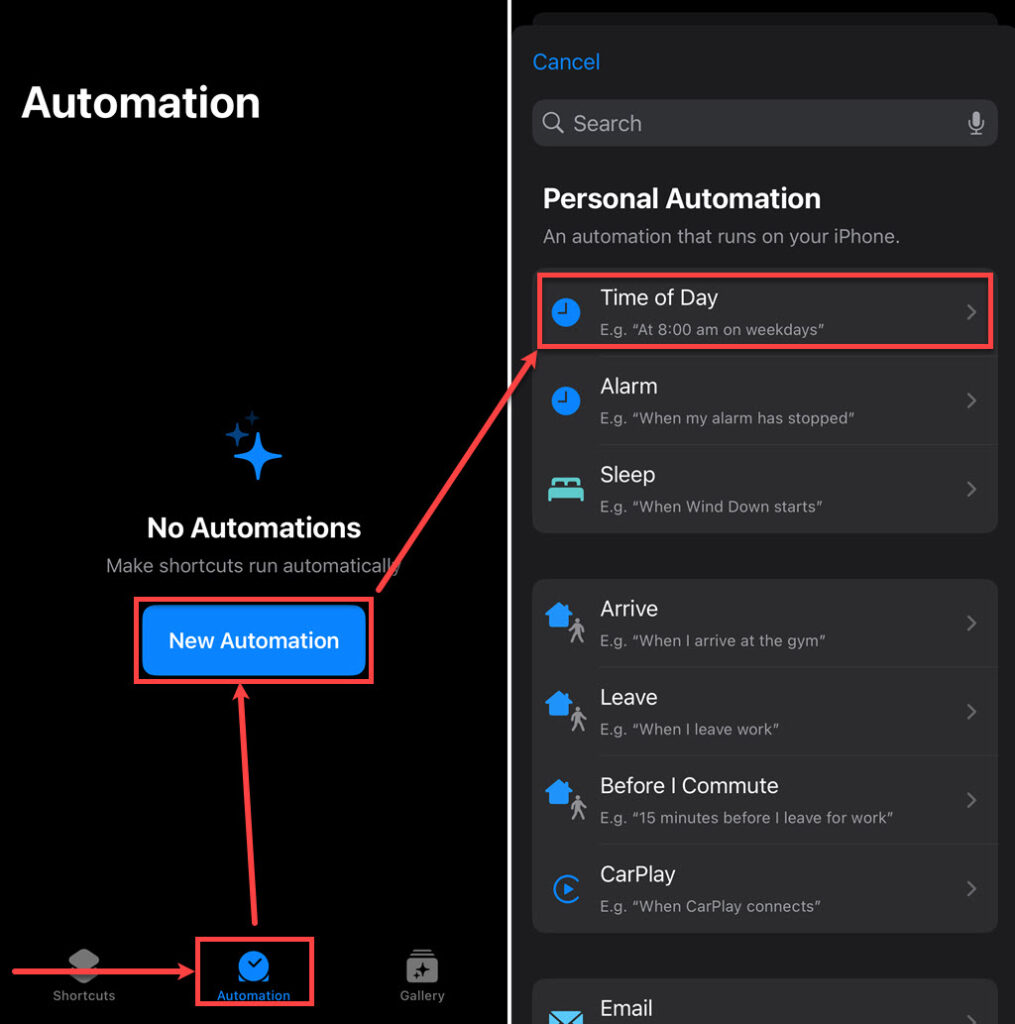
- Go to the Shortcuts app on your iPhone, tap on the Automation tab; the middle icon at the bottom of the screen and then tap on the New Automation button.
- Tap on the Time Of Day option.
- Tap Time Of Day, then tap on the Timer to access the clock and set the desired time. In the Repeat section, choose how often you want to repeat the text and then tap Run After Confirmation; if you want to review it before sending the message, tap Run Immediately to send it automatically. After you are done, tap on Next at the top right corner of the screen.
- Tap on Send Message.
- Type your message where it says Message then tap on Recipients to add contacts, and then tap on Done at the top right corner of the screen.

Also read: Why can’t I delete apps on my iPhone?
Use third-party apps
Because Apple’s Messages app doesn’t offer a built-in scheduling feature, some users might turn to third-party apps for a solution. However, it’s important to note that Apple has restrictions in place. Third-party apps aren’t allowed to send text messages from your phone number without your explicit permission.
So, if you come across an app that promises to work with your phone number, it can only send you a reminder to send your message. You’ll need to tap on the reminder to confirm and send the message manually. Several apps with this functionality are available, such as Moxy Messenger, OpenPhone, and Kyew.