
Crss.exe, short for Client/Server Runtime Subsystem, is a legitimate and important file of the Windows operating system. Although crss.exe is not a trojan, threat actors can use files of similar names to trick users.
This file doesn’t interact directly with the users and resides in the System32 folder with the filename of crss.exe. If you found this file in any other location, chances are that the file is malicious.
In this article, we will explore whether Crss.exe is a trojan and provide step-by-step instructions on removing it if you encounter a malicious file.
What is Crss.exe? Is it a trojan?
Crss.exe is a legitimate and crucial system process within the Windows operating system. Its primary function involves managing graphical instruction sets, including window creation, deletion, menu handling, and dialogue box operations.
Additionally, it oversees thread and console window management, contributing significantly to system functionality and stability.
While crss.exe itself is not a trojan, it’s important to recognise that malicious software can disguise itself as crss.exe to evade detection. These malicious versions may engage in harmful activities such as data theft, launching attacks, or causing system disruptions.
Hence, verifying the authenticity of crss.exe running on your system is vital. You may ask how will you do this?
To ascertain the legitimacy of crss.exe, check its file location. The genuine file should reside in the C:\Windows\System32 folder. Any deviation from this location could indicate a malicious version that requires cautious handling.
Also read: What is StandartProductFld? How to remove it?
How to remove malicious crss.exe?
Now that we have understood what crss.exe is and how to determine whether it is malicious. In case you find this file in any other location, you can easily remove it by following these instructions:
Scan your computer
The first thing you should do is scan your computer using a reputed antivirus tool. Windows has an in-built security solution, Windows Defender, that you can try.
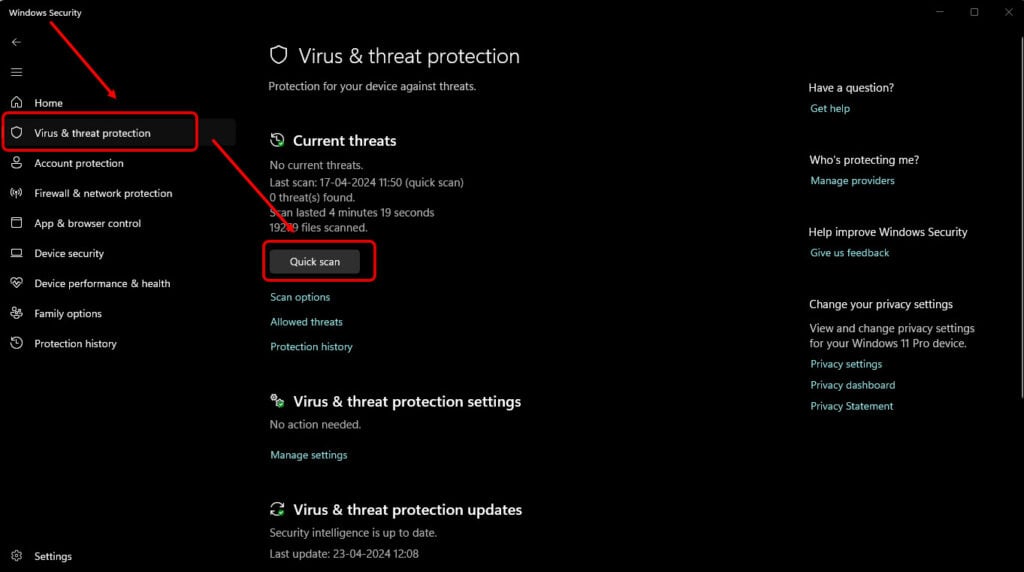
To initiate the scan, search Windows Security in the search bar and select Virus and threat protection. Finally, click on Quick Scan to start the scanning process.
If the software finds any virus, it will notify you, and you can delete it from the app.
Shut down the process
Sometimes, the malware initiates a malicious process under the guise of the legitimate crss.exe tool. Usually, people will ignore this process thinking that it is an important part of the operating system. However, malicious processes like this one consume more RAM and affect other processes.
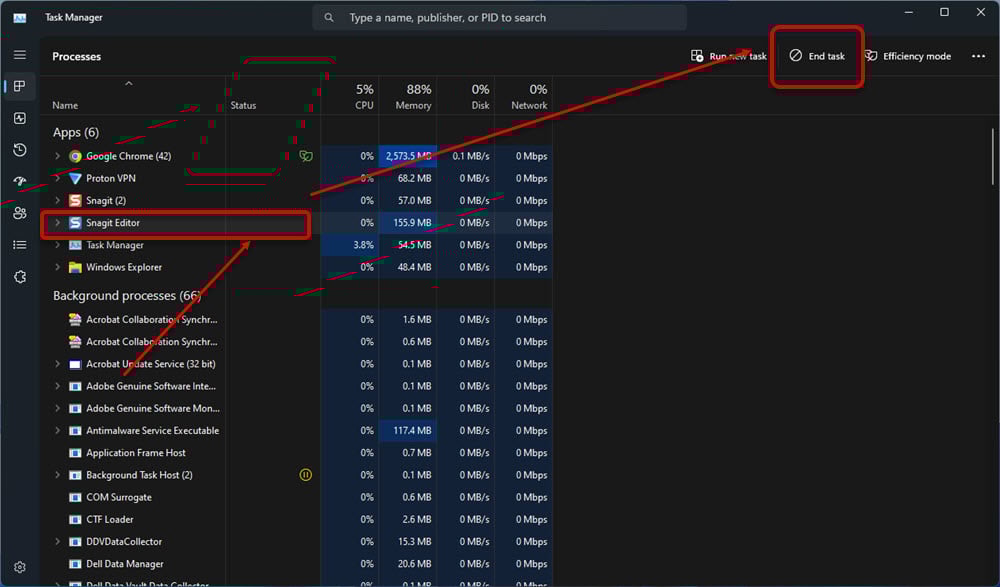
Press Ctrl + Shift + Esc to open the Task Manager. Locate and click on the suspicious process and then select the End task button at the top right.
Run Windows System File Checker
A System File Checker (SFC) is a tool in the Windows OS that finds and repairs corrupt files. Here’s how to run it:
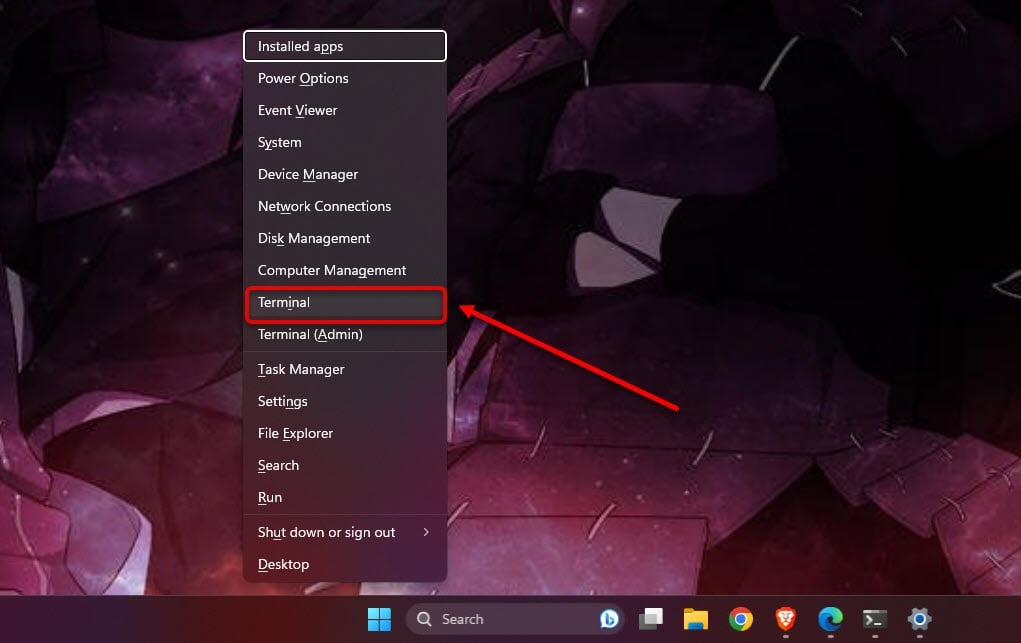
Step 1: Press the Windows key + X and then click on Terminal.
Step 2: In the Terminal window, type scan/scannow and press Enter.
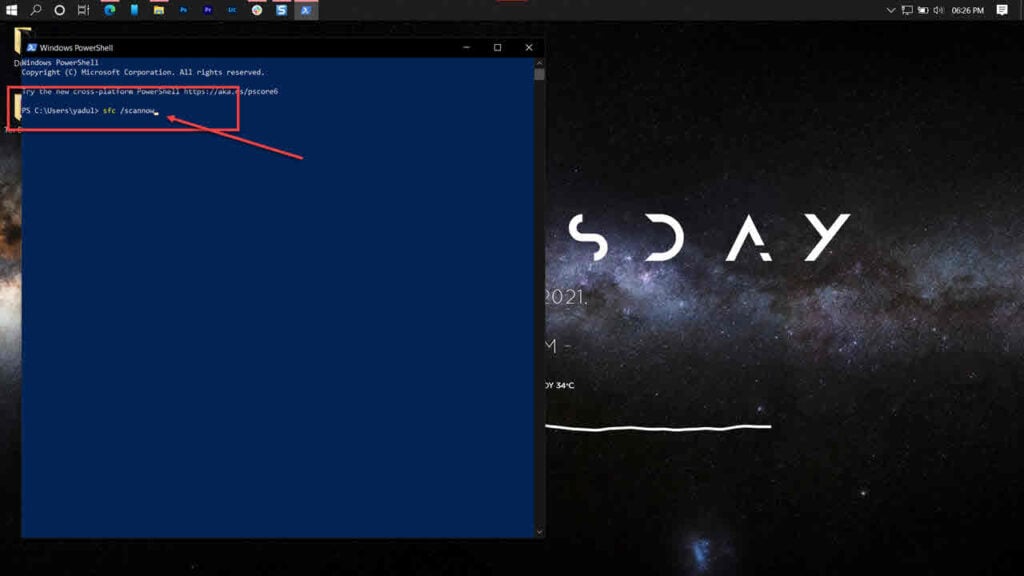
Step 3: If the scan finds any problem, fix it by typing the command:
DISM /Online /Cleanup-Image /RestoreHealthAlso read: How to open a CDR file online?
Run Check Disk
Another tool to help fix bad sectors in Windows is Check Disk. You can run this tool to fix bugs and errors that may creep into your hard disk.
To run this tool, head to our article on how to run Check Disk on Windows.
Update Windows OS
Finally, when you are sure that the virus has been removed, you should check for Windows updates.

Press the Windows key + I to open Settings. Then click on the Windows Update button at the bottom of the left menu and Check for updates.
In conclusion, crss.exe is a legitimate Windows file in the System32 folder. However, malicious files using the same name often appear in other folders. Follow the instructions above to remove these files and safeguard your Windows computer.
Also read: Apple ID hoax and phishing explained


