Many users have reported seeing an ‘Action failed due to an error’ message in Gmail. It usually happens when you perform certain actions on Gmail, such as changing the theme, marking all emails as read, or even shifting them to a different folder.
In this article, we’ll explain why this error occurs and how to troubleshoot it quickly to get your Gmail back and running again in no time.
Gmail action failed due to an error: Possible causes
As of now, this strange error on Gmail has no official cause. However, Gmail and other email services often have tons of errors that are not critical but result from minor bugs.
You may face such issues if you’re using an outdated version of the Gmail app.
‘Action failed due to an error’ in Gmail can also result from a corrupt cache and cookies on the app or your computer browser.
The error can also occur due to faulty browser extensions. Not all browser extensions benefit you, as they sometimes conflict with each other and can cause multiple errors.
Lastly, some Gmail extensions may cause problems with the normal functioning of the platform.
Also read: How to fix the Gmail address not found error?
Gmail action failed due to an error: Possible fixes
As there is no official word from Google regarding the error, it is difficult to recommend an official fix for the problem.
However, when we head to the official Google forum, we find several unique ways to deal with this error alongwith the usual steps you will take.
Reset the visual settings
A user has mentioned that resetting the theme and density to default can fix the error. Other users also tried it, and they were happy with the result.

So, head to the gear icon at the top right of the screen, just left to your profile picture, and then select Density as Default and select Theme as Default (the first option).
Close all the notifications
Another user named Jason Barnett mentioned that once he closed the notification on Gmail, he no longer had the ‘Action failed due to an error’ problem in Gmail.
So, taking a cue from Mr. Jason, if you have any notifications pending on Gmail, you should probably close them to resolve this error.
Use a quick way to mark all emails as read
The problem started when one user was trying to mark all emails as read in Gmail manually. So, he selected all emails and clicked on ‘Mark all as read’ just like a normal person. However, to his surprise, he was greeted with an ‘Action failed due to an error’ message.
So, you may want to try other methods instead of the manual mode that we usually do. The other methods are like effective shortcuts that can work as an alternative if things go south in the first method.
Step 1: Head to the Gmail search box and type is:unread or label:unread.

Step 2: Next, click the three-dot button and select Mark all as read.

This will convert all the unread emails to read, and you will probably fix the error.
Clear your browser’s cache and cookies
Many issues with the websites and platforms can be solved by clearing your browser’s cache and cookies. Over time, cache files can become corrupt and cause websites such as Gmail to malfunction.
Follow this article to clear Google Chrome’s cache and cookies.
To clear cache in Microsoft Edge, check out this article.
Once you have cleared the cache, you will have successfully fixed the ‘Action failed due to an error’ in Gmail.
Disable browser extensions
Sometimes, incompatible browser extensions may cause several website issues, affecting their functionalities.
So, either remove all extensions or disable each extension and check whether it fixes the error.
Here are the steps to disable browser extensions in Google Chrome:
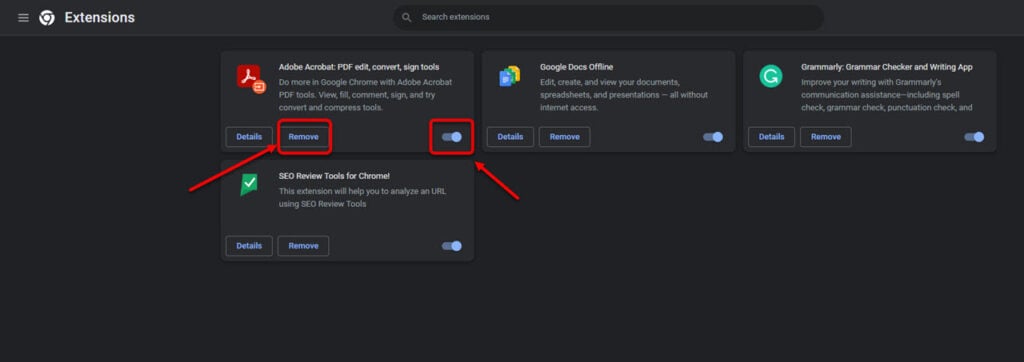
Step 1: Click the three-dot button at the top right of the window and then head to More tools > Extensions.

Step 2: Click Remove or turn off the toggle to disable the extension. You will have to individually to this for all the extensions you added to check which was causing the problem.
Open Gmail in incognito mode
Open Gmail in incognito mode to check the ‘Action failed due to an error’ problem. If you see no such error message in the incognito mode, then there’s a problem with your extensions. Take a look at the above steps to resolve this problem.
Use another browser
You may want to switch to another browser if your current browser isn’t fixing the error.
If Gmail works fine in another browser, if nothing, you can conclude that the problem is with the browser.
On the other hand, if you see the same error message on another browser, try the other steps we have mentioned before.
In conclusion, the ‘Action failed due to an error’ on Gmail is one of the many error messages you get on the platform. Use the steps that we have mentioned above to troubleshoot the error easily.
Also read: Gmail not receiving emails? Quick Fix