
Hardware Accelerated GPU Scheduling is a feature aimed at improving graphics performance on Windows 10 systems, which carries into Windows 11. While it can provide benefits in certain scenarios, users experiencing compatibility issues or stability issues may choose to disable it.
In this article, we have discussed what is Hardware accelerated GPU scheduling, should you use it and how to disable it.
Below we have discussed:
Also read: How to check CPU, GPU and RAM usage in Windows 11?
What is Hardware accelerated GPU scheduling?
Hardware Accelerated GPU Scheduling is a feature crafted to ease the strain on your computer’s main processor (CPU) when dealing with demanding tasks. In typical scenarios, the CPU takes charge of distributing graphics-intensive data to the Graphics Processing Unit (GPU) for seamless performance in activities like gaming, media playback, or using editing software. In this process, the CPU collects, allocates, and determines the priority for each task, enabling the GPU to render it efficiently.
Enabling the Hardware accelerated GPU Scheduling feature means that a specialised GPU-based scheduler takes over the handling of high-priority tasks. This shift allows the CPU to carry out more tasks within the same timeframe, contributing to overall system efficiency.
Should you use this feature?
In Windows, it’s generally a good idea to enable GPU hardware scheduling, especially if your computer isn’t equipped with the latest GPU models. However, there are instances where turning on this feature can negatively impact your computer’s performance. For instance, on an older GPU, it might introduce frame latency or even cause noticeable lag while playing games.
Another issue with GPU scheduling is its tendency to clash with certain Windows services, like dxgmms2.sys, which plays a crucial role in rendering graphics, particularly during gaming sessions. If you consistently encounter the dxgmms2.sys error in Windows 11, it’s advisable to disable the Hardware-Accelerated GPU Scheduling feature.
How to disable it?
Below we have explained the steps to disable Hardware accelerated GPU scheduling on Windows 10 and Windows 11 and the steps to disable it through the Windows Registry:
Disable it on Windows 10
If you use Windows 10 and want to disable the Hardware accelerated GPU scheduling, then follow the steps below:
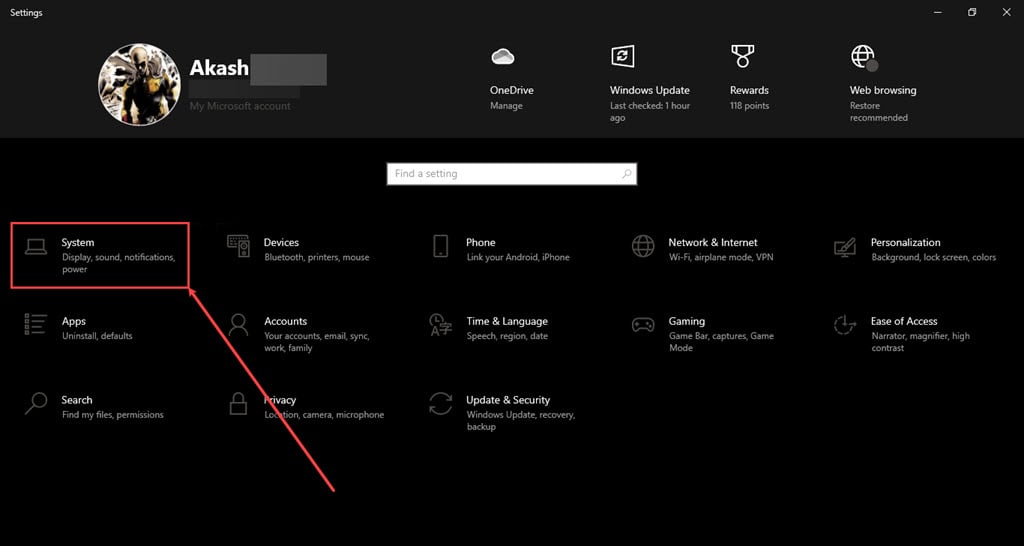
Step 1: Press the Windows + I keys on your keyboard to open Settings and click on System.
Step 2: In the sidebar, click on Display and then right side scroll down to the bottom and click on the Graphics Settings option.

Step 3: Turn the toggle off below Hardware-accelerated GPU scheduling and then restart your PC.
Disable it on Windows 11
If you use Windows then follow the steps below to disable Hardware accelerated GPU scheduling:
Step 1: Press the Windows + I keys on your keyboard to open Settings, in the sidebar click on System and then on the right side click on Display.

Step 2: Scroll to the Related settings section and click on Graphics.

Step 3: Under the Default settings section click on Change default graphics settings.

Step 4: Turn the toggle below Hardware-accelerated GPU scheduling and then restart your PC.
Disable it through Windows Registry
At times, you might not see the Hardware-accelerated GPU scheduling feature in the settings menu, possibly due to a corrupted or outdated graphics driver. If the hardware-accelerated feature isn’t visible, you can still turn it off using the Windows Registry. Here are the steps to do that:
Step 1: Press the Windows + R keys on your keyboard to use the Run dialogue. Type regedit and hit Enter.

Step 2: Go to Computer\HKEY_LOCAL_MACHINE\SYSTEM\CurrentControlSet\Control\GraphicsDrivers, you can also copy this and paste it into the address bar in the Windows Registry.

Step 3: Double-click on the HwSchMode file.

Step 4: Type 1 in the Value data box and then click on the OK button.

Also read: What is Efficiency mode in Windows 11? How to enable/disable it?





