
iPhones serve as personal assistants, entertainment hubs, and communication devices. However, over time, you may accumulate various apps on your iPhone, some of which might be hidden from plain view. These hidden apps can take up valuable storage space, compromise privacy, or pose security risks.
Want to delete hidden apps on your iPhone? This article discusses various ways to delete the hidden apps on your iPhone.
Also read: Can you schedule a text on iPhone?
Various ways to delete hidden apps
Below, we have explained a few ways that will help you find and delete the hidden apps from your iPhone:
Delete hidden apps through Spotlight
The easiest way to delete any app on your iPhone is through the Spotlight; here’s how to do it:
- Swipe on the Home Screen and type the app name in the search bar.
- Now, long-press the app icon and tap on the Delete App option.
- Tap on Delete to confirm your action.
Delete hidden apps from the App Library
The App Library is the place where all the apps you have hidden from the Home Screen go; here’s how to delete apps from the App Library:

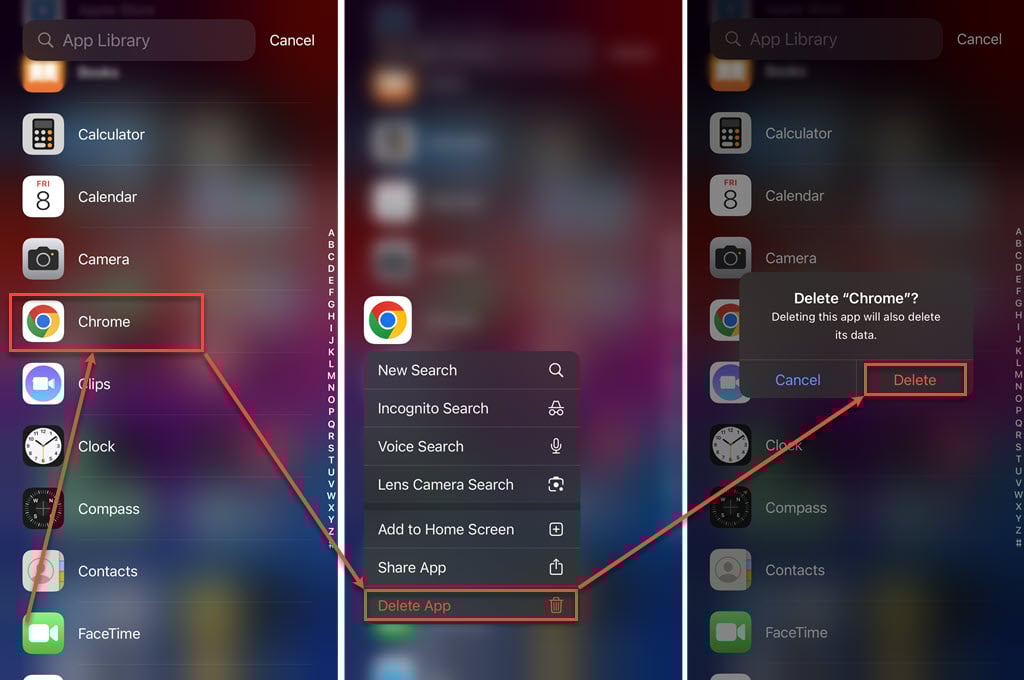
- Swipe left on the Home Screen until you reach the App Library. Look for the app you want to delete; you can also search for the app’s name in the search bar.
- Long press the app icon and then tap on the Delete App option.
- Tap on the Delete button to confirm your action.
Also read: Can you get Garageband on Windows?
Delete hidden apps from Settings
You can find all the installed apps on your iPhone in the settings app. To delete the hidden apps from settings, follow the steps below:

- Go to the Settings app and tap on General.
- In general, tap on iPhone Storage.
- Type the app’s name in the search bar or scroll down and look for the app. Once you find the app, tap on it.
- Tap on Delete App.
- Tap on Delete App to confirm your action.

Delete hidden apps from the App Store
With this approach, you can only remove apps that either have a pending update or ones that you’ve recently updated. Here’s how it’s done:

- Go to the App Store and tap on the Profile icon available at the top right corner of the screen.
- You will see the Updated Recently and Available Updates section. Find the app and swipe right on the app.
- The Delete button will be revealed; tap on it.
- Tap on Delete to confirm your action.

Also read: How to hide and unhide apps on your iPhone?




