
Although iPhones have an apt storage space, many users complain they lack sufficient storage space on their devices. This can be a bit problematic, especially for users dealing with large files.
One of the primary reasons for the lack of storage on your iPhone is the system data. System data is the data your iOS operating system and apps use to run smoothly. It includes cache files, temporary files, logs, settings, preferences, backups, and other data that help your iPhone work properly.
System data grows over time because your iPhone constantly creates and updates files necessary for its operation. For example, when you update your iOS for an app, some old files are replaced by new ones, but some may remain as leftovers. Similarly, whenever you use an app or a feature, some cache or temporary files are created to speed up the process, but they may not be deleted automatically.
Usually, system data doesn’t take up too much space on your iPhone, and having some amount of it is normal. However, if the data grows abnormally large for any reason, you should delete it ASAP.
In this article, we’ll explain how to delete system data on iPhone. Here are some methods that we’ll cover:
- Clear the app’s cache
- Clear the browser’s cache
- Clear message attachments
- Clear message history
- Update iOS
- Reset your iPhone
Clear the app’s cache
We recommend you frequently clear the apps’ cache on your iPhone to free up storage space and prevent additional issues. Over time, cache files pile up and can become corrupt and harm your device.
Many apps have an in-built option to clear the cache. Just head to the app’s settings and locate the option.
However, for other apps, you will have to offload them. Here’s how to do that:

- Head to Settings > General > iPhone Storage.
- Select the app and then tap on Offload App.
- Finally, tap on Confirm.
Clear the browser’s history
Browsers also store cache files of the websites that you frequently visit. This is to reduce the time taken to load the website. However, for the aforementioned reasons, you must also clear your browser’s cache.
Clear Safari cache
To clear the Safari browser cache, follow the instructions given below:
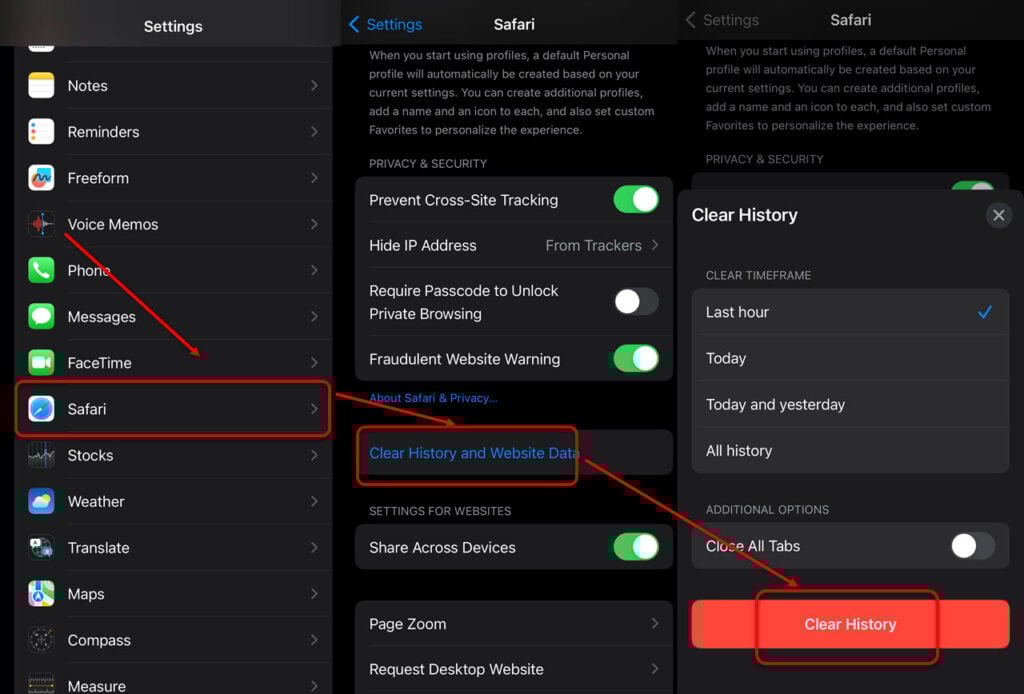
- Head to Settings > Safari > Clear History and Website Data.
- Tap on Clear History.
Clear Chrome cache
The steps to clear the cache files on Chrome are slightly different. Here are the steps:

- Head to the three-dot button and then tap on Settings.
- Now tap on Privacy and security.
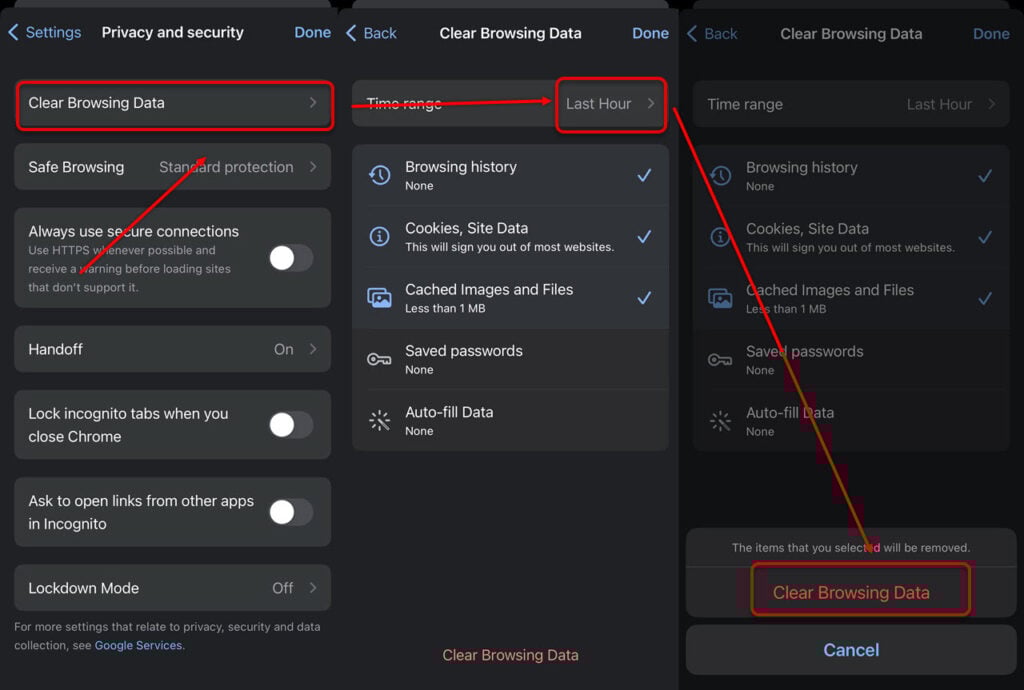
- Head to Clear Browsing Data and then select the time range.
- Finalise the process by tapping on Clear Browsing Data.
Also read: How many AirTags can you have?
Clear message attachments
Sometimes, larger message attachments can also result in loss of storage space. You will have to clear these message attachments, and in a way, you will delete a part of the system data on your iPhone.
Here’s how to prevent that:

- Navigate to Settings > General > iPhone/iPad Storage.
- Next, select Messages. You will see your message attachments neatly arranged in different categories. Head to each category and delete the attachments.

Clear message history
Another way to delete system data on an iPhone is by clearing the message history.
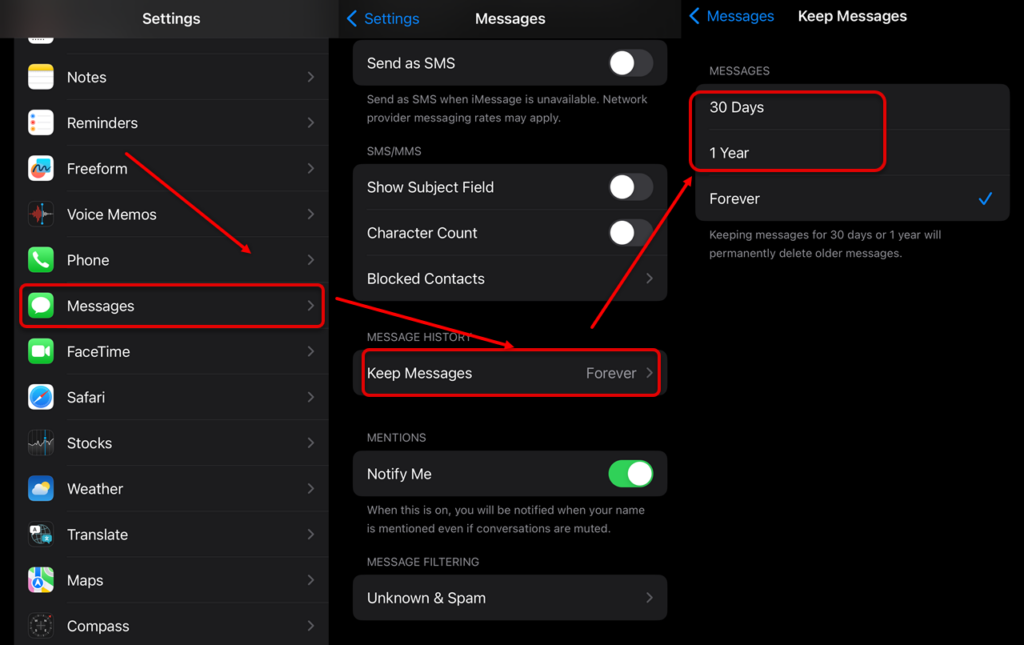
- Head to Settings > Messages > Keep Messages.
- Now, select either 30 days or 1 year. Your iPhone will prompt you to delete older messages.
Also read: How to find hidden photos on iPhone?
Update iOS
Updating your iOS and apps can fix some bugs or glitches that may cause system data to grow excessively.
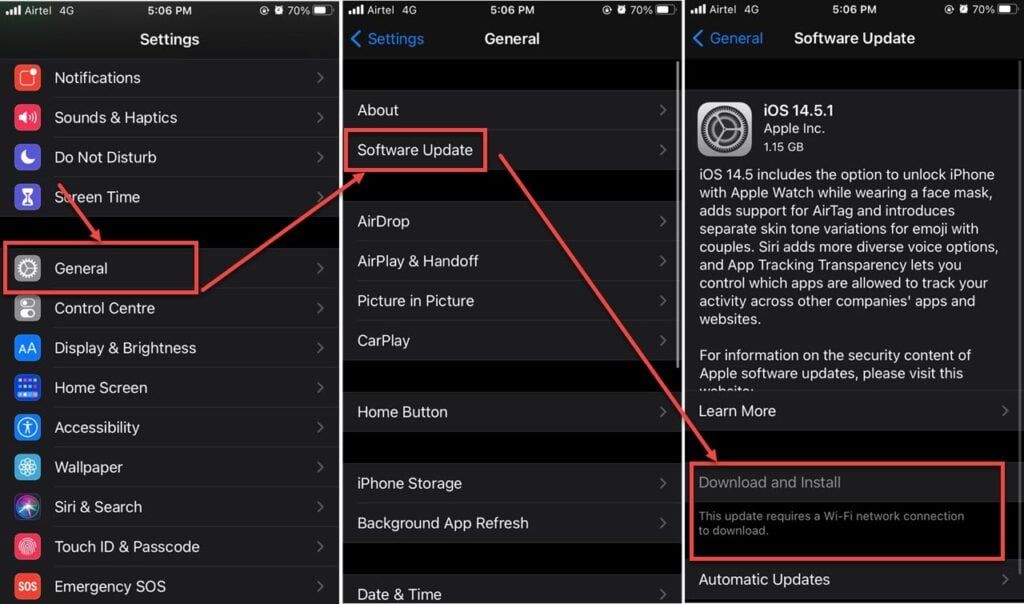
Go to Settings > General > Software Update. After that, press Download and Install to install the latest iOS version on your iPhone.
Reset your iPhone
If nothing works, resetting your iPhone will solve all your problems and return the device to a new out-of-factory version. But it will wipe out all your data, apps, and other settings. So, we advise you to upload important data on iCloud or download it offline.
When you’re done backing up your data, follow the instructions given below:

- Head to Settings > General.
- Tap on Reset > Erase All Content and Settings.
In conclusion, you should delete system data on your iPhone if you feel you’re about to run out of space. Follow the five methods listed above and make your iPhone clutter-free.
Also read: Why can’t I download apps on my iPhone?


