Photo: Farknot Architect / Shutterstock.com
If you use a Mac, you may want to know how to find the browsing history on your device. Browsing history is a list of websites that you have accessed in recent days, and it helps you revisit the websites, delete any unwanted sessions, or check the date and time of your session.
Almost all browsers store the browsing history that you can access via different settings. In this article, we’ll show you how to do it on a Mac.
We’ll cover the following three browsers:
Also read: How to change the search engine on Mac?
Finding the history on Safari
Safari is the default browser on Apple devices. You can see the browser history up to last month on this browser.
Here’s how to see browsing history on Safari:
Step 1: Open Safari, click on the History tab at the top, and then select Show All History to see all your browsing history arranged by date. Alternatively, press the Command key + Y to reach the same window.
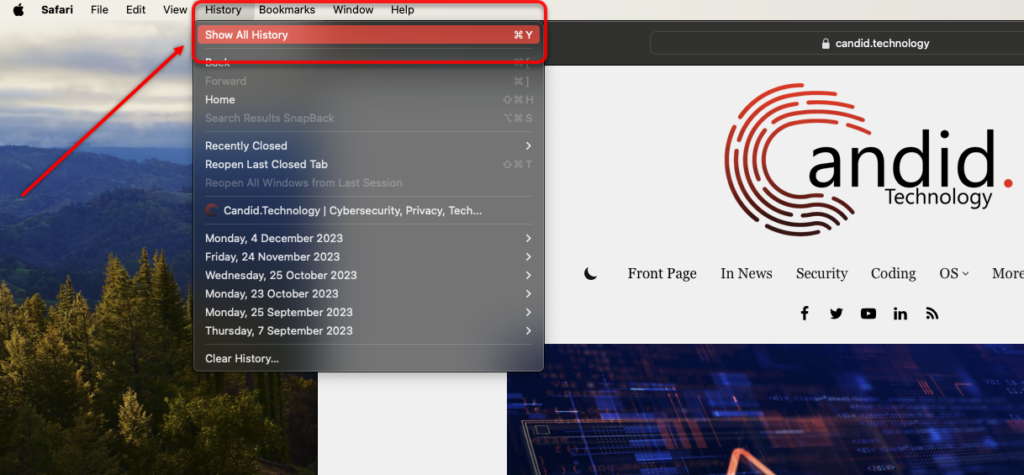
Step 2: Now, click on the arrow before the date to expand the history. You can also search for a specific website in the search box.

Note: If you find no dates here, the history has been cleared recently.
Also read: How to find large files on Mac?
Viewing the history on Chrome
Chrome is one of the most popular browsers by Google and controls a lion’s share in this segment. Therefore, it is not surprising that even though Mac users have Safari, they opt for Chrome.
Here’s how to find the browsing history on Chrome:
Step 1: Open Chrome. Click on the three-dot button at the top right corner and hover your mouse over History from the drop-down menu to open another sub-menu. Click on History on this menu to reach the browsing history page.

Step 2: Here, you can view the browsing history By date or By group. Click on any of the tabs as per your preference. We’ll go with By date.

Now, you can view each website by clicking on the website’s name. Or, you can check mark the small boxes at the front and then select Delete to remove the history.

Also read: How to rename a file on Mac?
Finding the history on Firefox
Another browser that people widely use is Mozilla Firefox. It can store your browsing history for up to 90 days.
Here’s how to find history on Firefox on Mac:
Step 1: Open Firefox, click on the hamburger button at the top, and click History.

Step 2: Click on Search History.

Step 3: Head to the search icon for a particular website.

In conclusion, we have covered some of the widely used browsers on Mac to aid you in finding your history. The steps are simple and easy and can be performed by anyone without the technical knowledge of computers.
Also read: How to change screen timeout on Mac?