Telegram is one of the most popular messaging apps with over 500 million active users. The platform offers many features including safety, encryption, bots, stickers, private and public channels, and power saving mode, among others.
One of the most used features in Telegram is the ability to scan QR codes on the app to link various devices. For example, you can scan the Telegram code on a desktop to use your Telegram account on the desktop. This functionality is the same as WhatsApp Web.
Another main usage of QR codes on Telegram is to add contacts to a group or to join a group.
In this article, we’ll explain how to easily do this.
Here’s what we will cover:
- Scan the QR code in the Telegram app
- How to scan QR codes on Telegram to add contacts or join groups?
- How to protect your privacy and avoid scams when using QR codes?
Scan the QR code in the Telegram app
Follow the instructions given below to scan the QR code in the Telegram app:
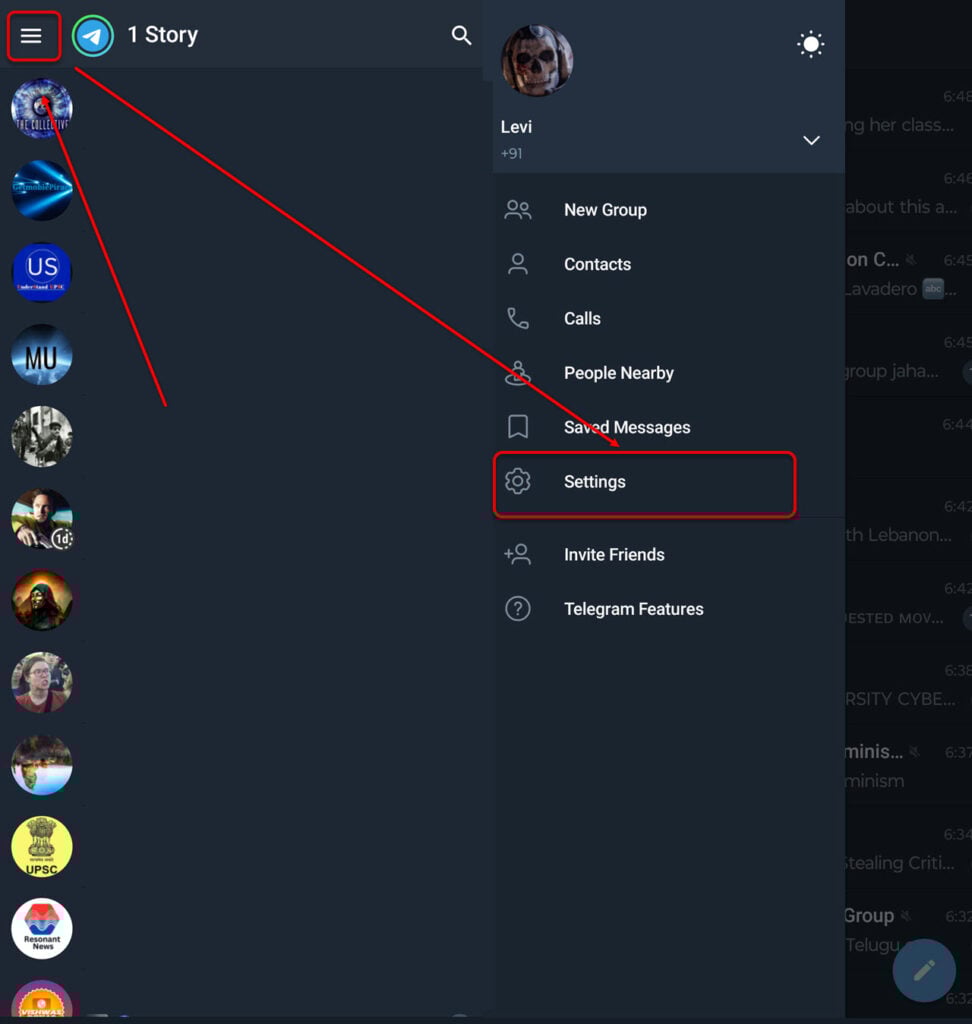
- Open Telegram and tap the hamburger menu button at the top left of the screen.
- Next, select Settings.

- Next, tap on Devices.
- Finally, select Link Desktop Device.
Your mobile’s camera will automatically open, and you can point it to the QR code to scan it.
To use the same Telegram account on your desktop, open the Telegram website (web.telegram.org) on your desktop and you will see a QR code on the screen. Just scan it and you can operate the account.
Also read: Can Telegram be traced?
How to scan QR codes on Telegram to add contacts or join groups?
To add contacts or join a group on Telegram via QR codes, you can ask people to share their account’s QR code with you. Admins of the groups can also share the QR codes with people to allow them to join the group easily.
Now, if you are a contact or a group admin, follow the steps given below to share your Telegram account or group’s QR code:
Your account’s QR code
Here are the steps:
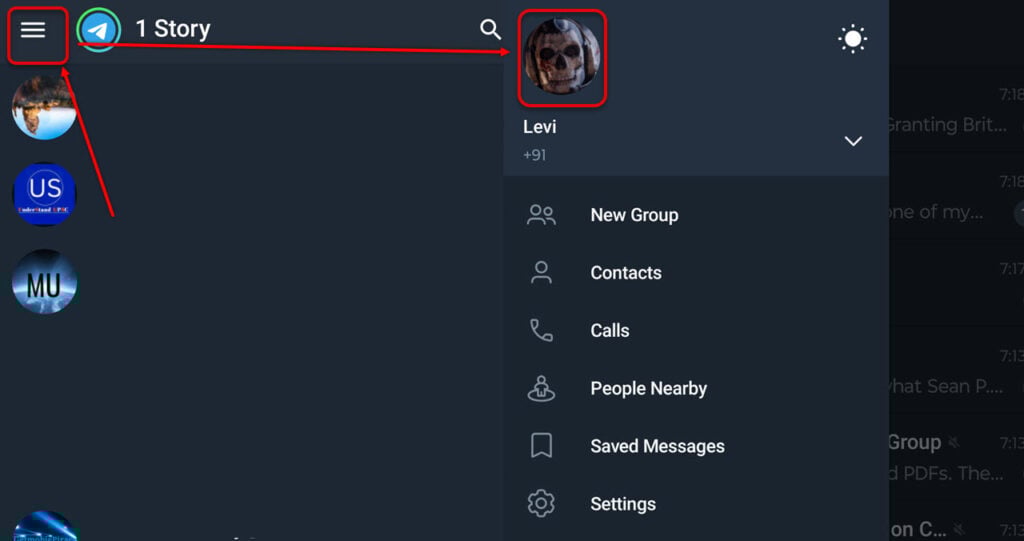
- Open Telegram and then tap on the hamburger menu at the top left.
- Next, tap on your profile picture.

- After that, tap on the QR code icon at the top.
- Select Share QR Code.
Share Telegram channel’s QR code
To share the QR code of a Telegram group or channel, open the channel and then tap on the channel or group’s profile picture. After that, follow these steps:
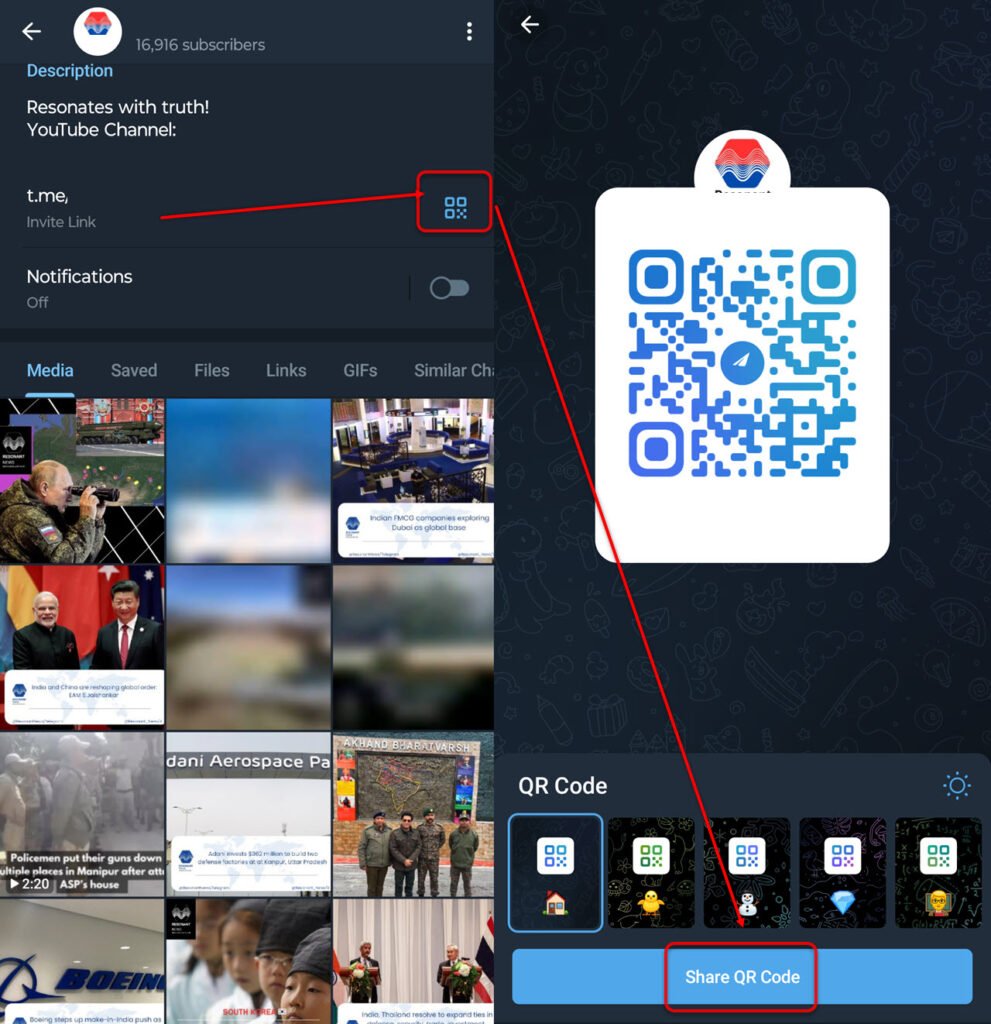
- Tap on the QR code beside the Invite Link.
- Select on Share QR Code.
Also read: Telegram icons and symbols explained
How to protect your privacy and avoid scams when using QR codes?
Although QR codes are a convenient way to share an account or process a payment, several fake QR scams are currently taking place.
Here are some tips that you should follow to protect yourself from fake QR code scams on Telegram:
- Always check the source of the QR code. Do not scan the QR codes if you are not sure of the source, as these may lead you to phishing websites, malware downloads, or install spyware on your device.
- Never share your personal or financial details through the QR codes. Also, ignore requests by the scammers to enter the OTP if you get any.
- Ignore those QR codes that look fishy. These QR codes may lure unsuspecting people to give high ratings to businesses, like videos or file surveys. Some QR codes may offer high returns if you provide an initial amount or a security deposit.