
Sharing your location on your iPhone can be useful for travelling alone or to an unknown place. Many ways to do so easily on your iPhone include Messages, Maps, Find My and other platforms.
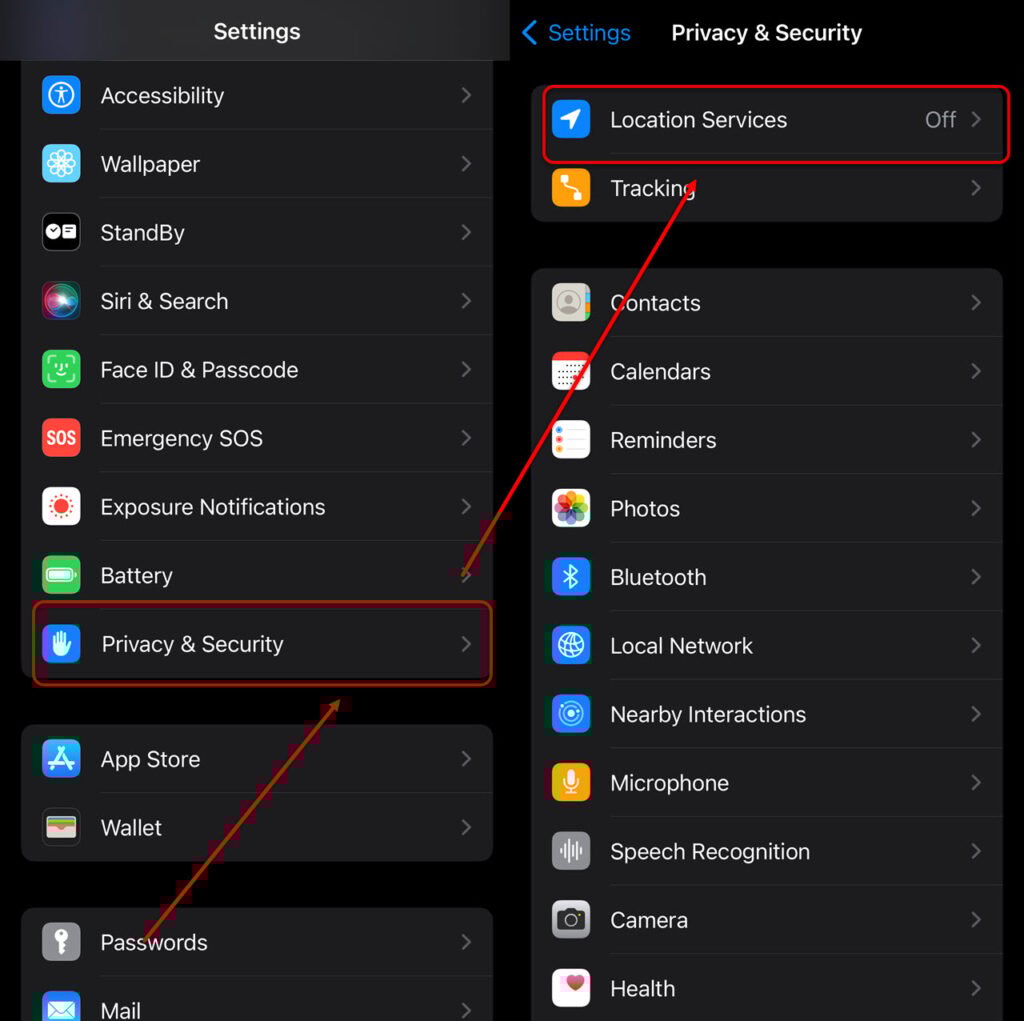
In this article, we’ll explain how you can share your location on your iPhone. But first, turn on the Location Sharing by heading to Settings > Privacy and Security > Location Services. Here, turn on Location Services.
Here are the four methods that we will cover in this article:
- Share your location in the Find My app.
- Share your current location on your iPhone via Messages.
- Share location via Family Sharing.
- Share location via Apple Maps.
Also read: How to delete purchase history on iPhone?
Method 1: Share your location in Find My app
You can use the Find My asset tracking application to share the location. Here’s how to do this:

- Open Find My and then tap on Friends, followed by Start Sharing Location.
- Then choose the contact you want to share the location with from the contact list.
- Tap on Send.
- Share from the following three options — Share for One Hour, Share Until End of Day, Share Indefinitely
Method 2: Share your current location on iPhone via Messages
The second way to share your location on your iPhone is via the Messages app. Messages app is the default app to send text messages on iPhones.

- Open Messages and tap on any conversation where you want to send the location.
- Tap on the contact’s name or profile picture at the top, then select the Send My Current Location option.
- Select the time range from the three options: One Hour, Until End of Day, and Indefinitely.
- Tap on Done.
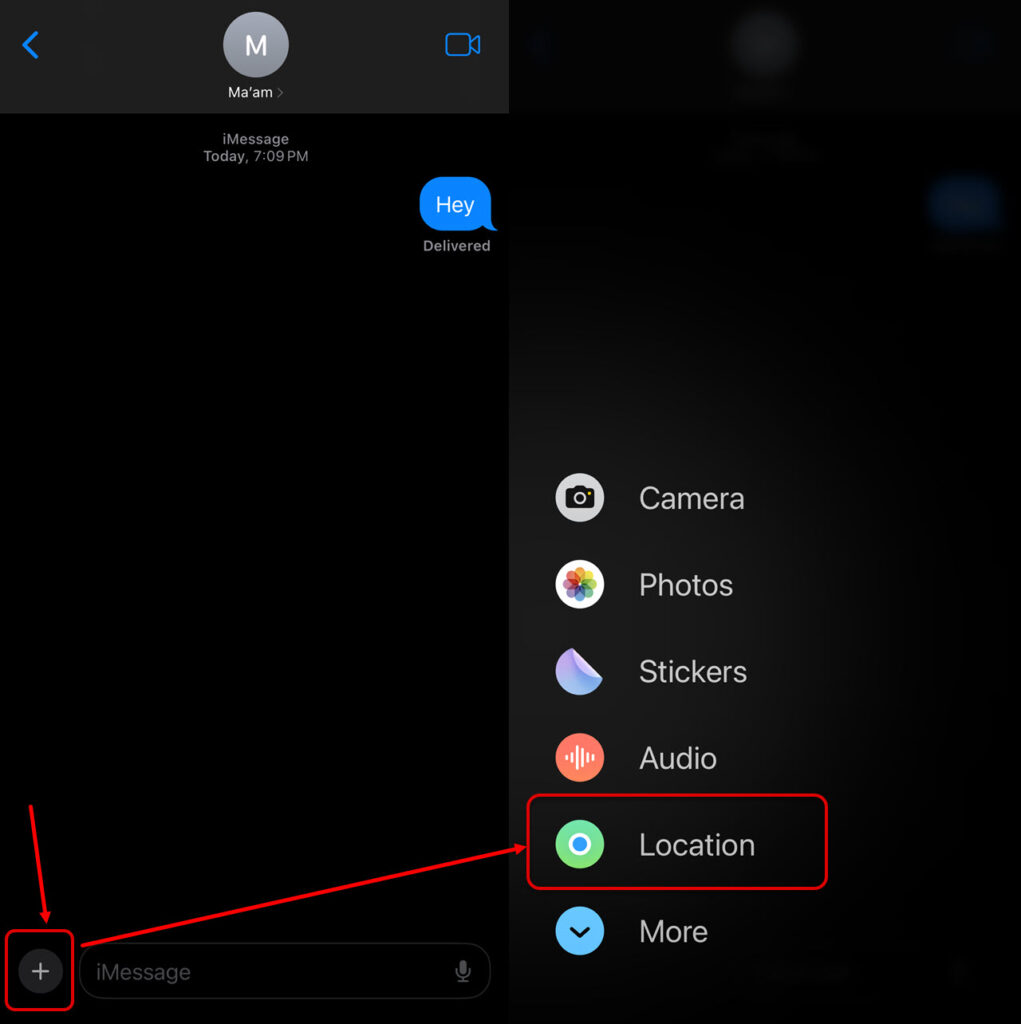
Alternatively, you can tap on the plus sign at the bottom left of the chat and then tap on Location. Next, tap on Share and select the time range from the three options discussed earlier.

Also read: How to make a PDF on iPhone?
Method 3: Share location via Family Sharing
Using Family Sharing, you can share Apple services with family members. The services include Apple Music, Apple TV+, and Apple Arcade. You can also share your location with your family members using this setting.

- Head to Settings and tap your profile picture or name at the top.
- Next, tap Family Sharing and invite your family members by clicking Invite. Then tap on the send icon to send the invitations.

- After that, tap on Location Sharing and again tap on Share Location.
Method 4: Share location via Apple Maps
The fourth way to share location on your iPhone is via Apple Maps, a substitute for Google Maps.

- Open Apple Maps and then tap on the arrow icon at the top.
- Tap on Drop Pin and then tap on the contact.
Thus, you can easily share your location on your iPhone using the four ways we have mentioned above.
Also read: How to delete hidden apps on your iPhone?


