
If you’ve ever picked up your phone and noticed that the screen has turned black and white instead of its usual vibrant colours, don’t worry; there’s a reason behind it. This phenomenon occurs due to various settings and features on your smartphone.
If your phone screen turns black and white, this guide discusses various causes of it turning black and white and a few ways to fix it.
Why is the phone screen black and white?
Various reasons might turn your phone’s screen to black and white; they are mentioned below.
- Temporary glitch.
- Power saving mode is enabled.
- Interference by apps.
- Changed Accessibility settings.
Also read: Why is my phone so slow?
How to fix the issue?
Here are a few fixes that might help you resolve black white screen issue on your phone.
Restart your device
Most of the time your phone screen turns black and white because of some temporary glitches or minor bugs, if that is the case then restarting your phone can resolve this issue. Restart your phone properly, and then check if the phone screen is still black and white.
Disable Battery saver
When your phone’s battery is running low, it automatically switches to a battery-saver or power-saving mode. These modes often reduce the device’s functionality to conserve power, and one way they do this is by limiting the display to black and white. To disable the battery saver follow the steps below:
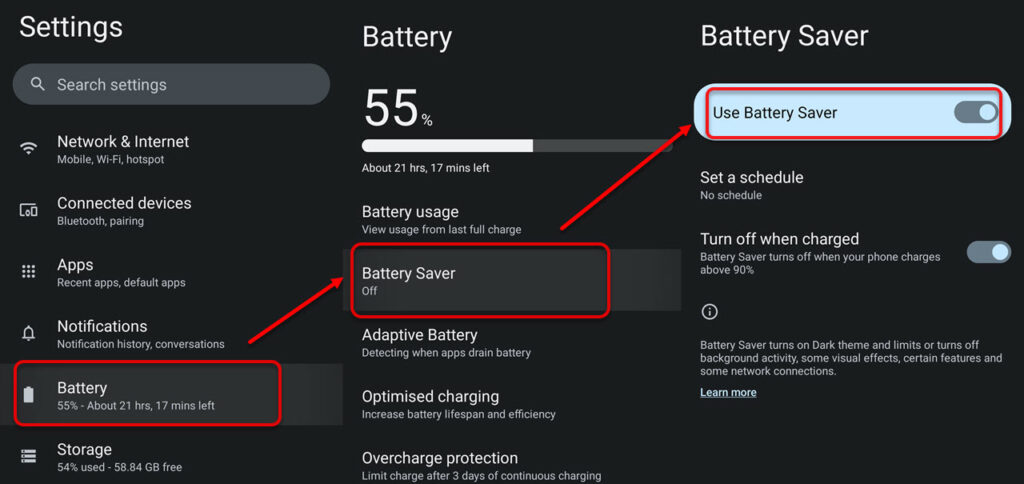
- Open the Settings app on your phone and tap on the Battery option.
- Tap on the Battery Saver option.
- Turn the toggle off beside the Use Battery Saver.
Uninstall apps
If you’ve recently added new apps to your phone and the problem started after that, try removing them. Sometimes, a few apps conflict with the phone’s functionality, because it wasn’t installed properly or have some bugs, uninstalling these apps can fix the issue.
Disable Colour correction and Colour Inversion
Another possibility is that you’ve accidentally activated an accessibility feature that turns your screen into black and white. There are options for colour inversion and correction that can be enabled in the settings.
If you’ve turned on any of these features, you can return to the settings and disable them to return your phone to colour mode. To disable colour correction and colour inversion on your phone follow the steps below:

- Open the Settings on your phone, scroll down a bit and tap on Accessibility.
- In Accessibility, tap on the Colour and Motion option.
- Make sure both the Colour correction and Colour inversion features are disabled.
Disable Greyscale in Bedtime mode
Bedtime mode on your smartphone turns the screen to greyscale automatically. If you use the bedtime mode on your smartphone, then it is the most probable cause of the black and white screen. To disable the greyscale in bedtime mode, follow the steps below:

- Open the Settings on your phone, scroll down, and find Digital Wellbeing and Parental Control and tap on it.
- Tap on the Bedtime mode option.
- Now, tap on the Customise option.
- Tap on Screen options at bedtime.
- Turn the toggle beside the Greyscale.

Disable simulate colour space
If you have activated Developer options on your phone and you use those options, then check and make sure the Simulate colour space feature is disabled. To check that follow the steps below:

- Open the Settings on your phone, scroll down to the bottom and tap on System.
- In the system, tap on Developer options.
- In developer options, search Colour space and then make sure to disable Simulate colour space.
Also read: How to get your phone out of Qualcomm’s crash dump mode?




