Photo: Yasin Hasan / Shutterstock.com
The Applications folder on a Mac is a central hub where all installed software and applications reside. Understanding how to navigate and manage this folder is crucial for Mac users seeking efficiency and organisation in their digital workspace.
In this article, we have discussed three ways to open the Application folder and what you can do from the Application folder.
Below we have discussed:
Also read: How to turn the ringer off on a Macbook?
How to open the Application folder?
There are three ways that you can use to open the Application folder on a Mac, and they are explained below:
Open the Application folder from the Finder
The simplest way to open the Application folder is through the Finder. Follow the steps below to open the Application folder using Finder:
Step 1: Click on the Finder app available in the Dock.
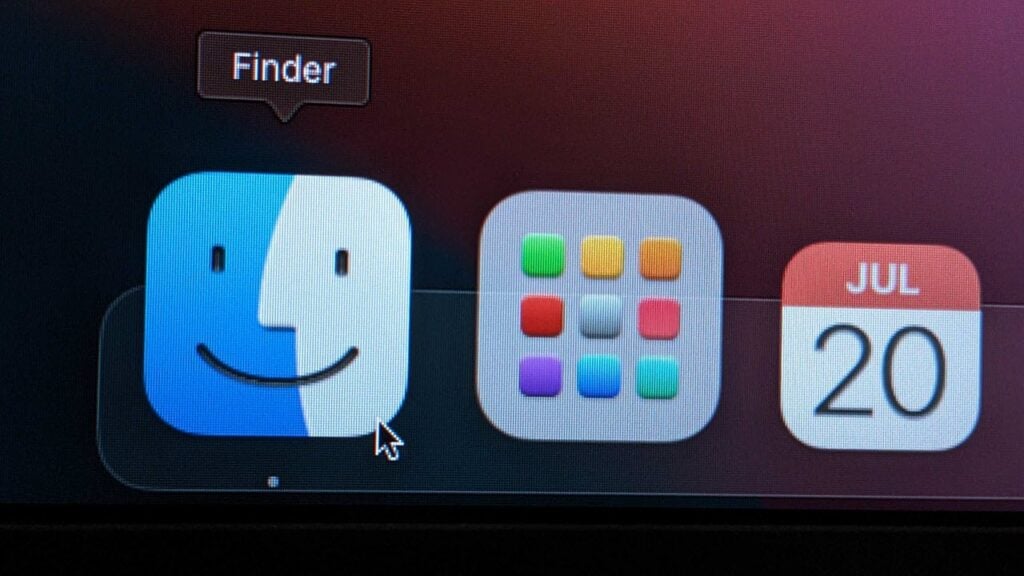
Step 2: Click on the Applications available in the sidebar.

Open the Application folder from the Go Menu
Another way to open the Application folder is from the Mac’s Go Menu bar; here is how to open it from the Go menu:
Step: At the top of the screen, click on the Go tab and then in the dropdown menu, click on the Applications.
Alternatively, you can use the keyboard shortcut Shift + Command + A.

Open the Application folder from the Spotlight
Opening the Application folder using the Spotlight search is the quickest way, To open it using Spotlight press the Command + Space bar key, type Applications in the search bar and then click on the Applications in the results.

Also read: How to create and send a poll on iMessage?
What can you do from the Applications Folder?
You can use the Applications folder to open any app on your Mac, except those that usually run directly from the Downloads folder. Some built-in apps, like Terminal and Disk Utility, can be found in a sub-folder labelled Utilities.
Besides just opening programs, there are several other things you can do within the Applications folder:
- Remove apps: You can remove apps from your Mac.
- Check Information for an app: Find specific information like the app’s size, type (Intel, Apple silicon, or universal), who made it, and more by right-clicking on the app and choosing Get Info.
- Add to Dock: Drag apps into the Dock to quickly access them.
- View Package Contents: Explore the contents of an app by right-clicking on it and selecting View Package Contents.
Also read: What is the Utilities folder on Macbook?