Clearing the cache on the Arc browser is necessary if you are experiencing issues with opening websites, viewing videos, or encountering other problems. The process is straightforward and typically takes only a few moments of your time.
Arc is one of the newest browsers on the block. It is built on the familiar Chromium engine, the same foundation that powers Google Chrome. Having said this, the process is similar to clearing the cache on Chrome.
You can watch the YouTube video or continue reading the article below:

In this article, we’ll explain how to clear the cache on the Arc browser. But before that, let us understand why you should do this.
Why should you clear your browser cache?
Regularly emptying your browser’s cache is important for keeping your browsing experience efficient and trouble-free. This process can help resolve website problems and free up storage space on your device.
Cache are temporary files that store those website files that you commonly visit. These files allow the website pages to download quickly. When you open any website, it loads various resources such as images, videos, CSS, and Javascript. If the website loads these resources every time we open the page, it will take quite a lot of time.
Your browser stores a copy of the webpage’s content that we discussed in the above paragraph to save time. This helps the browser load these pages quickly.
Head to this article to understand how to clear cache in Chrome.
Also read: How to get Arc browser on Windows?
How to clear Arc browser cache?
Now that we have understood why should we clear the browser cache, let us head to the steps:
Step 1: Click on the Arc icon at the top left of the screen and then select Settings from the drop-down menu. Alternatively, you can press the Ctrl + , to directly open Settings.

Step 2: Click on your profile. If you don’t have a profile, click on New Profile.

Step 3: Now, click on Clear Browsing Data.

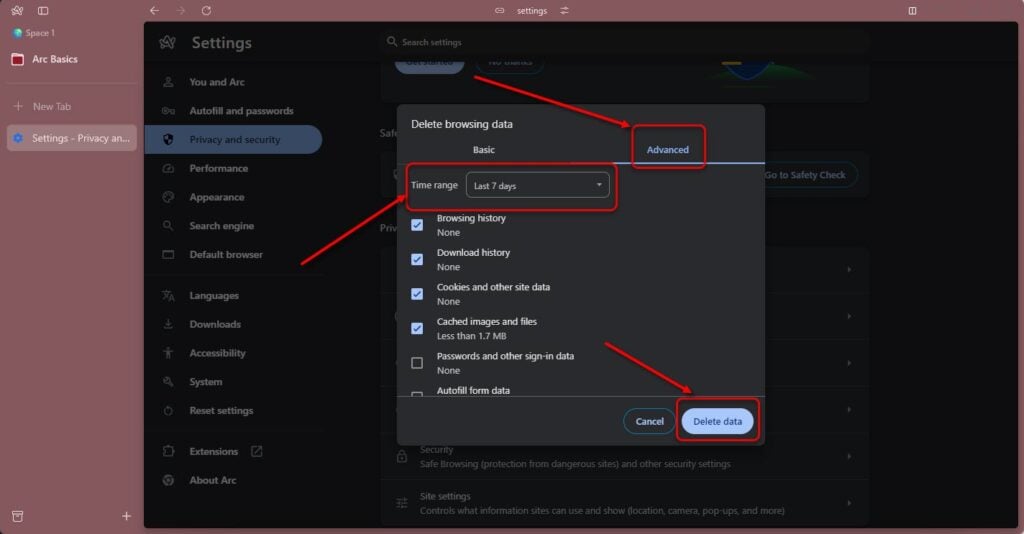
Step 4: After that, click on Delete browsing data.

Step 5: To clear passwords, autofill data, site settings, or hosted app data, head to the Advanced tab at the top. Also, set the time range: Last hour, Last 24 hours, Last 7 days, Last 4 weeks, or All time. Once you’re done, press Delete.
Thus, clearing your cache in Arc is straightforward, thanks to its Chromium-based design. If you have been a Chrome user, you will feel quite at home. Regularly clearing your cache can help improve browser performance and resolve browsing issues.