Logitech makes some of the excellent peripherals for computers. However, users have noticed a major problem that is often held back by the problematic G Hub software.
If you’re stuck in an infinite loading loop in G Hub, you’re at the right place. Here’s a YouTube video explaining the fixes:

In this article, we’ll explain how you can easily fix Logitech G Hub software stuck in an infinite loading loop:
Here we've covered:
Why does this issue keep happening?
Logitech has not provided an official explanation for why G hub occasionally gets stuck in a loading loop. However, it appears to be a recurring software glitch.
Also read: How to reset Logitech G HUB mouse settings? 2 Quick Methods
Close all G Hub processes and restart
The first method to fix the infinite loop problem in G Hub is to close all the processes related to the software and then simply restart the PC.
Step 1: Press the Windows Key + I and select Task Manager.
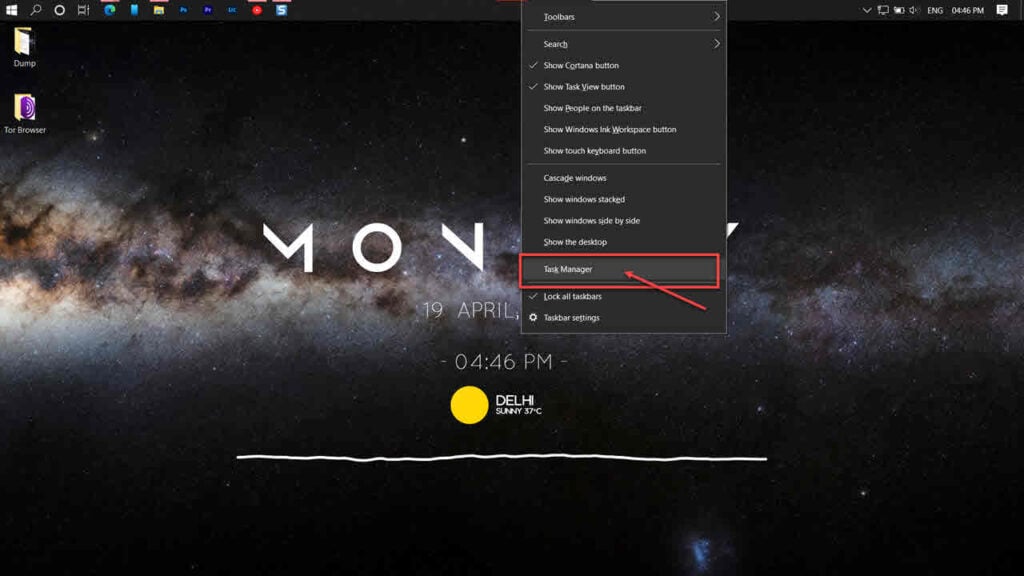
Step 2: In the Processes tab, locate G Hub. Right-click on it and select End Task. While you’re at it, look for the LGS Updater process and end it if found.

After this, check the system tray to ensure G Hub is not running just in case. Once all related processes are closed, restart your PC and then launch G Hub. If G Hub starts correctly, your issue is resolved. If not, try the next method.
Also read: How to set up macros in G HUB?
Repair or reinstall G Hub
If closing the processes didn’t work, you may need to repair or reinstall the software.
Step 1: Press the Windows Key + X and select Installed Apps.
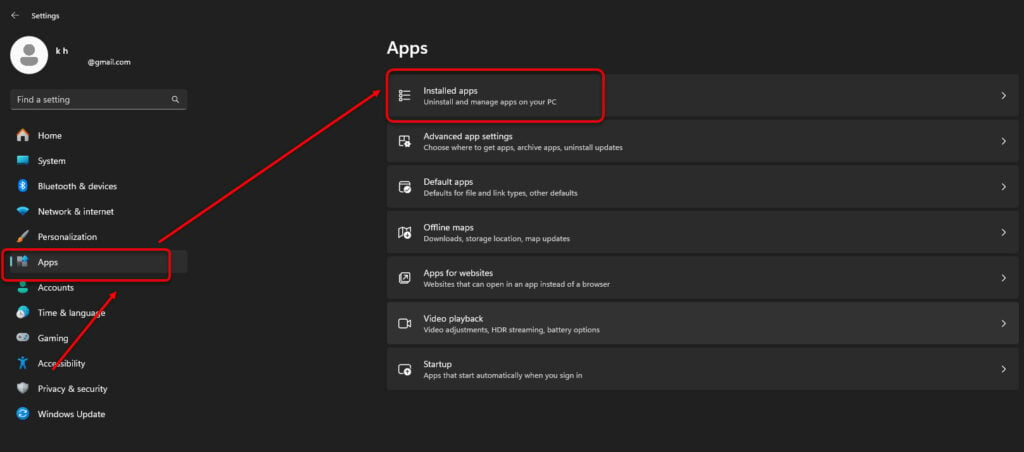
Step 2: Search for Logitech G Hub, click on the three-dot menu and then select Modify.
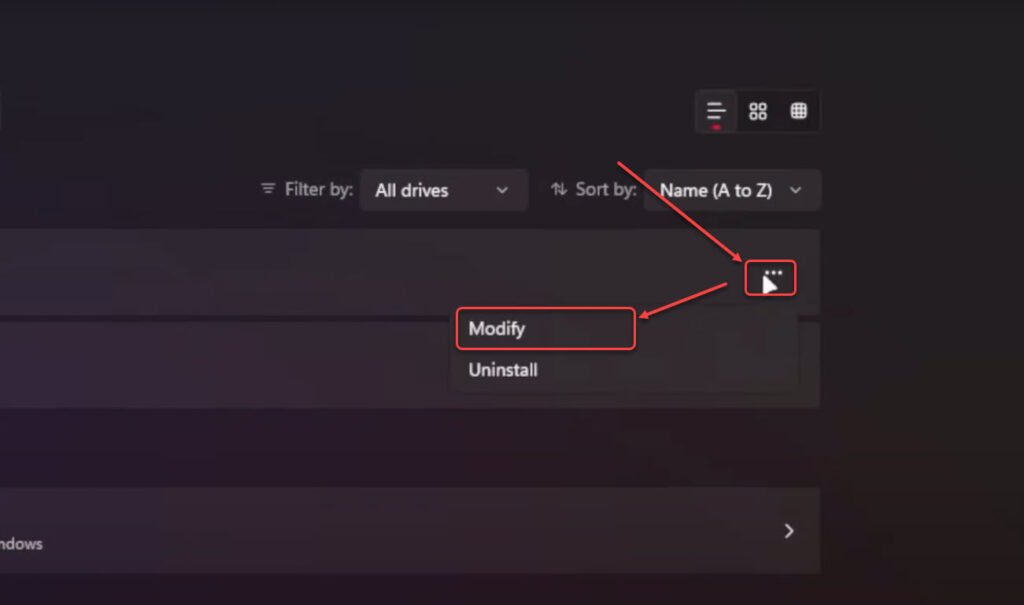
Step 3: When the installer opens, you can choose to either Launch G Hub or Reinstall G Hub. Select Reinstall G Hub and follow the on-screen instructions.
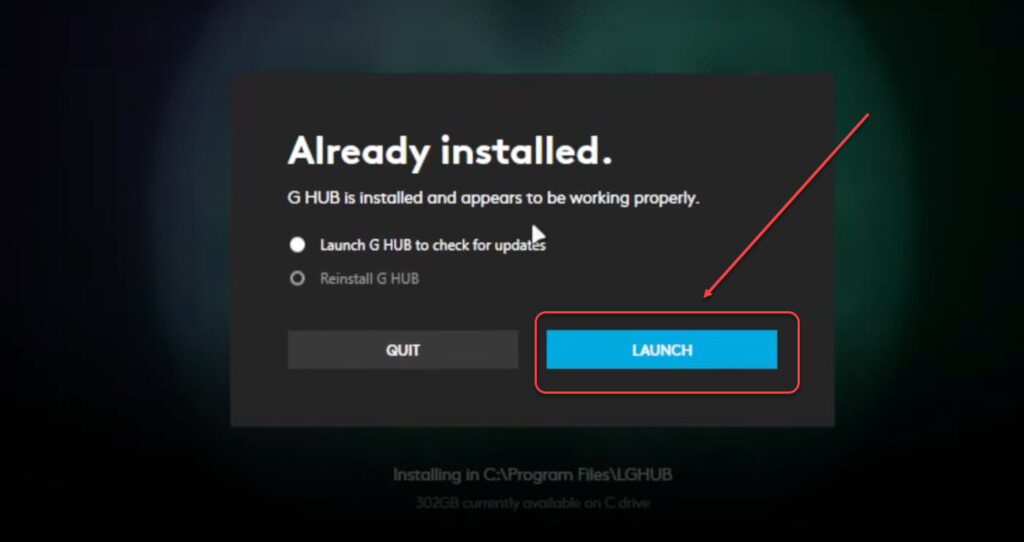
Reinstalling the software should resolve the infinite loading loop in Logitech G Hub issue.
Also read: How to uninstall Logitech G Hub?