Google Drive allows easy accessibility and syncing across devices. However, there are times when you may have to stop Google Drive sync on your PC.
There are five ways that you can try to stop the sync. Here’s a YouTube video link:

We’ll cover the following five methods:
- Quit Google Drive
- Pause syncing
- Uncheck synced folders
- Disconnect your Google account
- Uninstall Google Drive
Quit Google Drive
Perhaps the easiest way to stop Google Drive from syncing is to quit the app. Here’s how:
Step 1: Right-click on the Google Drive icon in the system and then select the Settings (gear) icon.
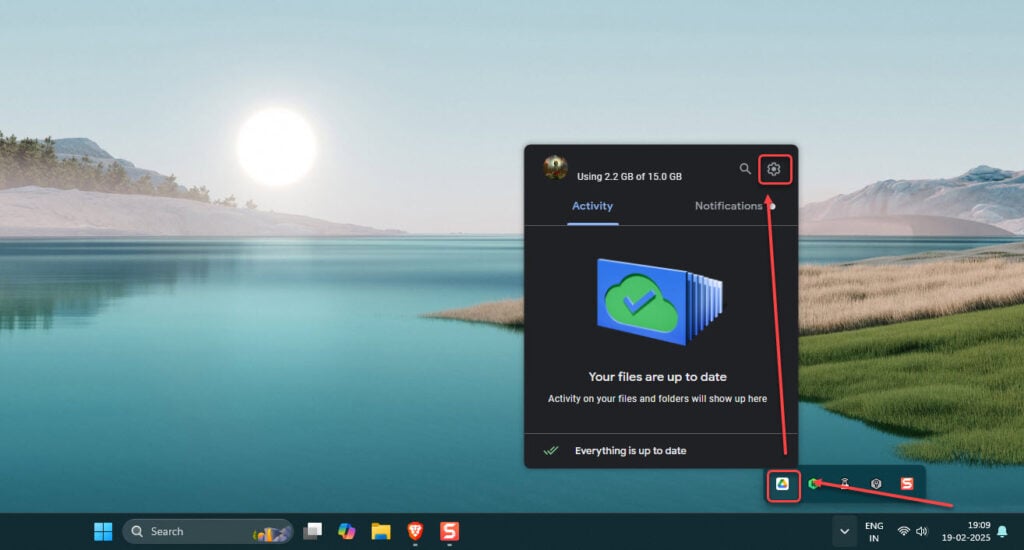
Step 2: Select the Quit option.
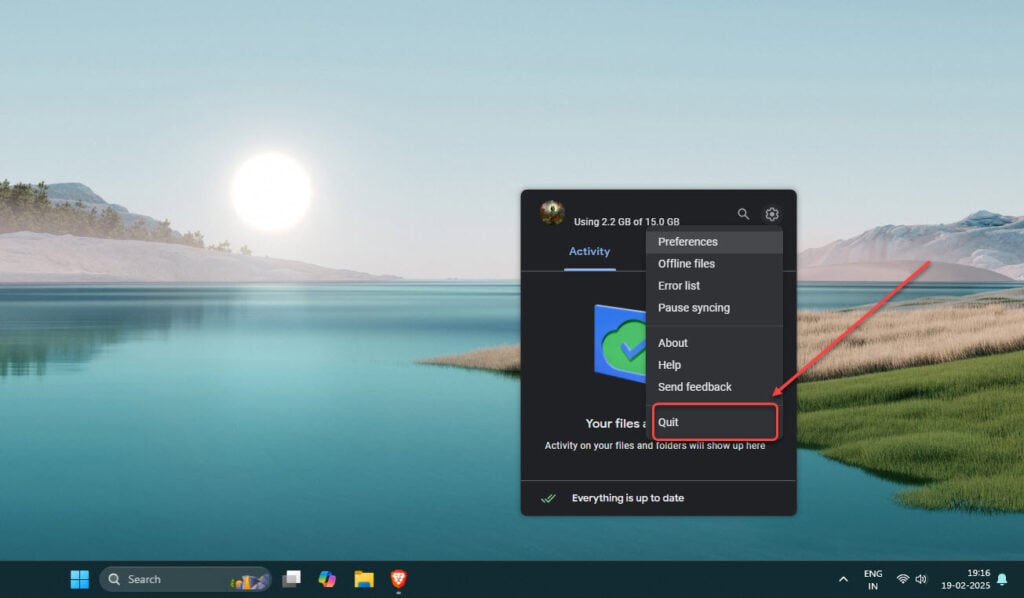
By following these steps, you’ll immediately stop Google Drive from syncing.
Also read: Wallpaper Engine not working error: 4 Quick Fixes
Pause syncing to stop Google Drive sync
If you want to temporarily stop Google Drive from syncing, you can easily pause the process. Simply click on the Google Drive icon in the system tray and select Settings, as mentioned in the previous step.
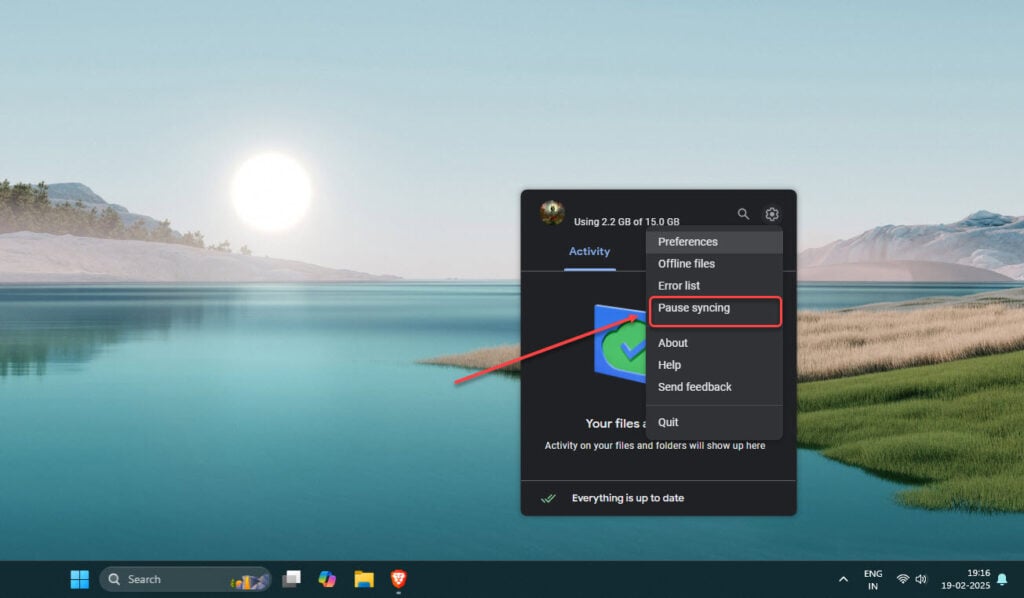
Next, select the Pause syncing option. This will pause the syncing.
Also read: How to revert Windows 11 24H2 to 23H2?
Uncheck synced folders
If you want to prevent specific folders from syncing in Google Drive, here are the steps:
Step 1: Head to the Google Drive icon in the system tray and then select Settings. After that head to Preferences.
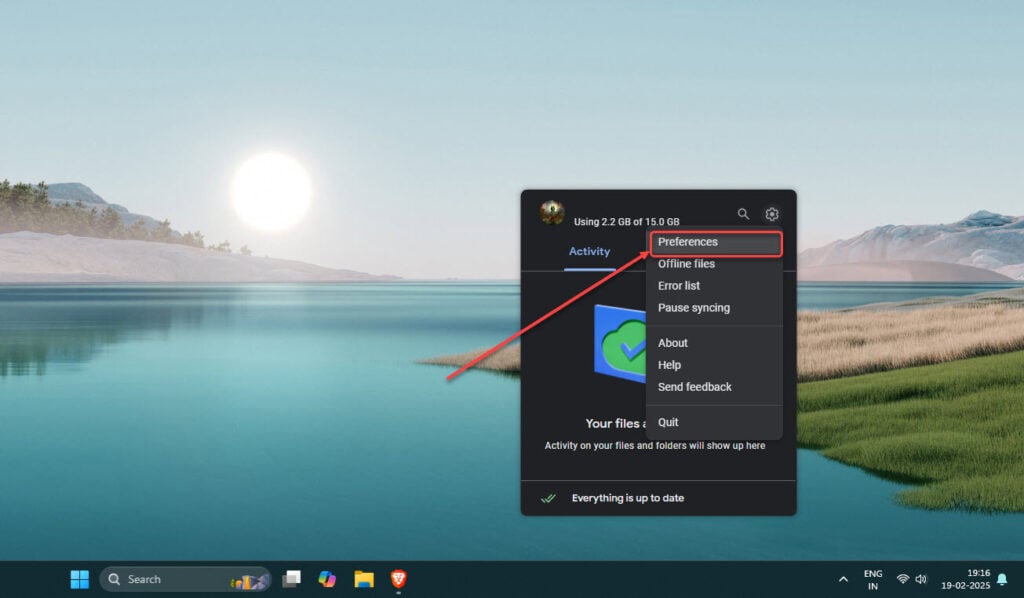
Step 2: Click on the folder that is currently in sync with Google Drive.
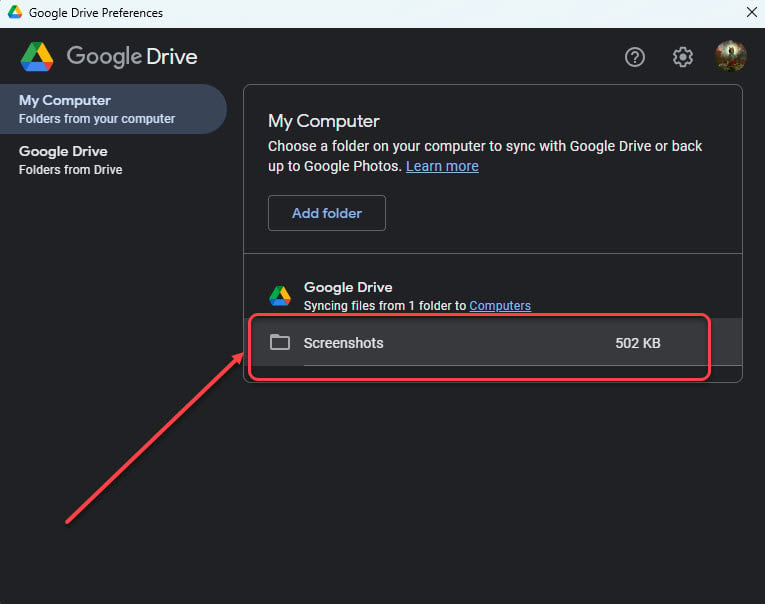
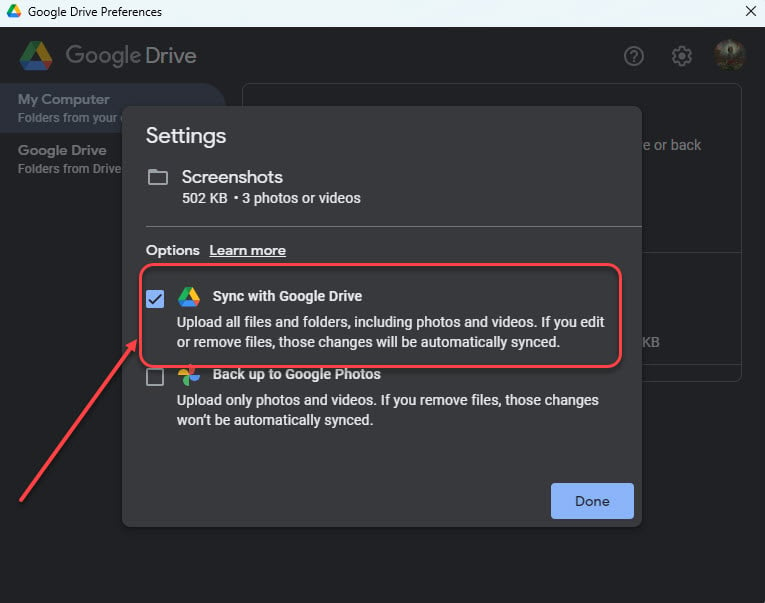
Step 3: Uncheck the box beside Sync with Google Drive.
Step 4: Click Done and then confirm the process by selecting Stop syncing.
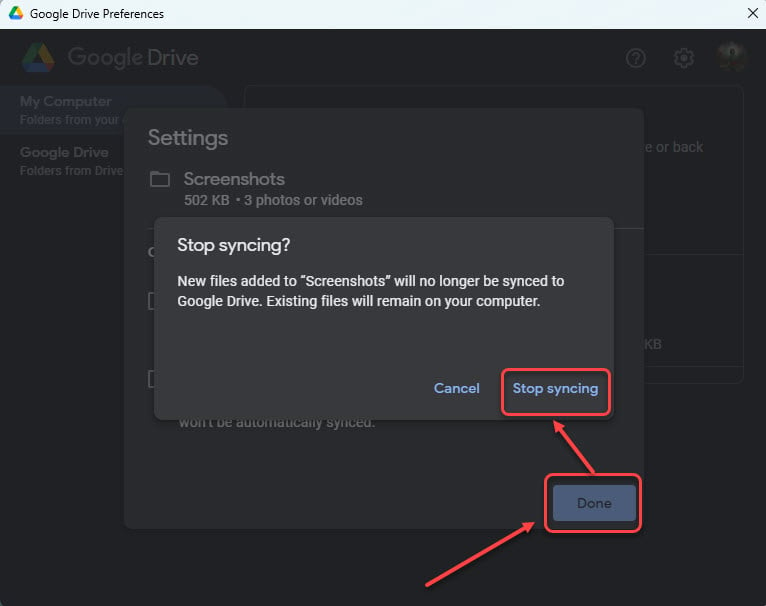
This will remove the selected folders from syncing in Google Drive.
Also read: Fix: MSI Center not working
Disconnect your Google account
To completely stop the file sync in Google Drive, disconnect your Google account. Here’s how:
Step 1: After heading to Google Drive and then press the Settings gear icon.
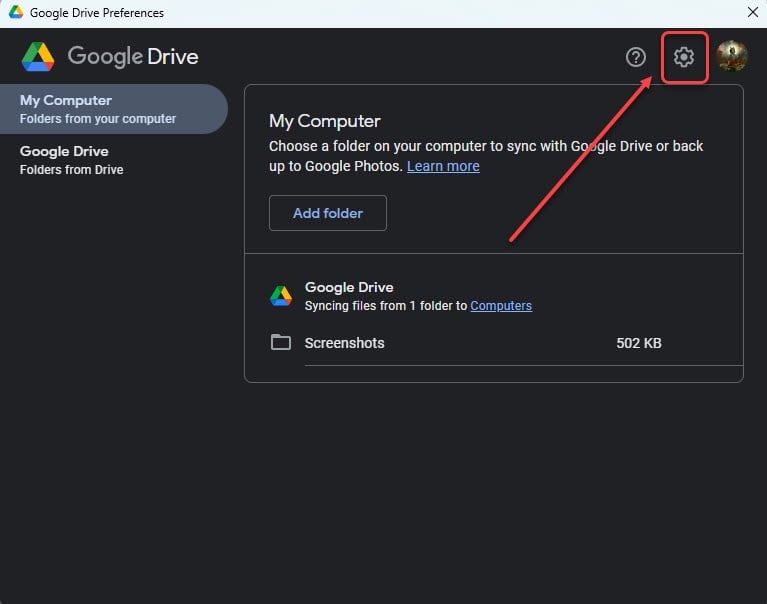
Step 2: Next, click on Disconnect account.
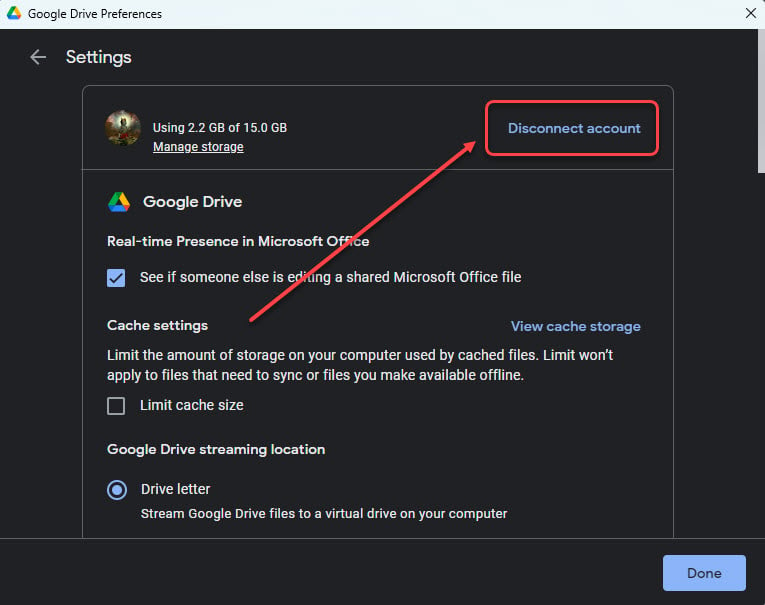
Step 3: Confirm by selecting Disconnect.
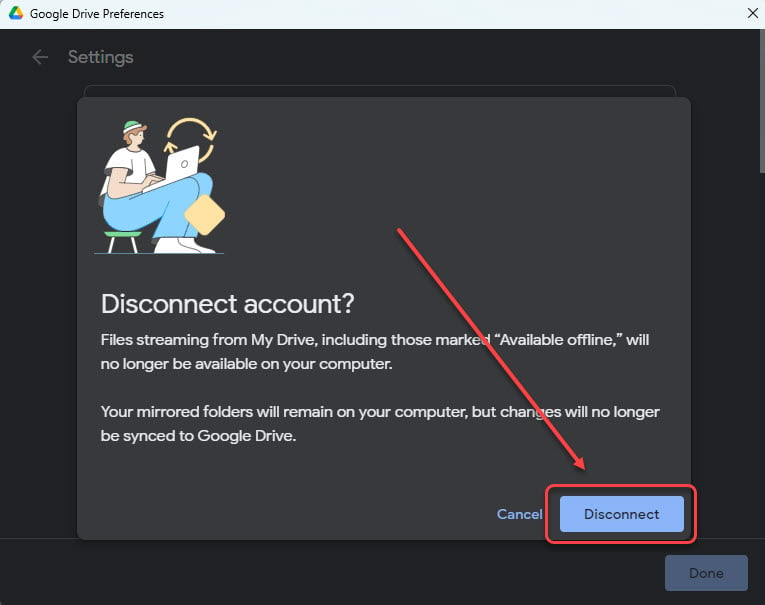
This step might be an overkill. However, it guarantees results.
Also read: How to uninstall Logitech G Hub?
Uninstall Google Drive
If you are tired of Google Drive and want to switch to another cloud storage, you can simply uninstall it from your system. Remember, to first delete all the important files and folders before uninstalling.
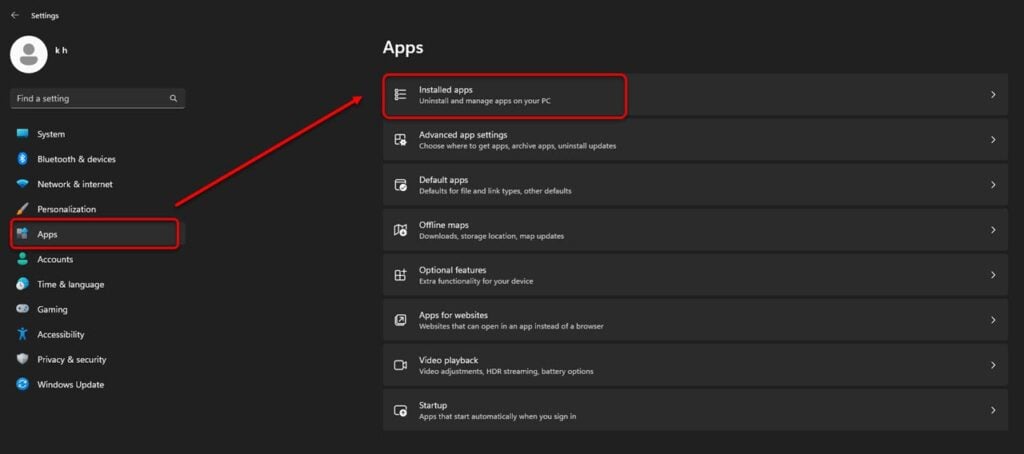
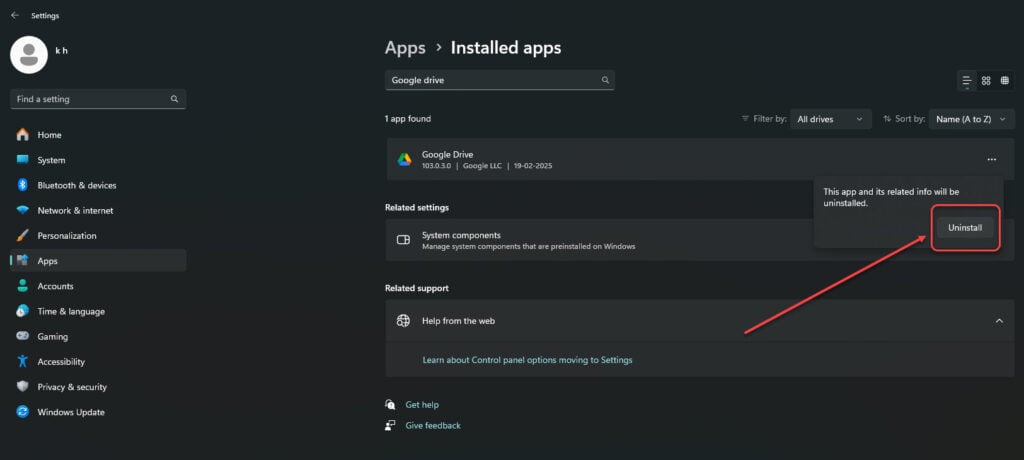
Step 1: Type Add or remove programs in the taskbar search bar and select the appropriate option. Or, you can press the Windows key + I and then head to Apps > Installed Apps.
Step 2: Search and locate Google Drive, press the three-dot button and then select Uninstall.
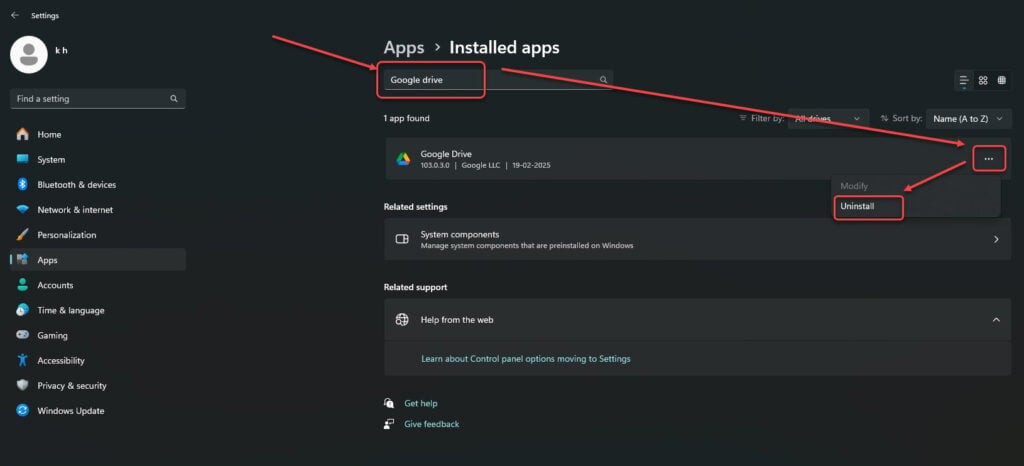
Step 3: Finally, click on Uninstall.
Using these five ways, you can easily stop Google Drive sync on your Windows PC.
Also read: Fix: DirectX 12 is not supported on your system error in Marvel rivals