Using an Xbox controller with your PC is a great way to play games. However, the controller uses batteries which either need to be recharged or replaced from time to time.
It can be confusing to know when the controller is about to run out of charge as it does not have a battery level indicator on it. In this article, we will demonstrate how you can check the battery level of your Xbox controller on Windows 11.
Here’s our video explaining how you can check Xbox controller battery level on Windows 11.

2 ways to check Xbox controller battery level on Windows 11
Here we've covered:
Check Bluetooth settings
If your Xbox controller is connected to the PC via Bluetooth, you can check the battery level in Bluetooth settings. However, the battery levels only show accurately if the controller uses rechargeable batteries. The steps to check the controller’s battery in Bluetooth settings are as follows:
Step 1: Press Windows key plus I to open Windows settings and click on Bluetooth and devices.
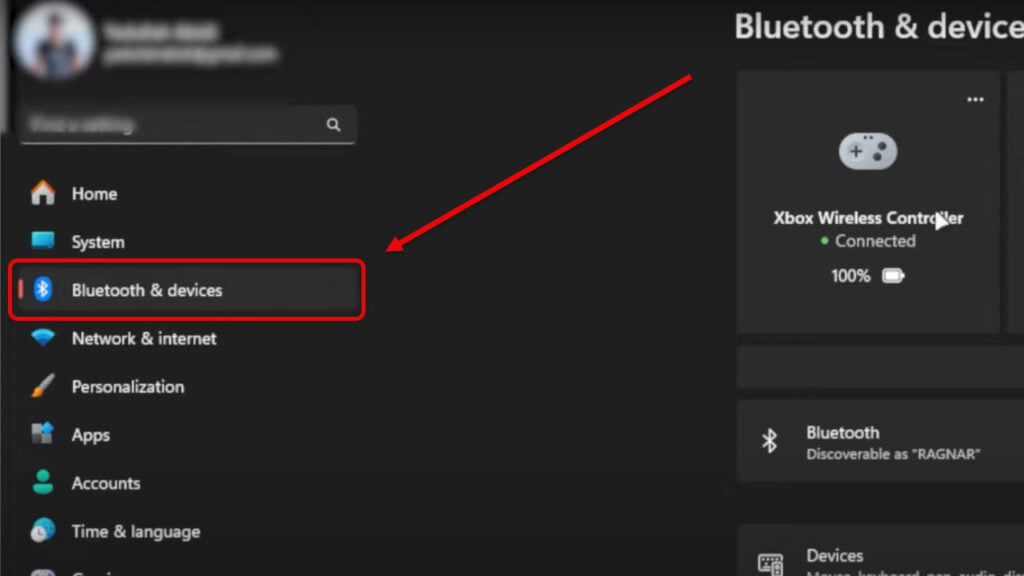
Step 2: Under Bluetooth settings the battery level can be seen below the status of the connected device.
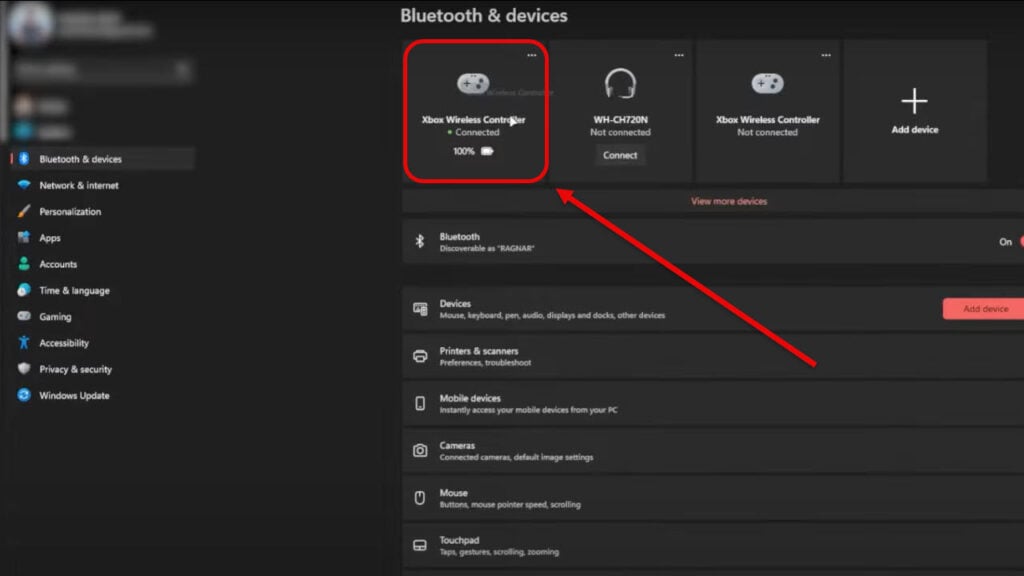
If the controller does not use rechargeable batteries, the battery level is likely to show as full or critical in Bluetooth settings.
Check Xbox game bar
Another way to check the battery level is through the Xbox game bar. The steps to do are as follows:
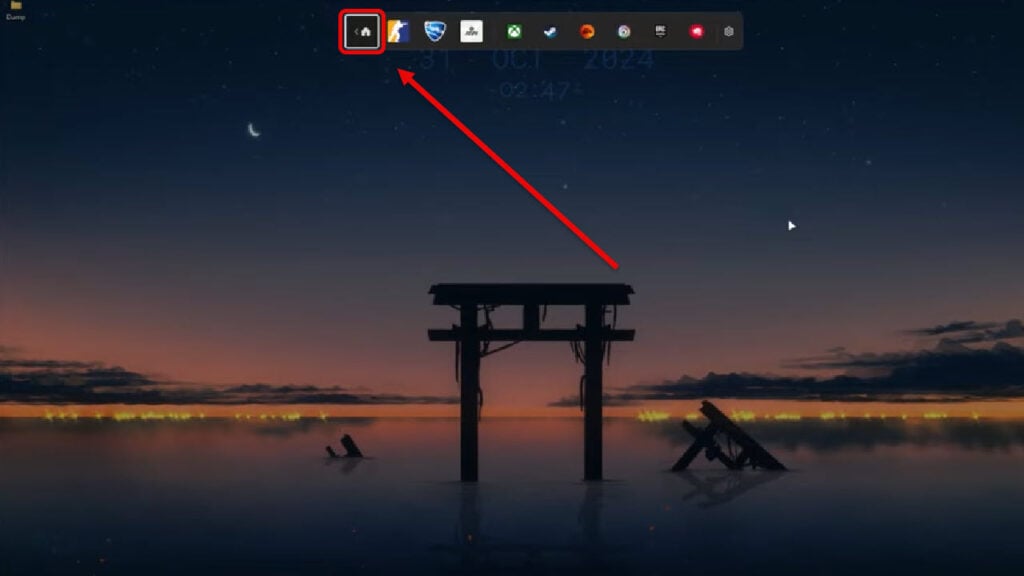
Step 1: Press the Xbox button on your controller to open the game bar and click on the home icon.
Step 2: Hover over the battery icon to check the remaining battery of the connected controller.
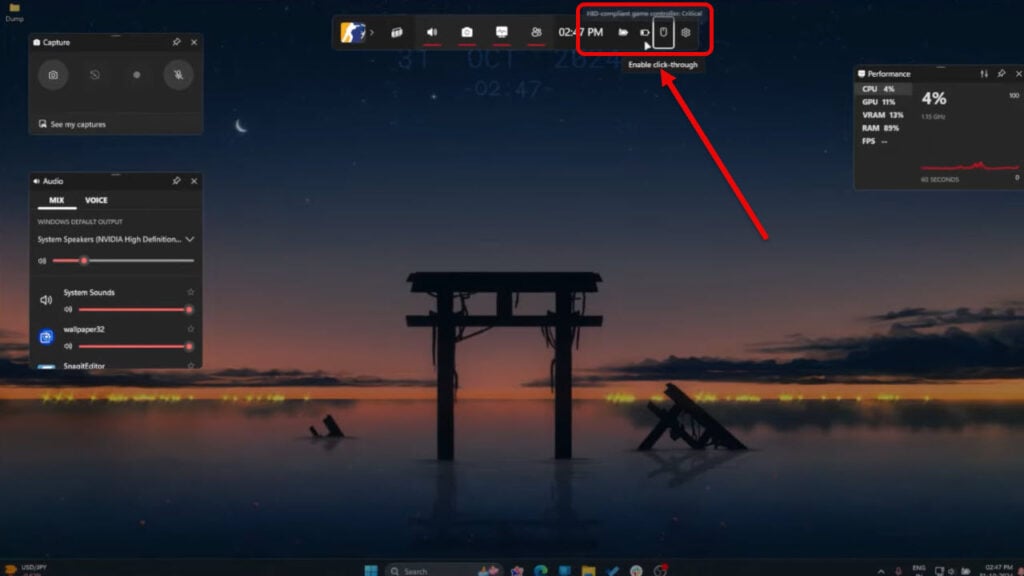
As we’ve mentioned before, if the controller is not using rechargeable batteries, Xbox game bar will not provide an accurate percentage. On the game bar, it will show you whether the battery is full or at a critical level indicating that it needs a fresh pair of batteries.
Also Read: How to fix Capcut network error on PC? 4 Quick Fixes