Photo: Ascannio / Shutterstock.com
Is Google Bard not working on your device? Many people have reported that the AI assistant stopped functioning.
Google Bard is a competitor to ChatGPT and works in the same way. It is based on the Language Model for Dialogue Applications (LaMDA) platform. You can ask anything, write an essay, dialogue, poem, or even a novel with the help of these AI assistants.
In this article, we will explain why Google Bard isn’t working and how you can fix it.
Why Google Bard isn’t working?
Here are a few reasons for this problem:
- Google Bard is down: If the website’s traffic is too much, it may happen that the website servers can suddenly perform irregularly, and the website may crash. Or if there are any technical issues, the engineers are trying to fix. This issue can also be caused by scheduled maintenance.
- Unstable or slow internet connection: If your internet connection is unstable or slow, you cannot access any website, let alone Google Bard.
- Outdated or incompatible browser: If you’re using an old and outdated browser, chances are that not all websites, including Google Bard, will work properly.
- Corrupt browser cache: Corrupt cache files can lead to the malfunctioning of the browser, and eventually, other websites like Google Bard may also stop working.
- Extensions are interfering: Sometimes, incompatible browser extensions may interfere with certain websites.
- Vague input: If you’re not finding the exact response from Google Bard, try tweaking your prompt. Make your prompt more comprehensive so that Bard understands what it must do.
Also read: Can TurnItIn detect ChatGPT?
Google Bard not working: Possible fixes
Now that we have understood the possible causes of why Google Bard is not working let us head to some troubleshooting steps:
Refresh the page
The first step that you should take is to refresh your webpage, as sometimes a simple refresh can solve minor glitches and errors. Press the F5 button or click the reload icon to refresh the webpage.
Restart your device
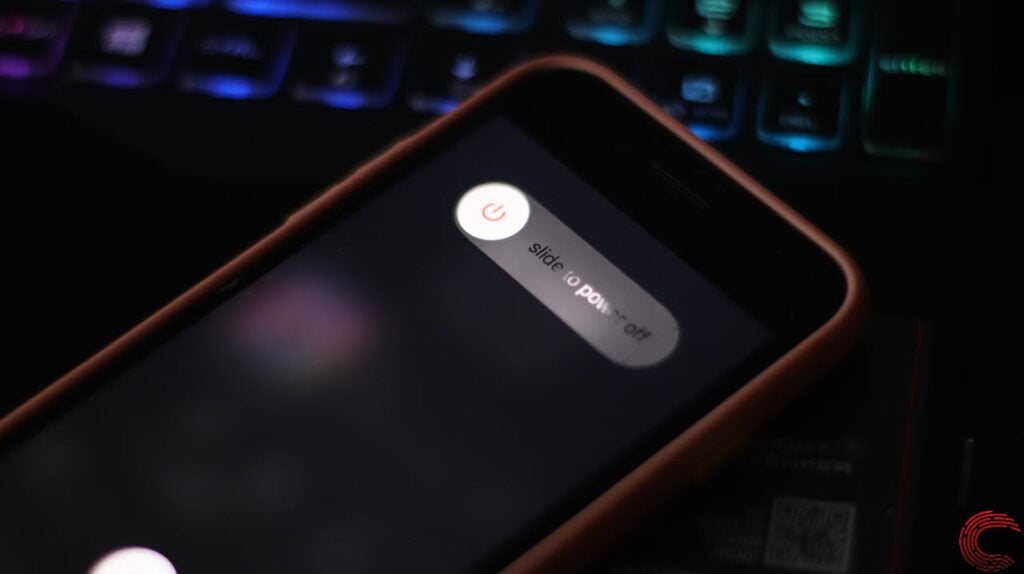
Sometimes, your device may have certain issues, like corrupt RAM. So, you should restart your device if you feel there’s something off with any app, website, or other minor technical issues.
Check Bard’s server status
If the servers of Bard are busy or are having any technical issues, Bard will not work properly.
So, head to any third-party website to assess the server situation of Bard. If there’s an issue, you can’t do anything but wait for the problem to be resolved.
Clear your browser’s cache and cookies
As explained earlier, the cache files accumulate over time and may get corrupt. So, clear your browser’s cache to keep websites like Google Bard running properly.
Follow this article to clear Google Chrome’s cache and cookies
To clear the cache in Microsoft Edge, check out this article
After clearing the cache, check if Bard is working or not. If not, move on to the next steps.
Also read: Pinterest search not working: Quick Fix
Disable your browser extensions
Although extensions make our lives much easier and more productive, they can cause minor glitches and issues like website crashes or lag.
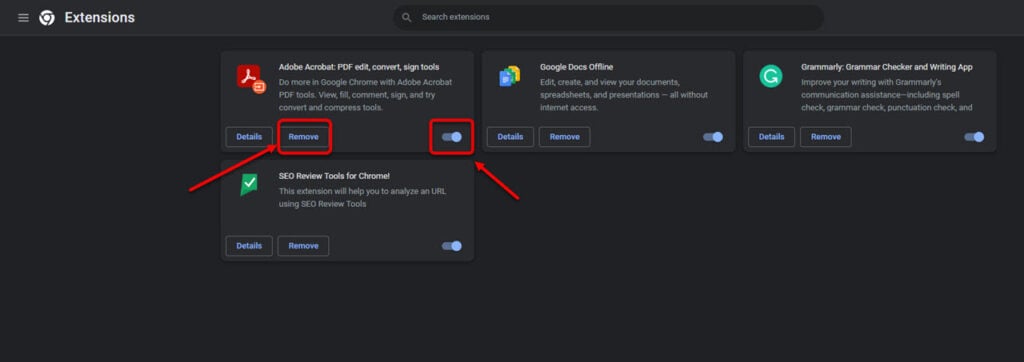
Here are the steps that you should take to disable all extensions on Chrome:
Step 1: Head to the three-dot button and go to More tools > Extensions.

Step 2: Select Remove to completely remove the extension or turn off the toggle to disable the extension.
Update your browser
Companies release regular updates to keep your browser secure and to fix security issues and glitches.
Thus, you should install the updates immediately after the companies release them.
Visit this article to understand how to update Google Chrome

Click the three-dot horizontal button to update Microsoft Edge and head to Help and Feedback> About Microsoft Edge. Edge will automatically check and download the updates.
Also read: Fix: Amazon OTP not working
Fix your internet issues
Another way to troubleshoot Google Bard not working issue is to fix your internet.
Your internet can be down for many reasons, including problems with the hardware, internet outages, too many devices connected to the same network, or some other technical issues.
To fix your internet connection, head to this article
To fix your WiFi wows, navigate to this article
Change your browser
If Google Bard is not working on your current browser, you may want to change your browser and run Bard on another browser.
If it works on another browser, something is wrong with your previous browser. You can then perform browser-related fixes. However, if Bard is not working on another browser, the problem is with your internet or Google’s side.
Change your Google account
If none of the above solutions work, you should change your current Google account and then try again with another one.
Maybe you can work on Google Bard without much hassles with another Google account. If you can, the problem lies with your account, and you should turn on 2FA and change your passwords on your previous account.
Give a detailed prompt
As you already know, Google Bard uses natural language processing and machine learning to present your answers, vague inputs like “write something”, too complex inputs like “write a haiku about the Big Bang”, and inappropriate inputs like “write a hilarious poem about the recent pandemic” may not garner any response from Bard.
So, make your prompt as detailed as you can and also take care that the prompt should be politically correct and should not hurt other’s sentiments.
That’s it. If you face any issues with Google Bard, you can follow the above steps to troubleshoot the issue quickly and easily.
Also read: How to connect ChatGPT to the internet?