
Smaller desktop icons are preferred over large ones as the small icons improve the aesthetics of Windows. Large icons make the desktop look cluttered and confusing.
However, large icons are designed for those who have problems with their eyes or trouble seeing the small icons.
Navigating between the large and small icons is easy and requires only a few clicks.
Method 1: Using the context menu
This is one of the easiest methods to make desktop icons smaller. Just right-click on a space and then hover your mouse over View.

After that, you will see options such as Extra large icons, Large icons, Medium icons, and Small icons, among others.
Click on Small icons to transform the desktop icons to look smaller. You can also click List or Details for extra information about the folders.
Also read: Windows Network and Sharing Center explained
Method 2: Using keyboard shortcuts
Another way to make your desktop icons smaller is by using the following keyboard shortcuts:
- Ctrl + Shift + 1: For extra large icons
- Ctrl + Shift + 2: For large icons
- Ctrl + Shift + 3: For medium icons
- Ctrl + Shift + 4: For small icons
You can look at the screenshot in Method 1 for additional knowledge of the shortcuts. To make the icons smaller, press Ctrl + Shift + 4.
Method 3: Using the scroll wheel
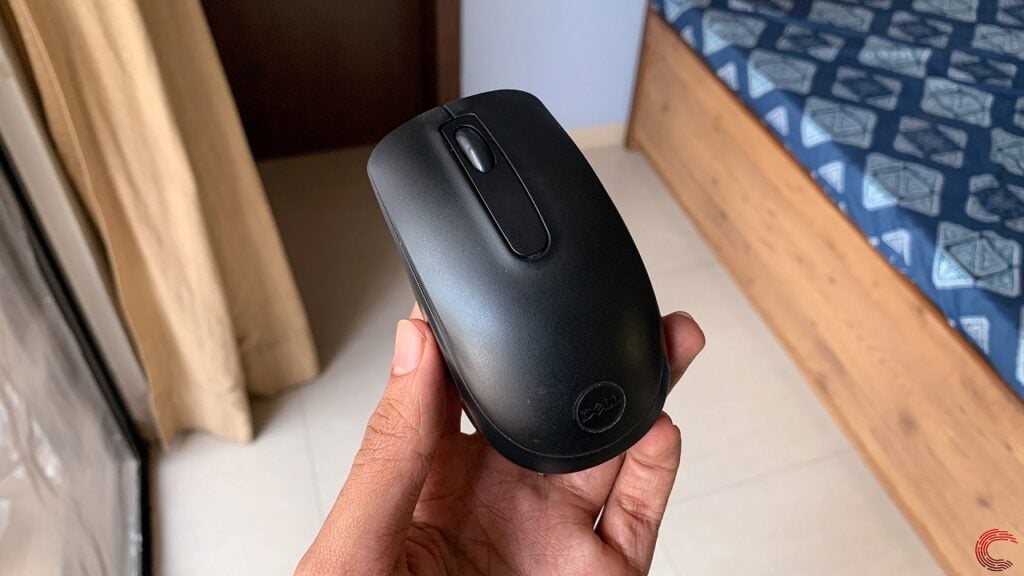
The third way to increase or decrease the size of your desktop icons is by scrolling the mouse.
First, select all the icons by pressing Ctrl + A. Then press Ctrl and scroll the mouse to resize the icons. If you scroll up, the icon size will increase, and if you scroll down, it will decrease.
Also read: What is Power Automate in Windows 11?
Method 4: Change the display resolution
Sometimes, changing the display resolution can also help in resizing the icons. Although this is not a recommended method, still you can try it to see if it works.
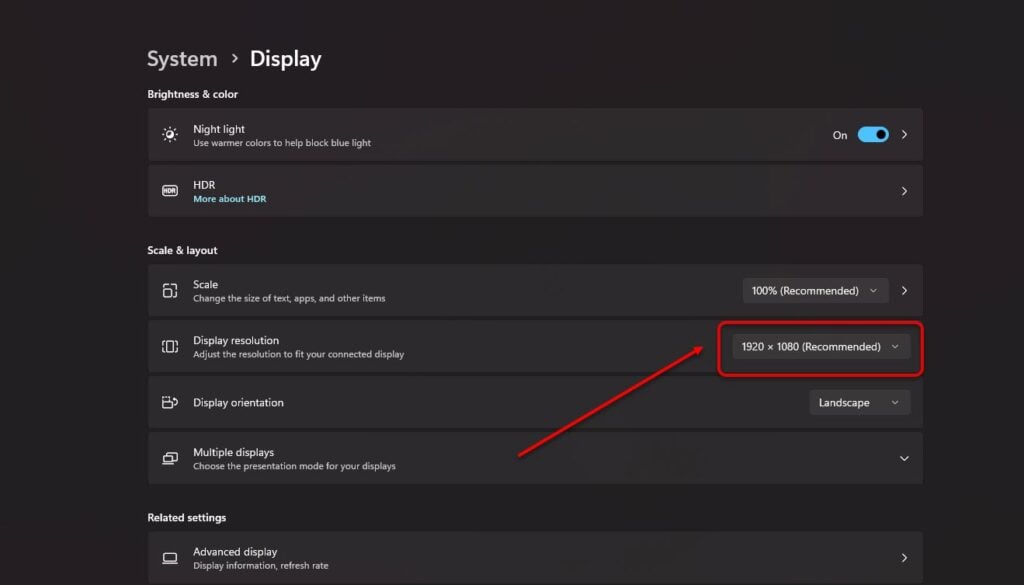
Step 1: Search Display Settings in the taskbar search menu.

Step 2: Head to Display Resolution and select the highest resolution your monitor can support.
Method 5: Use Windows Registry
Finally, you can use the Windows Registry Editor to make desktop icons smaller. This method can be technical, but you can try it for fun.
Step 1: Open Windows Registry Editor by searching for it in the taskbar search bar, pressing the Windows key + R, and typing regedit.

Step 2: After that, paste the following address in the address bar and press Enter: Computer\HKEY_CURRENT_USER\Software\Microsoft\Windows\Shell\Bags\1\Desktop

Step 3: Now, double-click on IconSize and then click on Decimal. Next, enter a smaller number than what is displayed on your screen. For example, on my screen, I can see the number 48 displayed. So, to make the icons smaller, I will have to enter a number less than 48 and vice versa.

Using the five methods above, you can easily make the desktop icons smaller and customise your Windows 10 or 11 as your preference.
Also read: How to export highlights from Kindle?


