
Power Automate, formerly known as Power Automate Desktop, is an app that automates repetitive tasks on Windows 11, thereby saving time for users.
You can access Power Automate from the Start menu and then click on Power Automate. Using this app, you can automate actions in File Manager, Folders, Browsers, Excel, Email, Outlook, Mouse and keyboard, among others.
You can leverage Power Automate for:
- Swiftly organising your documents through specialise file and folder actions.
- Precisely extracting data or taking screenshots from websites and storing it in Excel files using Web or Excel automation.
- Harnessing desktop automation features to put your tasks on autopilot.
Power Automate offers many options for various workflows and is a must for power users.
In this article, we’ll discuss how you can operate Power Automate in Windows 11. But before that, let us understand the minimum system requirement for Power Automate.
System requirements for Power Automate
According to Microsoft, these are the minimum system requirements for Power Automate:
- Processor: Your PC should have a minimum of two cores with a 1.60 GHz processor.
- Storage: 2 GB (1 GB minimum)
- RAM: 4 GB (2 GB minimum)
You should also have a .NET Framework, and GPU acceleration should be enabled.
Also read: Do I need McAfee with Windows 11?
How to automate tasks using Power Automate in Windows 11?
Now that you have understood the basic idea of the Power Automate app and the minimum system requirements to run it, let us understand how to use this app to automate processes.
Step 1: Launch Power Automate by searching for the app in the taskbar search bar.
Step 2: Next, click on the New Flow tab at the top right of the screen.

Step 3: Assign a name to the task and then click on Create. If you do not provide a flow name, you will see the flow as Untitled.

Step 4: Double-click on the flow and select the task from the left panel.

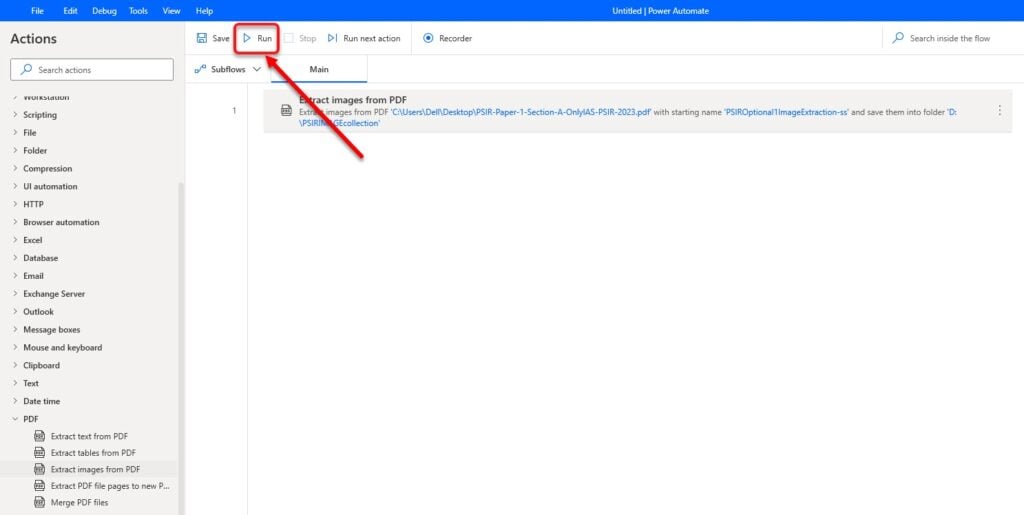
Step 5: For example, I will try to extract images from a PDF. I headed to PDF and then double-clicked on Extract images from PDF to do that.

Step 6: Next, upload the PDF file, mention the page range, input the name of the images, and then select the destination folder. When you’re done, click on Save.

Step 7: After saving the workflow, click Run to perform the process live.
Here’s what the destination folder looked like after I clicked on Run:

As you can see from the above screenshot, all the pictures from the PDF have been extracted to this folder. A time saver indeed.
You can also record your process. Click on the Recorder button at the top and open the Recorder. Press the Record button again and perform the actions exactly as you want the Power Automate to mimic later. After you’re done, press Save and then Run.
Also read: How to remove Bing from Windows 11?
Limitations of Power Automate
Power Automate is an awesome tool, especially for office workers who do repeated tasks.
But this tool has its limitations:
- Constant access to the internet.
- Not for normal users who use their computers for regular use.
- The number of actions for a single flow is limited to 10,000, which is a huge number for most of us.
In conclusion, Power Automate is one of the most useful tools in Windows 11. Use it to increase productivity, save time, and remain ahead of competitors.
Also read: How to clear clipboard in Windows 11?


