You might need to repair the League of Legends client if there are any issues. Like most software, the LOL client might malfunction or stop working due to bugs or other issues.
Repairing the client is quite easy, and it only takes a few clicks. You can watch the YouTube video or continue reading the article below:

In this article, we’ll delve into how you can repair your LOL client easily. We will also provide a few other ways to fix issues with the client.
How to repair League of Legends client?
To easily repair the League of Legends client, follow the steps given below:
Step 1: Open the League of Legends client and then click on the profile option at the top right of the screen. From the drop-down menu, select Settings.
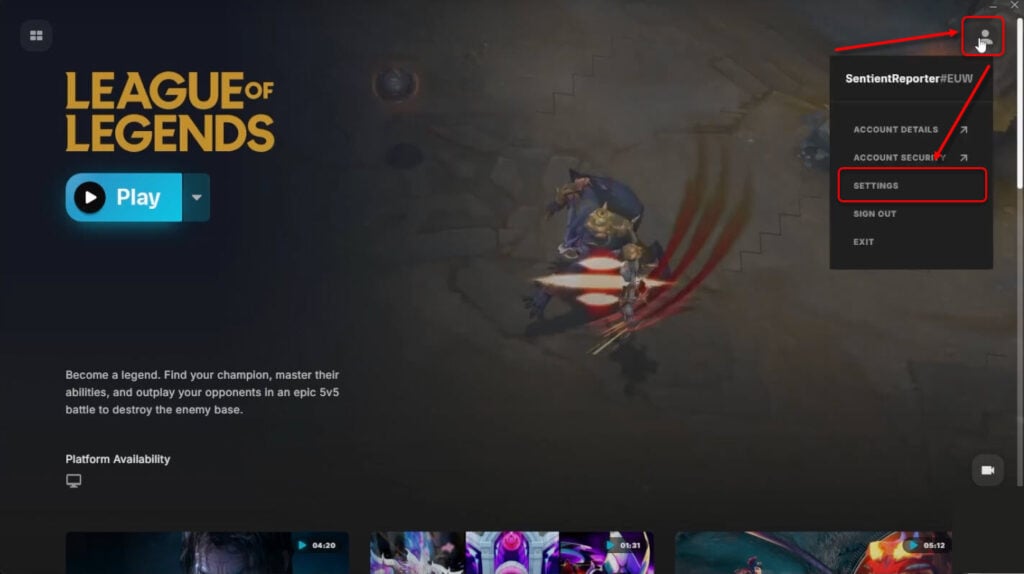
Step 2: Next, select the League of Legends heading from the left panel and then click on Repair. The client will check if your game is up to date. If it is, the client will inform you that no repair is needed. In cases where a repair is necessary, the client will intitate the repair process automatically

If your League of Legends client is up-to-date and still not working, you can follow the section below for more advice.
Also read: How to Save Replay in League of Legends?
Additional tips for troubleshooting common issues
If your League of Legends client is up to date but you are still experiencing issues, consider the following additional troubleshooting tips:
Reinstalling League of Legends
Sometimes, a complete reinstallation of the game can resolve persistent issues. Uninstall the current version of LOL from your computer and download the latest version from the official website.

Press the Windows key + I to open Settings and then head to Apps. After that, scroll down and locate League of Legends, press the three-dot icon in front of the app, and then select Uninstall.
Next, head to riotgames.com to download a fresh copy of League of Legends.
Updating your systems and drivers
Ensure that your operating system and graphics drivers are up to date. Outdated drivers or the operating system can cause compatibility issues with the game.
To update your Nvidia graphics card drivers, head to our detailed article on the topic.
To update your Windows operating system, head to our detailed article on the process.
Check for software conflicts
Sometimes, certain software such as antivirus, VPNs, or firewall can affect your League of Legends gameplay or client. So, to run the client or the game smoothly, you should disable these software temporarily and launch the game. If it works perfectly, well and good, otherwise keep on doing so with other software as well.
Head to our article on how to disable Windows Security to understand the steps.
Similarly, head to our article on how to disable Windows Firewall.
Clear the game cache

Corrupted cache files can also cause issues with LOL clients or games. To clear the cache, navigate to the game’s installation directory and head to Logs > LeagueClient Logs. Here, delete all the files to clear LOL’s cache.
Monitor server status
Sometimes, the issue may not be on your end but rather with the game servers. Head to status.riotgames.com to check the servers. If there’s any problem, the company will notify you here.
If you’re experiencing issues with your League of Legends client, use the built-in repair tool. After repairing, the client should work properly. If the issue persists, you can try other tips we’ve provided to fix the problem and get back to the battlefield.
Also read: How to change region in League of Legends?