There are days when we want to hide and then days when we seldom care. So whether you are looking for solutions to an imaginary or a real problem, your browser history and cookies always track your temporary layovers. While one can always shift to private browsing on Apple’s web browser, Safari, to avoid your history from being recorded, oftentimes, we want to visit certain web pages to pick up from where we left off.
Here, we’ll guide you in an uncomplicated manner on how to leave the private browsing mode on Safari. Ultimately, this short guide on switching back to private browsing should help you keep your iPad browser history private.
Also read: Is it worth replacing your iPad’s battery?
2 ways to turn off Private Browsing on iPad
It is entirely up to you to keep your past, we mean, history alive by switching out of private browsing on your iPad. However, let us warn you that some sites can track your search patterns and show you advertisements according to your search preferences.
Since you are currently in the Private Browsing mode of Safari, you can turn off private browsing on your iPad by following the steps given in the two options below:
Option 1: Options Icon
Step 1: Tap on the Safari icon on your iPad home screen. In the top-left corner of your screen, you will find a tiny rectangular icon showing options.

Step 2: Now, tap on the Start Page option or the option above the Private option, which might also display the number of inactive non-private tabs (For example, 1 Tab or 2 Tabs).

This way, you can easily switch from private to regular browsing. Your history will be visible in the History option, which will be in the same options list when you tap on the rectangular icon at the top-left corner of your iPad screen.

Option 2: Tabs Icon
Step 1: You can also tap once on the two overlapping square boxes, the Tabs option, in the top-right corner of your Safari browser.
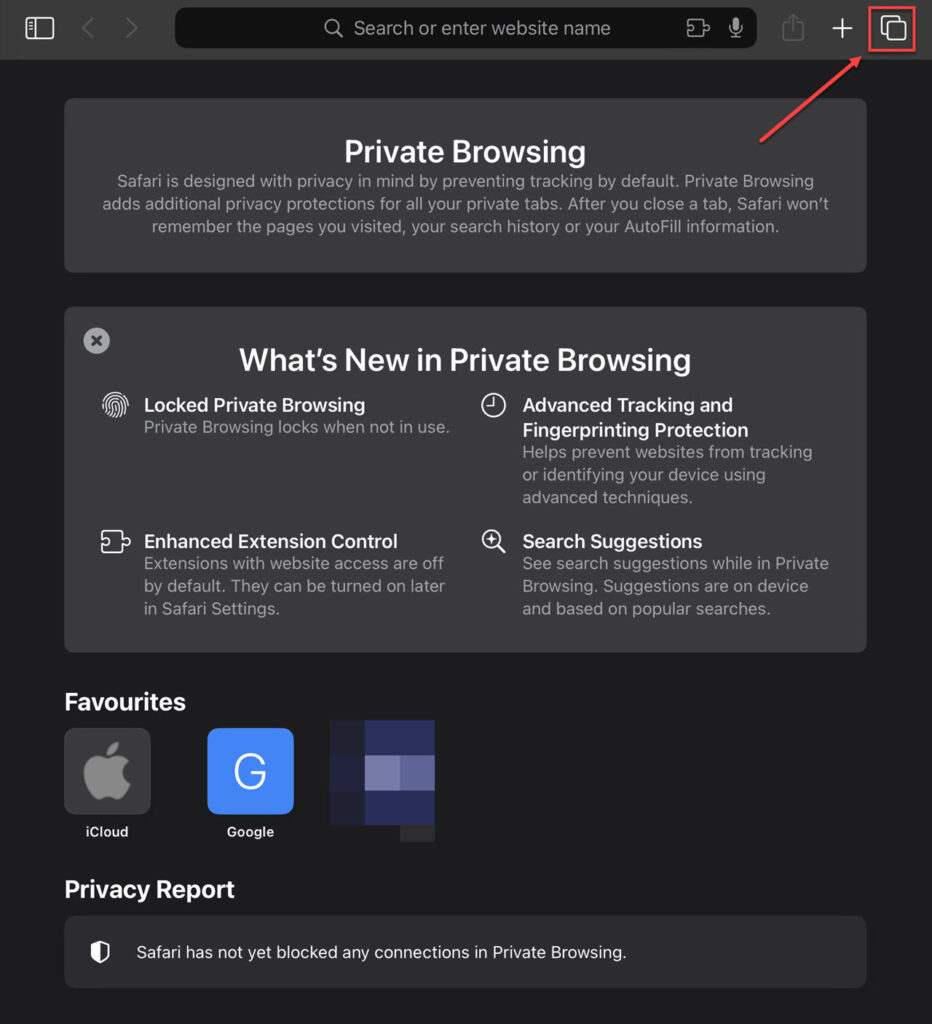
Step 2: Tap on the Private option and change it to the Start Page option — above the Private option.

Also read: How to keep your iPad’s screen on?
How to turn on Private Browsing on iPad?
Despite being on Private Browsing, you or anyone else can view your current search topics just as you would on regular tabs. You will see various options when you tap once on the options icon in the top-left corner of your iPad screen.
You can notice a downward-facing arrow next to the Start Page/ (number) Tabs and Private options. When you tap once on this arrow, you can view your searched topics. This also helps you rapidly switch from one tab to another with ease.

You can switch back to Private Browsing by following the steps given below:
Option 1: Tap once on the Options icon at the top-left corner, then tap on the Private option.

Option 2: You can also open a new private tab or window by long-pressing on the Tabs icon shown as the two overlapping squares icon in the top-right browser of your Safari web browser.

Also read: How much does Apple iPad weigh?